
.svg)
.svg)
OPENTRAIN AI DOCUMENTATION
Posting jobs
Create and publish an employer job with the guided wizard, AI autofill, screening requirements, budget, and final review.
Posting a job is the first step in the employer workflow. The wizard turns a job description into structured requirements that OpenTrain can use for matching, screening, proposal review, and hiring.
Start from the employer dashboard
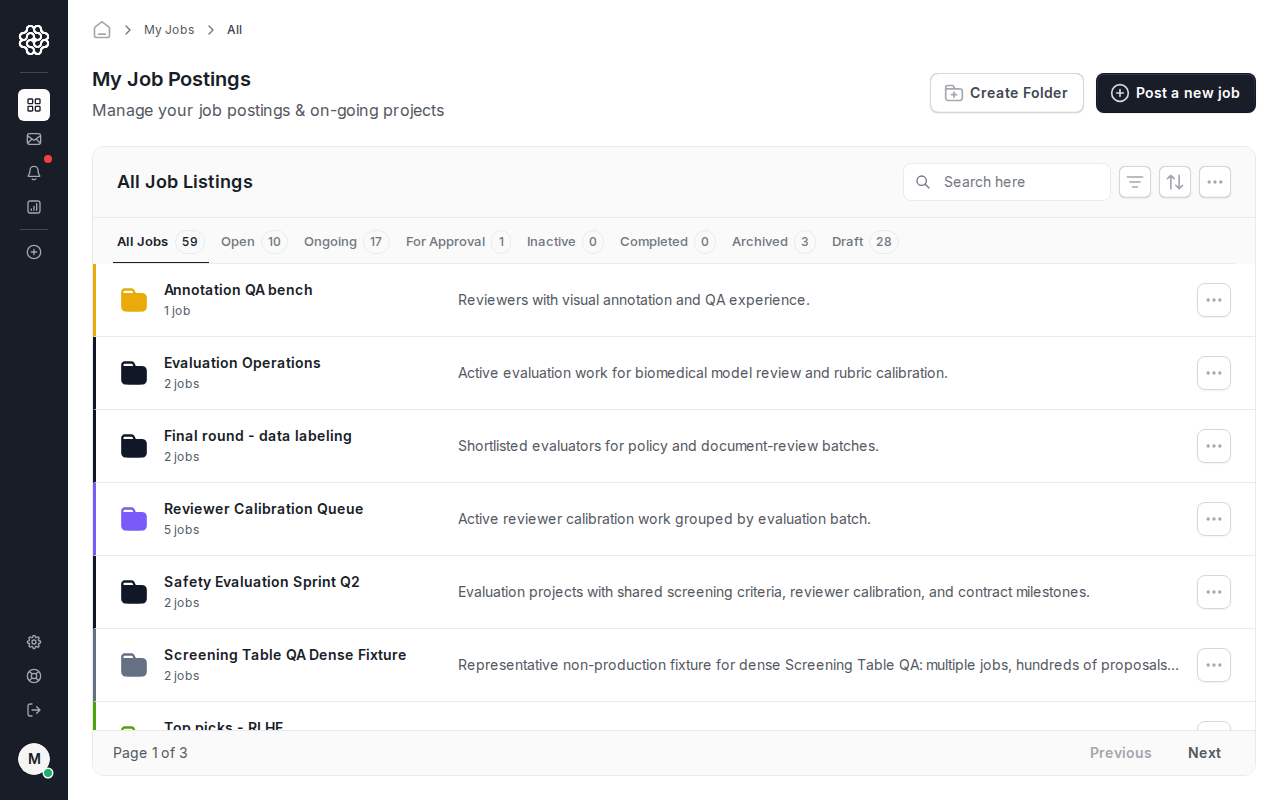
Section titled “Start from the employer dashboard”From My Jobs, click Post a new job.
Add a title and job description
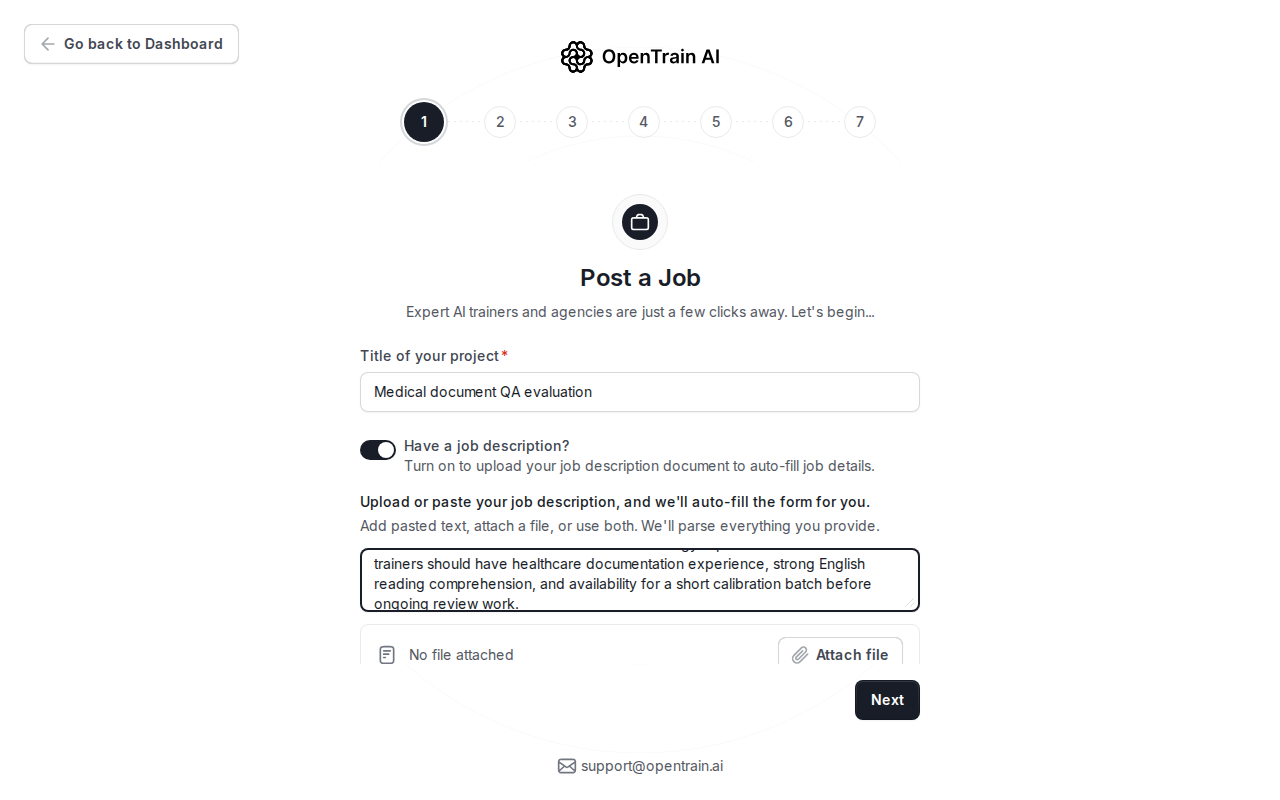
Section titled “Add a title and job description”Step 1 asks for the job title. If you already have a job description, turn on Have a job description? and paste the text or attach a PDF. OpenTrain uses this content to pre-fill later wizard fields.
Review the structured job details
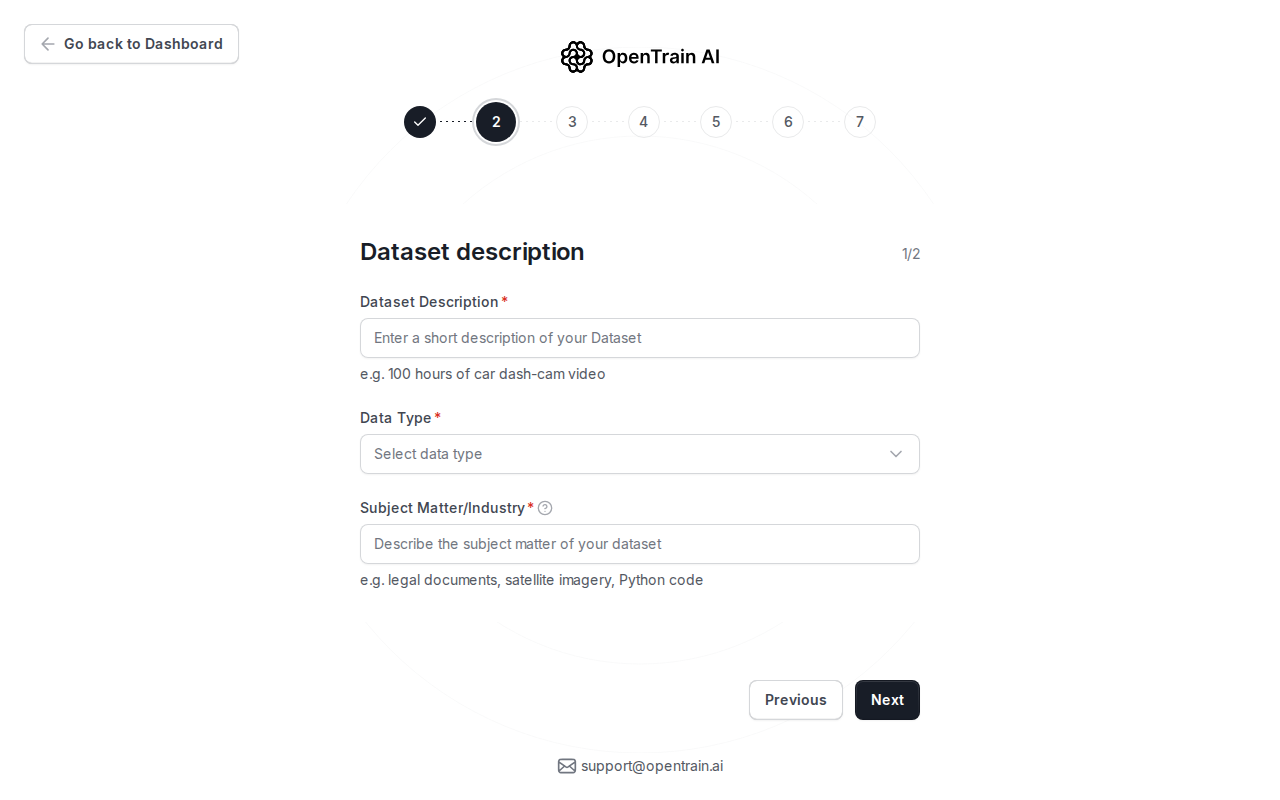
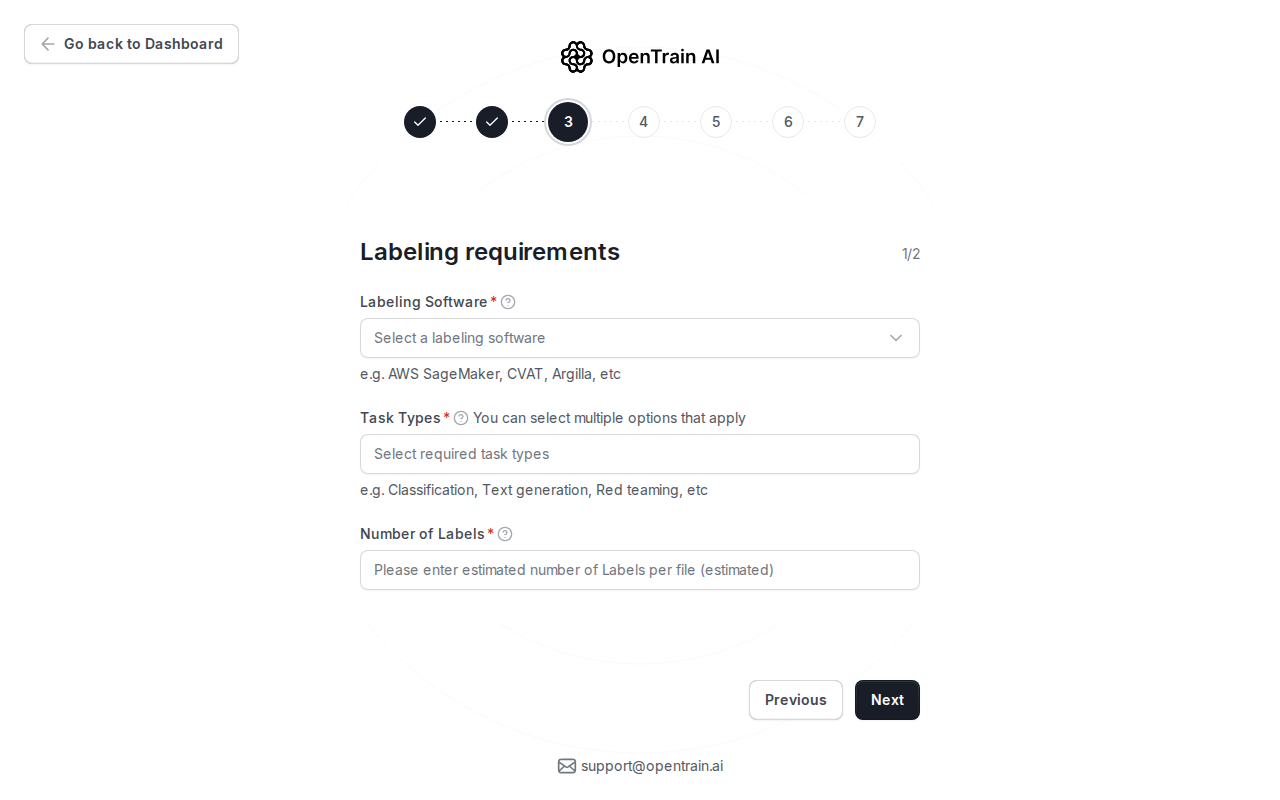
Section titled “Review the structured job details”The next steps convert the job description into structured fields. Review each section before publishing.
Configure screening
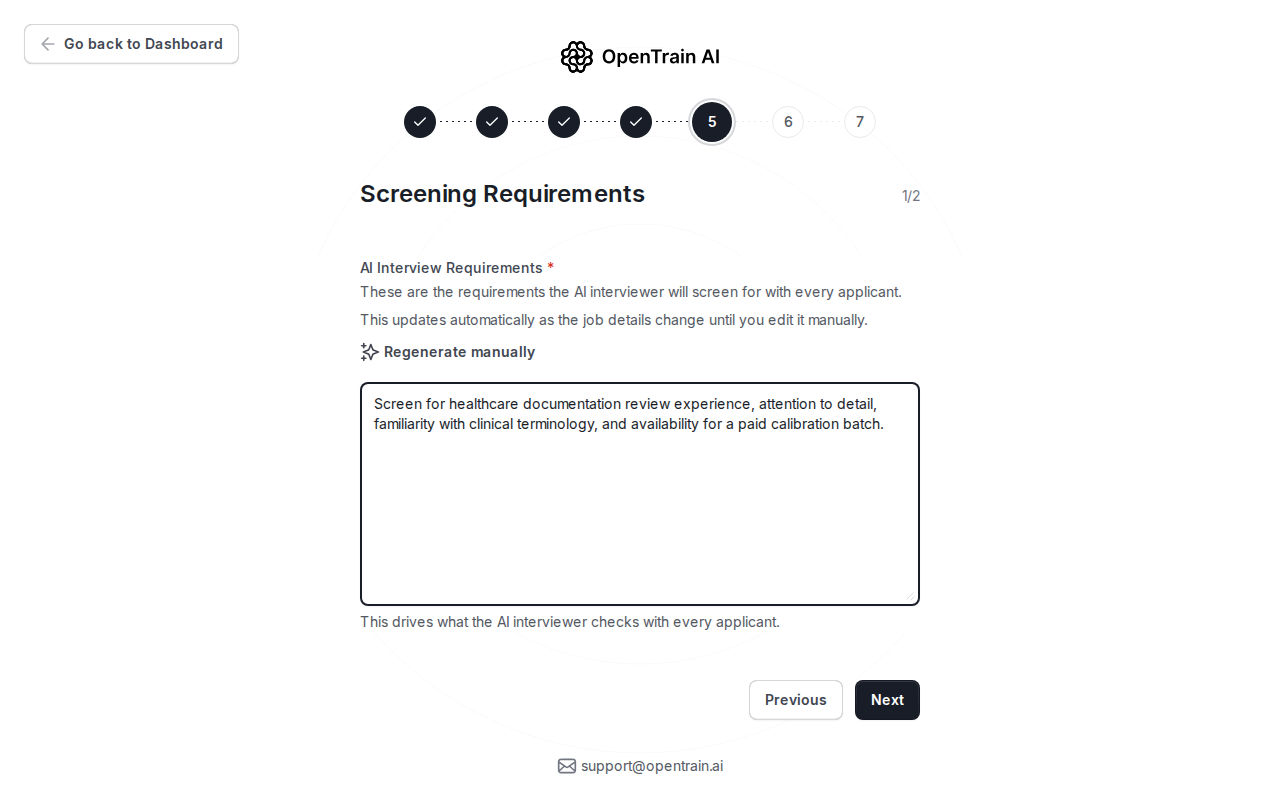
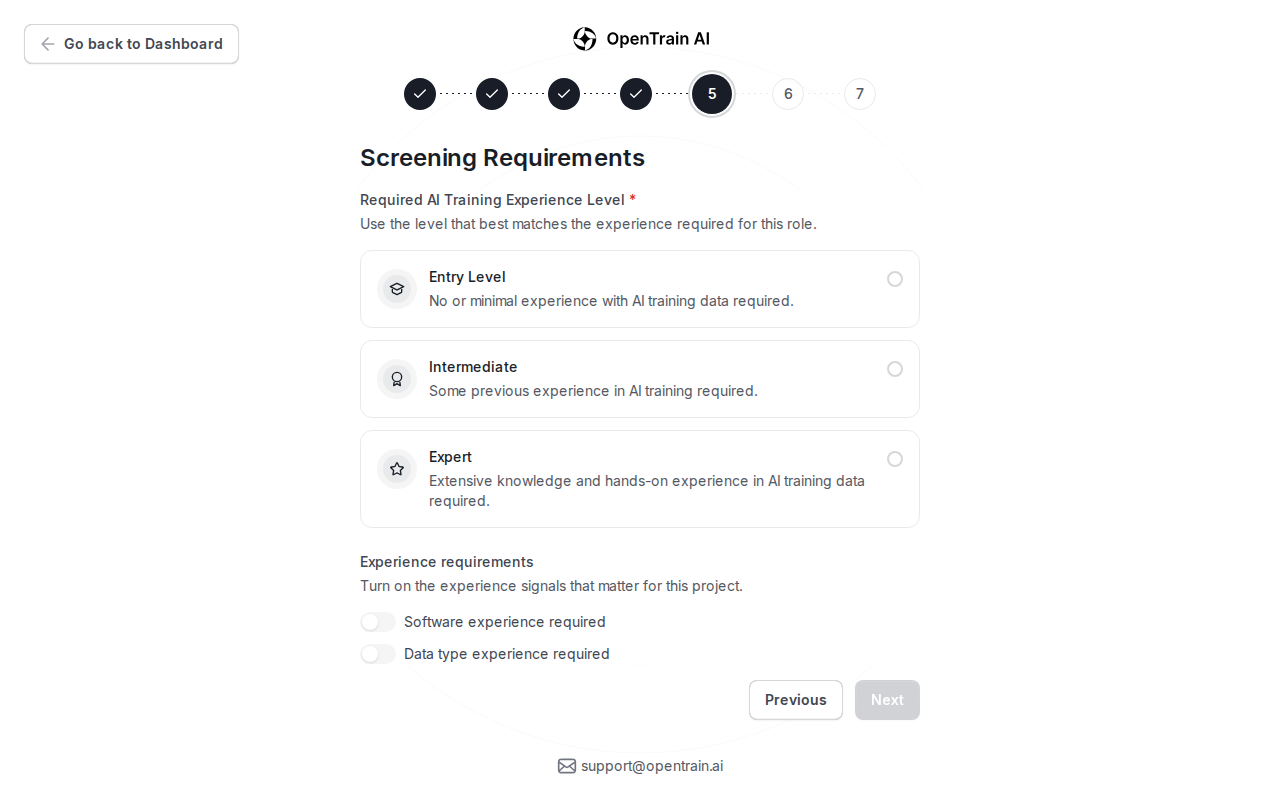
Section titled “Configure screening”Step 5 controls how applicants are screened before proposals reach you. Write the AI interview requirements, choose the required experience level, and turn on the screening signals that matter for the job.
Set budget and review before publishing
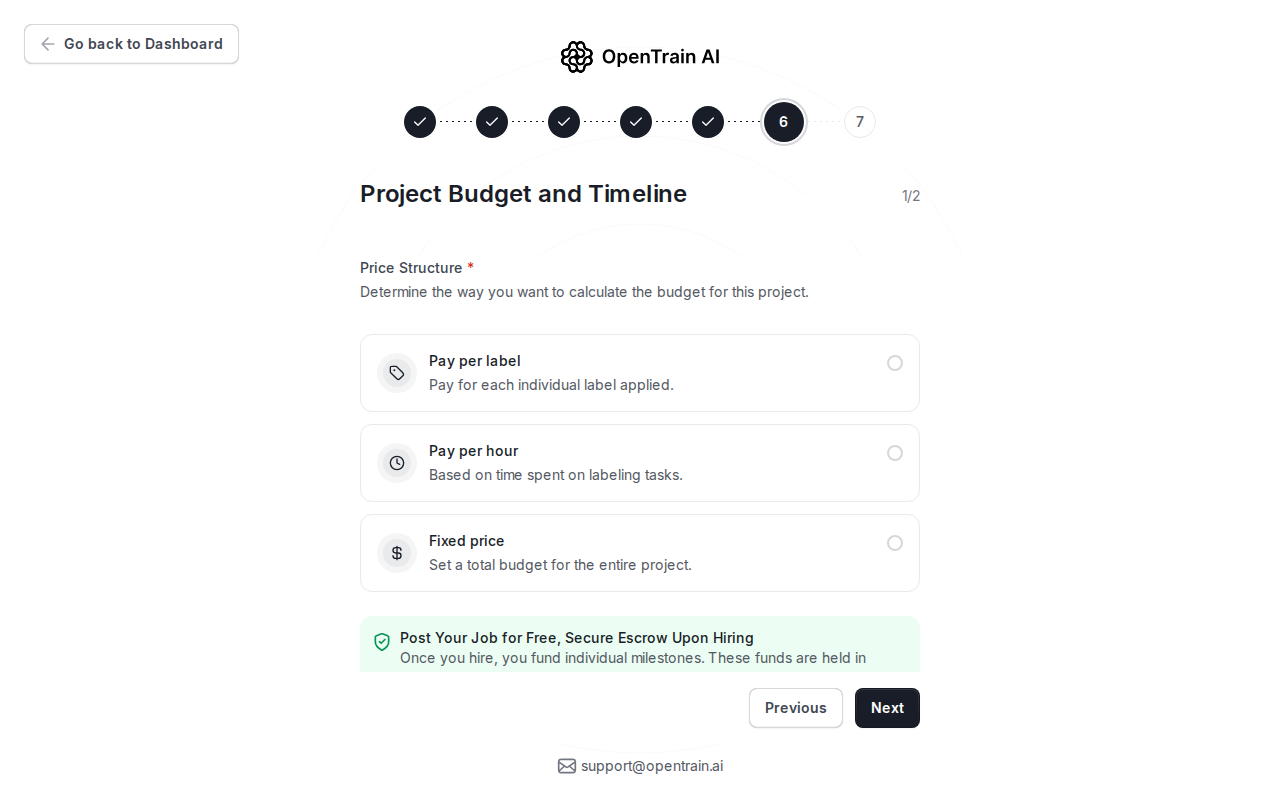
Section titled “Set budget and review before publishing”Step 6 sets the payment model. You can choose pay per label, pay per hour, or fixed price. You do not fund the project when you post; funding happens when you hire and create the first milestone.
Step 7 is the final review. Check each section, edit anything that needs correction, and publish when the job is ready.
When you publish, OpenTrain validates the job, saves the final posting, and notifies matched AI trainers who fit the requirements.