> ## Documentation Index
> Fetch the complete documentation index at: https://opentrain.ai/docs/llms.txt
> Use this file to discover all available pages before exploring further.
# Posting jobs
> Create and publish an employer job with the guided wizard, AI autofill, screening requirements, budget, and final review.
Posting a job is the first step in the employer workflow. The wizard turns a job description into structured requirements that OpenTrain can use for matching, screening, proposal review, and hiring.
## Start from the employer dashboard
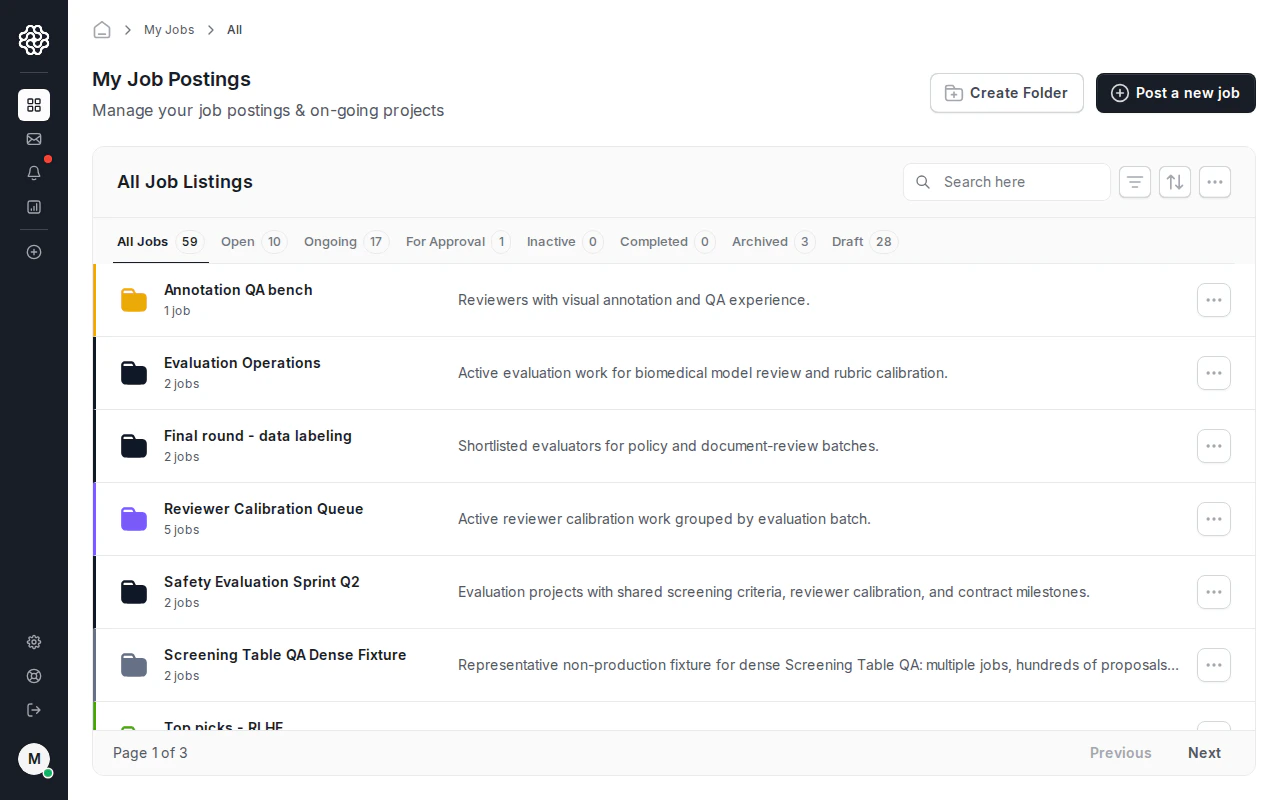
From **My Jobs**, click **Post a new job**.
 ## Add a title and job description
Step 1 asks for the job title. If you already have a job description, turn on **Have a job description?** and paste the text or attach a PDF. OpenTrain uses this content to pre-fill later wizard fields.
## Add a title and job description
Step 1 asks for the job title. If you already have a job description, turn on **Have a job description?** and paste the text or attach a PDF. OpenTrain uses this content to pre-fill later wizard fields.
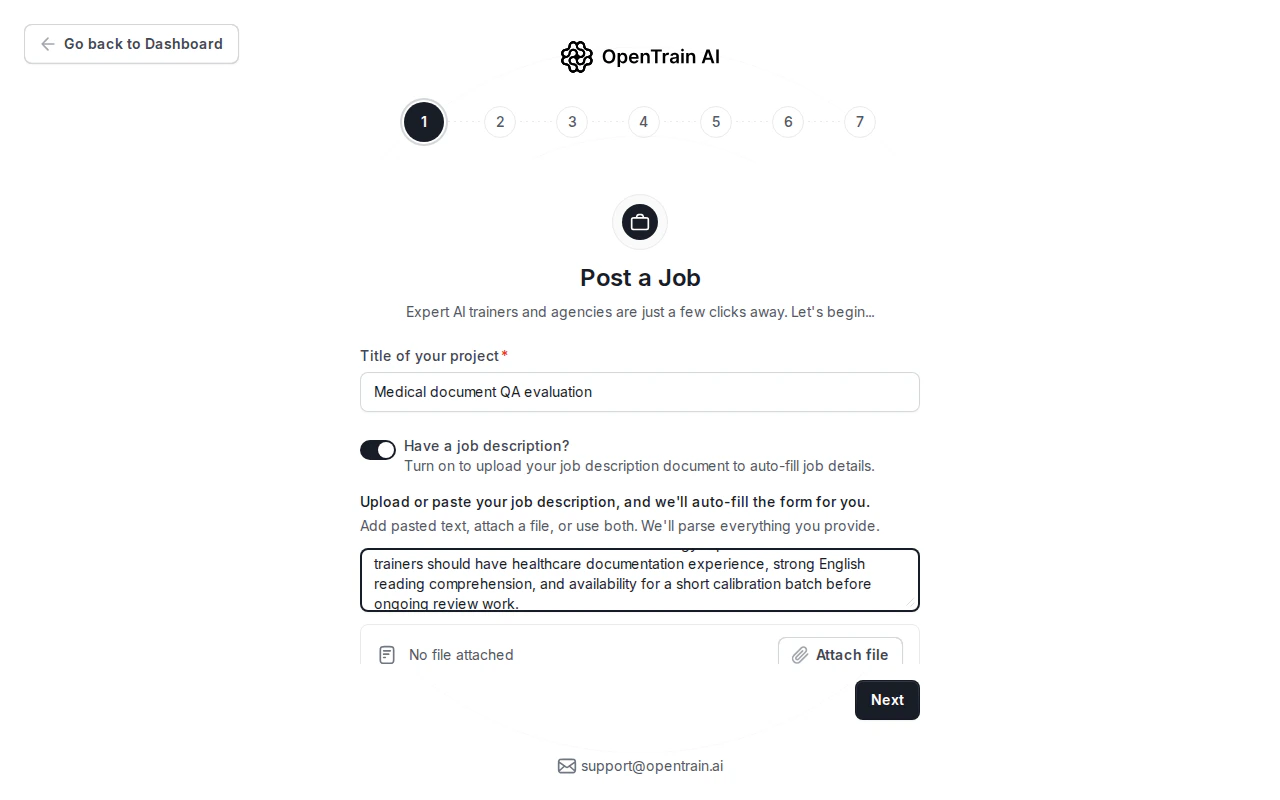 Autofill works best when your description includes the work type, data format, required experience, location or language constraints, expected volume, and budget model.
## Review the structured job details
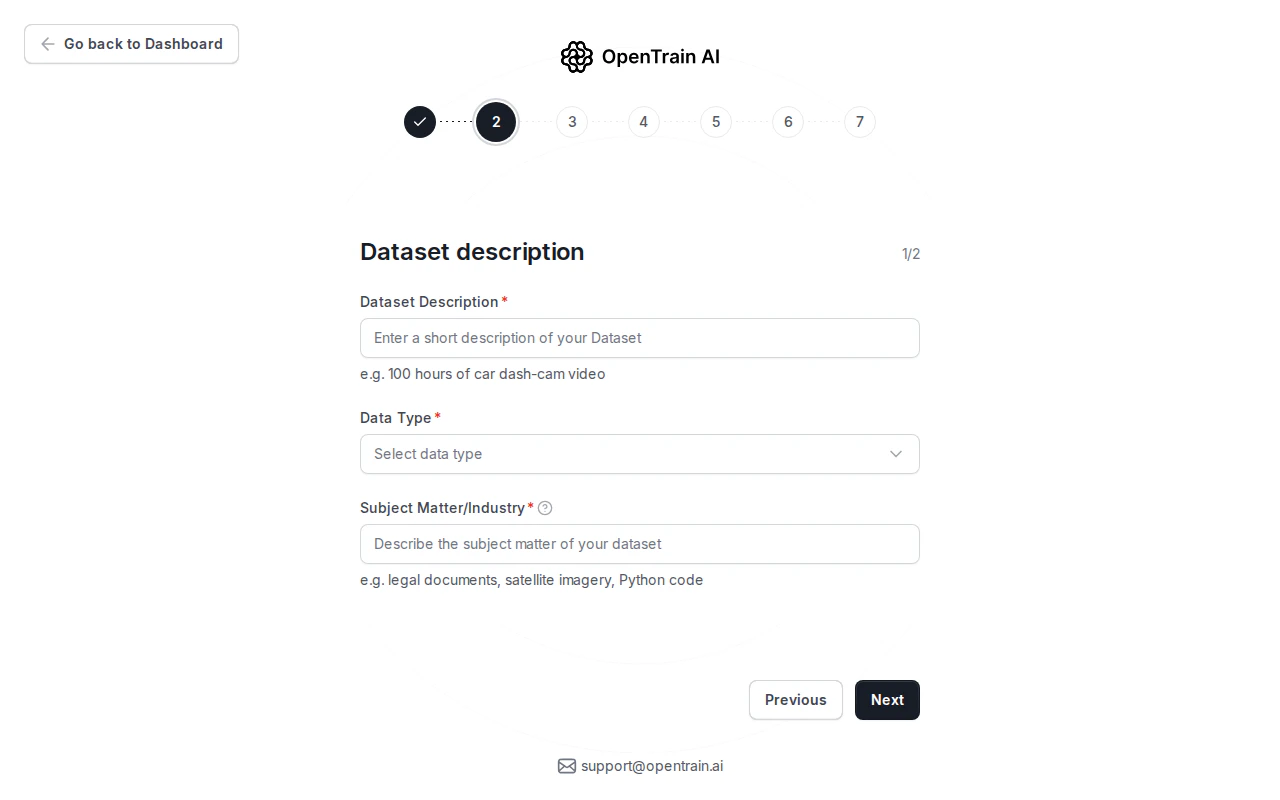
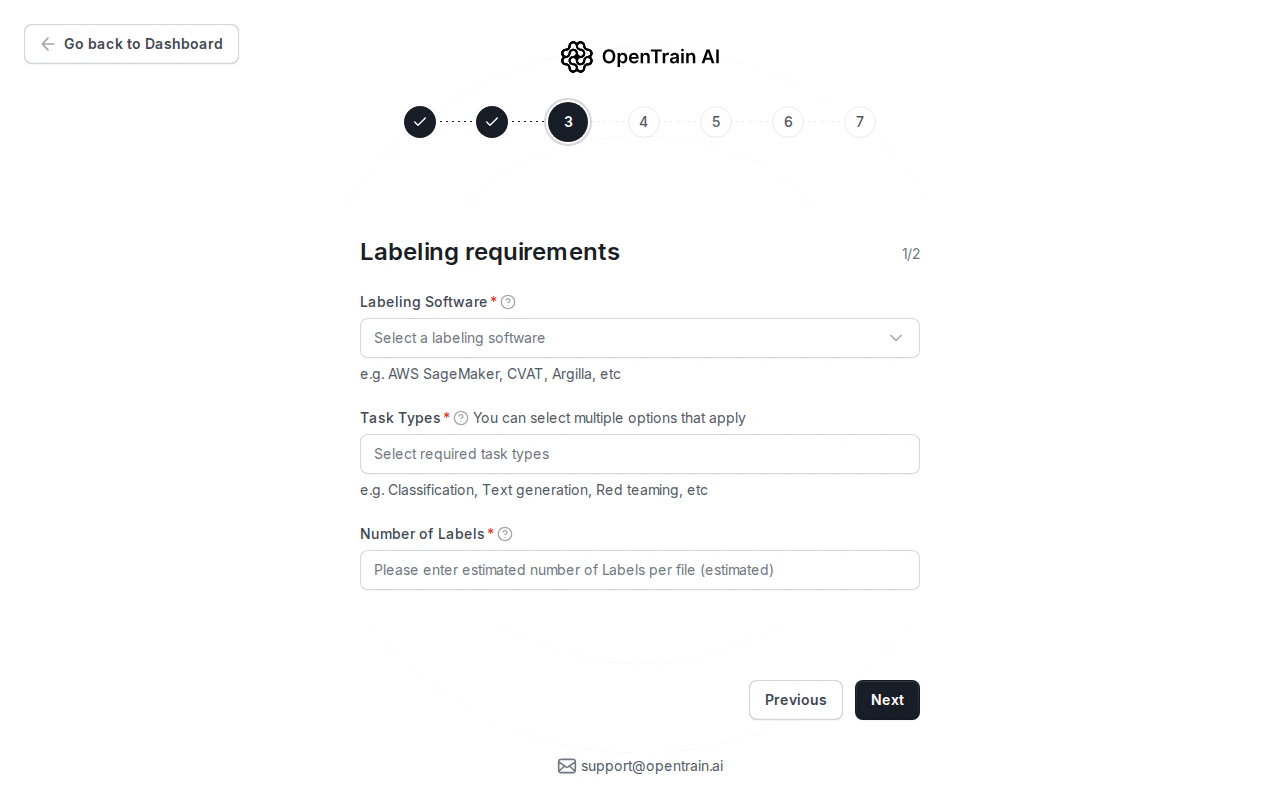
The next steps convert the job description into structured fields. Review each section before publishing.
Autofill works best when your description includes the work type, data format, required experience, location or language constraints, expected volume, and budget model.
## Review the structured job details
The next steps convert the job description into structured fields. Review each section before publishing.
 ## Configure screening
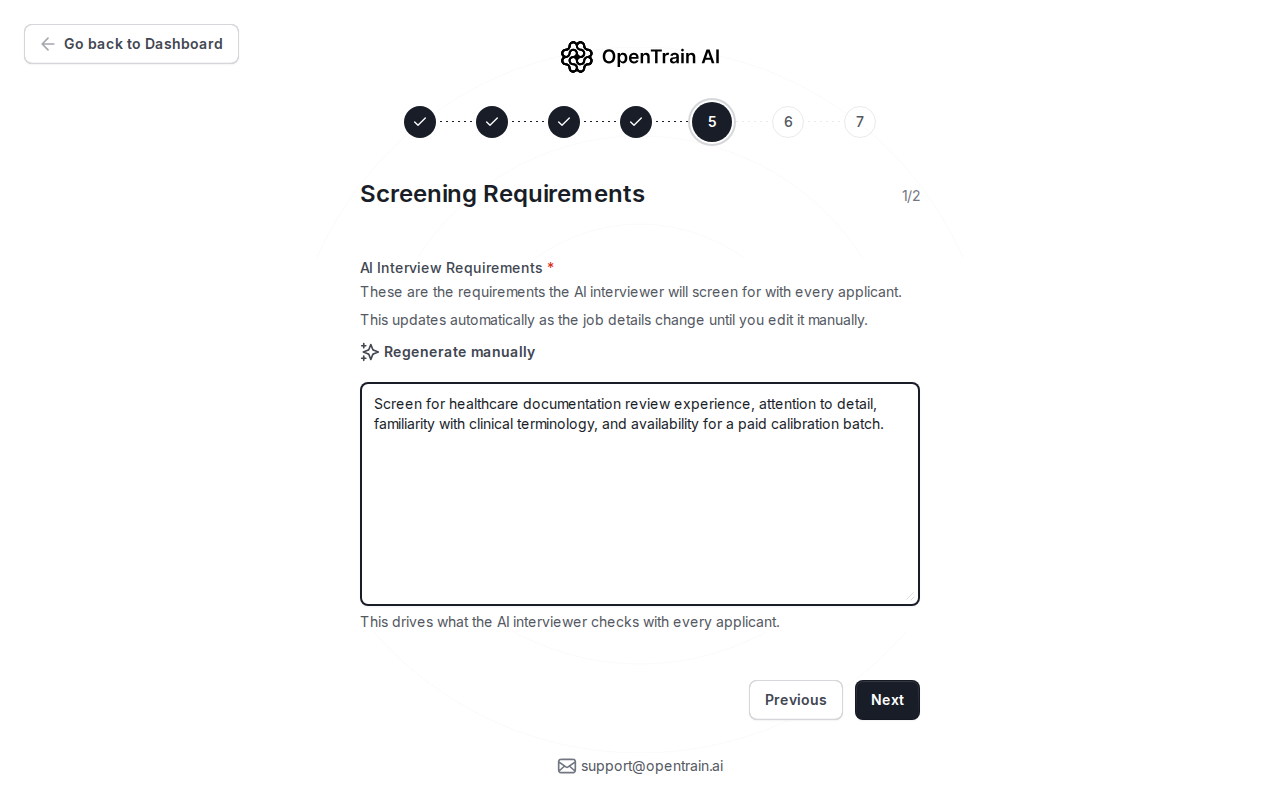
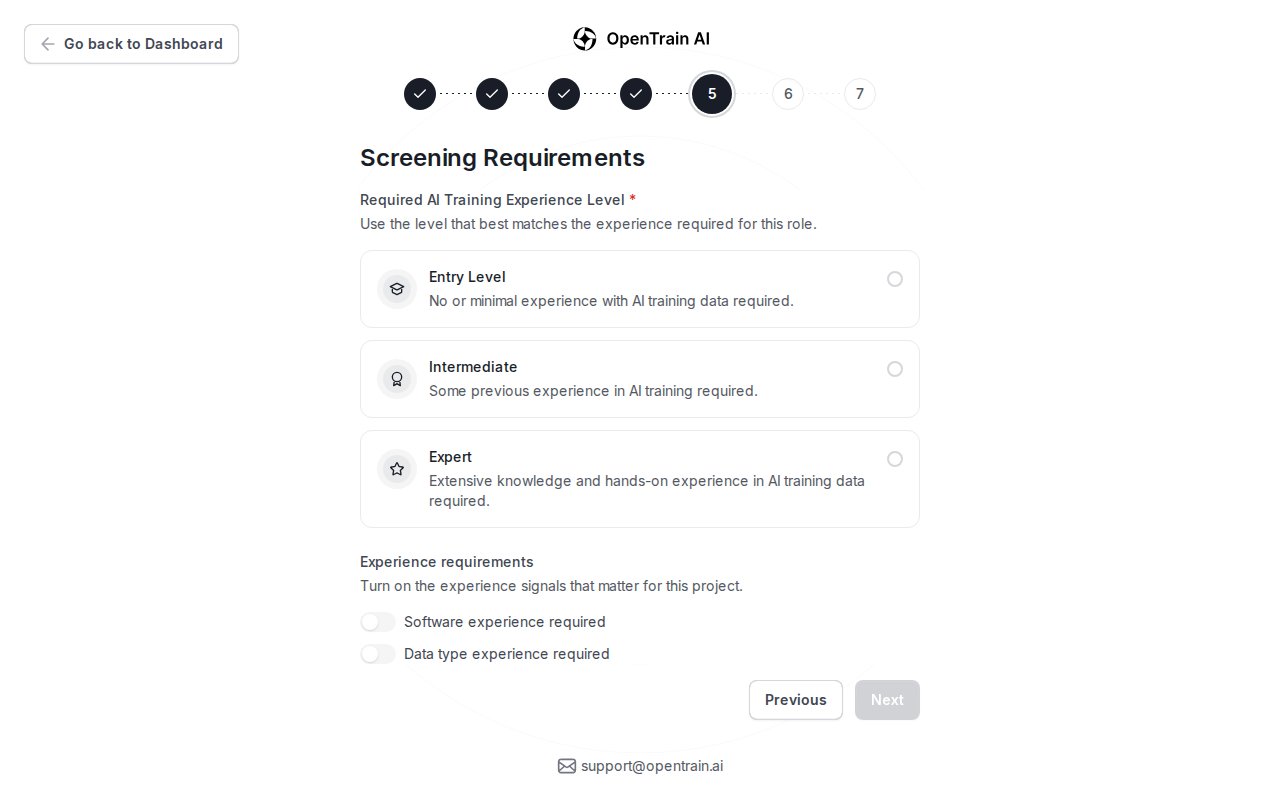
Step 5 controls how applicants are screened before proposals reach you. Write the AI interview requirements, choose the required experience level, and turn on the screening signals that matter for the job.
## Configure screening
Step 5 controls how applicants are screened before proposals reach you. Write the AI interview requirements, choose the required experience level, and turn on the screening signals that matter for the job.
 ## Set budget and review before publishing
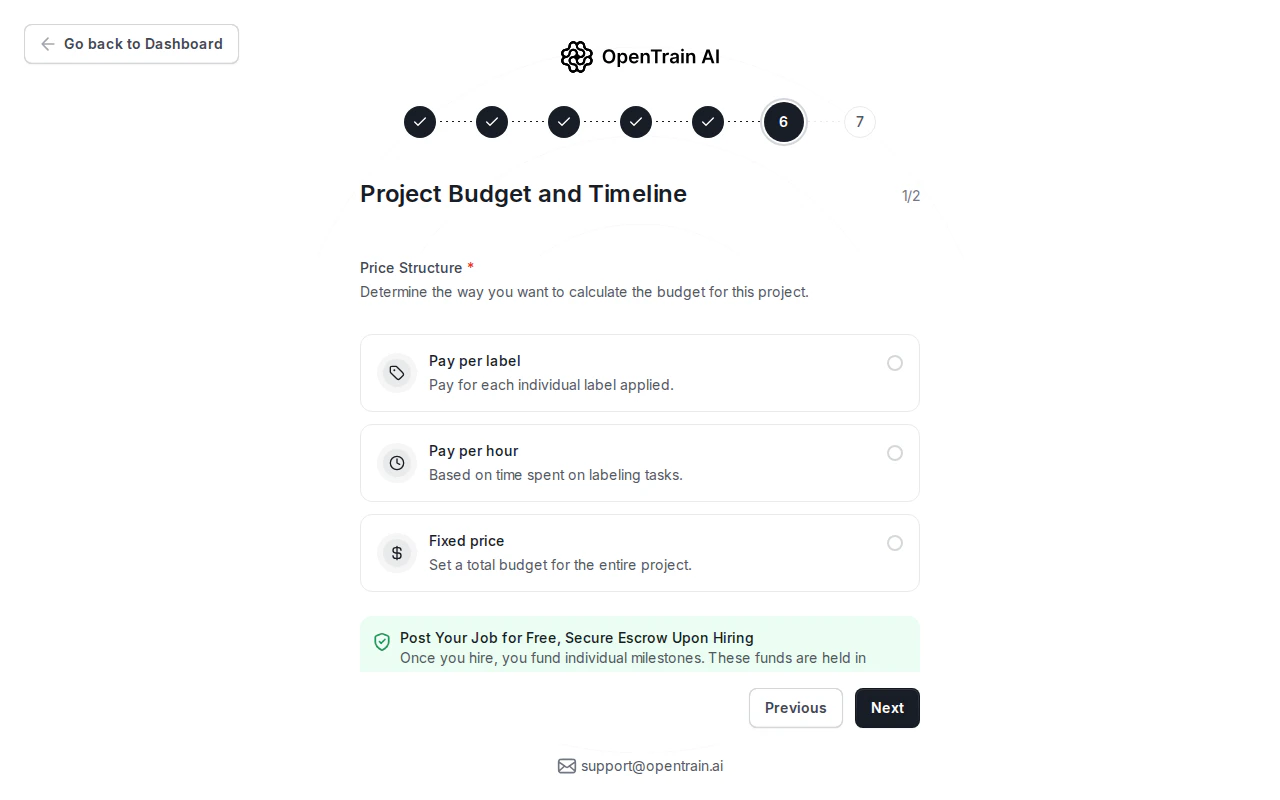
Step 6 sets the payment model. You can choose pay per label, pay per hour, or fixed price. You do not fund the project when you post; funding happens when you hire and create the first milestone.
## Set budget and review before publishing
Step 6 sets the payment model. You can choose pay per label, pay per hour, or fixed price. You do not fund the project when you post; funding happens when you hire and create the first milestone.
 Step 7 is the final review. Check each section, edit anything that needs correction, and publish when the job is ready.
When you publish, OpenTrain validates the job, saves the final posting, and notifies matched AI trainers who fit the requirements.
Step 7 is the final review. Check each section, edit anything that needs correction, and publish when the job is ready.
When you publish, OpenTrain validates the job, saves the final posting, and notifies matched AI trainers who fit the requirements.