.svg)
.svg)
OPENTRAIN AI DOCUMENTATION
Share projects with teammates
Give teammates access to a job or folder from the employer dashboard.
Use project sharing when another teammate needs to help review candidates, manage a job, or work from a shared folder. You can share a standalone job or a folder from its detail page.
Before you start
Section titled “Before you start”Your teammate must already belong to your OpenTrain AI organization. If they are not listed in the sharing modal, ask an organization owner to add them from Set up your employer team first.
Project sharing is available to employer accounts that already have access to the job or folder. Owners always keep access. Existing non-owner employer team members can share or manage project access only for jobs and folders they can already open. Only organization owners can add new people to the organization.
Share a job or folder
Section titled “Share a job or folder”Open the project
From My Jobs, open the job or folder you want to share.

Open sharing
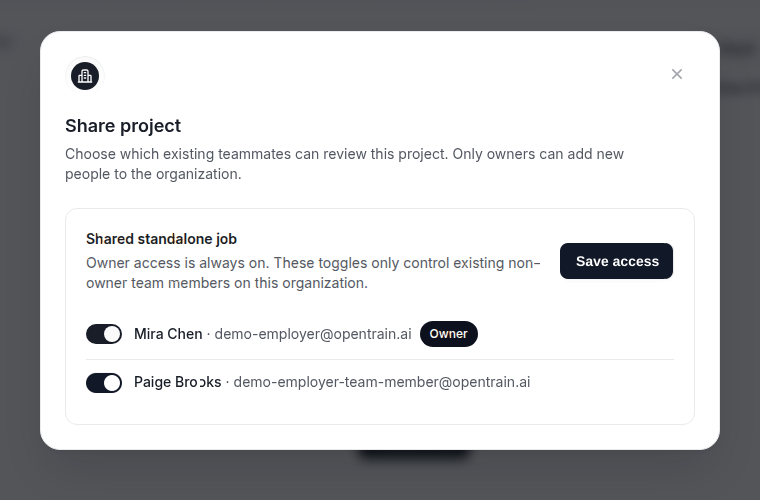
Click Share in the project header.
Choose a teammate
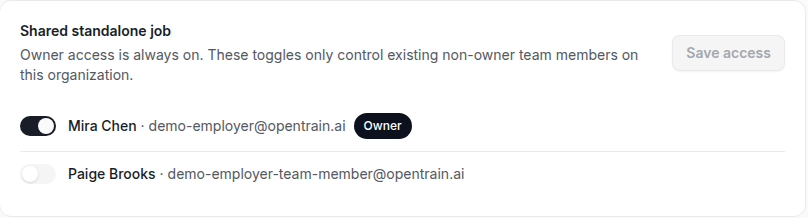
In the sharing modal, turn on the teammate who should have access. The modal only lists existing teammates in your organization.
Save access
Click Save access. The teammate can now open the shared job or folder from their employer dashboard.
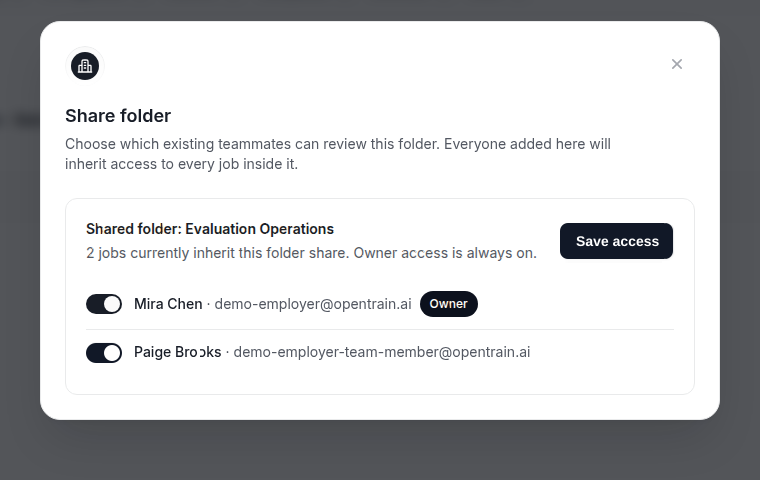
For folders, open the folder detail page and use the same Share button in the folder header. Everyone added to a folder share inherits access to the jobs inside that folder.

If a teammate is not listed
Section titled “If a teammate is not listed”Only organization owners can add new people to your OpenTrain AI organization. If the teammate you need is missing from the sharing modal, ask an organization owner to add or invite them from Team settings.
After the teammate joins the organization, reopen the Share modal for the job or folder. The teammate should appear in the access list.
If you are an organization owner and cannot open Team settings, email support@opentrain.ai with your organization name and the teammate you need to add.
Remove project access
Section titled “Remove project access”Open the same Share modal from the job or folder header. Remove the teammate from the access list, then save the change.
Removing access only changes that teammate’s access to the selected job or folder. It does not remove them from your OpenTrain AI organization.
What teammates can do
Section titled “What teammates can do”Shared teammates can help with the employer workflow for the job or folder they can access. Depending on their organization role and project access, this can include reviewing candidates, reading project details, and participating in related project work.
For a detailed access review, open Job Settings and go to Project access. Use this page when you need to check the full access list or make a more careful access decision.