> ## Documentation Index
> Fetch the complete documentation index at: https://opentrain.ai/docs/llms.txt
> Use this file to discover all available pages before exploring further.
# Share projects with teammates
> Give teammates access to a job or folder from the employer dashboard.
Use project sharing when another teammate needs to help review candidates, manage a job, or work from a shared folder. You can share a standalone job or a folder from its detail page.
## Before you start
Your teammate must already belong to your OpenTrain AI organization. If they are not listed in the sharing modal, ask an organization owner to add them from [Set up your employer team](/docs/employers/team-members) first.
Project sharing is available to employer accounts that already have access to the job or folder. Owners always keep access. Existing non-owner employer team members can share or manage project access only for jobs and folders they can already open. Only organization owners can add new people to the organization.
## Share a job or folder
From **My Jobs**, open the job or folder you want to share.
 Click **Share** in the project header.
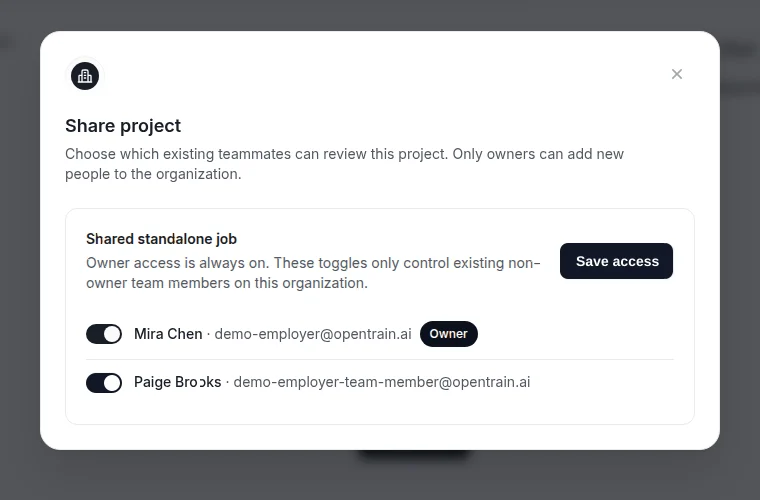 In the sharing modal, turn on the teammate who should have access. The modal only lists existing teammates in your organization.
Click **Save access**. The teammate can now open the shared job or folder from their employer dashboard.
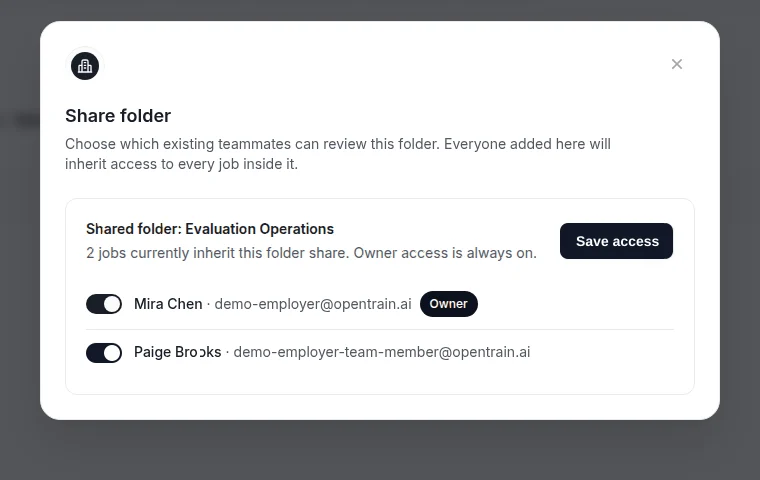
For folders, open the folder detail page and use the same **Share** button in the folder header. Everyone added to a folder share inherits access to the jobs inside that folder.
In the sharing modal, turn on the teammate who should have access. The modal only lists existing teammates in your organization.
Click **Save access**. The teammate can now open the shared job or folder from their employer dashboard.
For folders, open the folder detail page and use the same **Share** button in the folder header. Everyone added to a folder share inherits access to the jobs inside that folder.

 ## If a teammate is not listed
Only organization owners can add new people to your OpenTrain AI organization. If the teammate you need is missing from the sharing modal, ask an organization owner to add or invite them from [Team settings](/docs/employers/team-members).
After the teammate joins the organization, reopen the **Share** modal for the job or folder. The teammate should appear in the access list.
If you are an organization owner and cannot open Team settings, email [support@opentrain.ai](mailto:support@opentrain.ai) with your organization name and the teammate you need to add.
## Remove project access
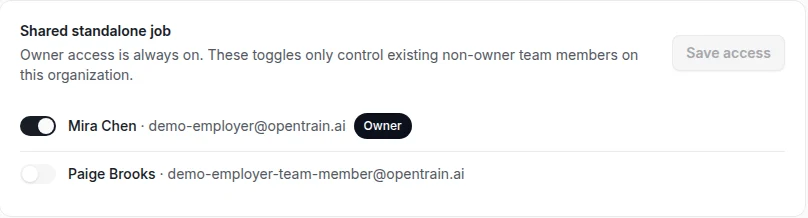
Open the same **Share** modal from the job or folder header. Remove the teammate from the access list, then save the change.
Removing access only changes that teammate's access to the selected job or folder. It does not remove them from your OpenTrain AI organization.
## What teammates can do
Shared teammates can help with the employer workflow for the job or folder they can access. Depending on their organization role and project access, this can include reviewing candidates, reading project details, and participating in related project work.
For a detailed access review, open **Job Settings** and go to **Project access**. Use this page when you need to check the full access list or make a more careful access decision.
## If a teammate is not listed
Only organization owners can add new people to your OpenTrain AI organization. If the teammate you need is missing from the sharing modal, ask an organization owner to add or invite them from [Team settings](/docs/employers/team-members).
After the teammate joins the organization, reopen the **Share** modal for the job or folder. The teammate should appear in the access list.
If you are an organization owner and cannot open Team settings, email [support@opentrain.ai](mailto:support@opentrain.ai) with your organization name and the teammate you need to add.
## Remove project access
Open the same **Share** modal from the job or folder header. Remove the teammate from the access list, then save the change.
Removing access only changes that teammate's access to the selected job or folder. It does not remove them from your OpenTrain AI organization.
## What teammates can do
Shared teammates can help with the employer workflow for the job or folder they can access. Depending on their organization role and project access, this can include reviewing candidates, reading project details, and participating in related project work.
For a detailed access review, open **Job Settings** and go to **Project access**. Use this page when you need to check the full access list or make a more careful access decision.
 Use folders when several jobs belong to the same client, campaign, or workstream. Sharing the folder gives teammates one place to review the related jobs and candidates.