
.svg)
.svg)
OPENTRAIN AI DOCUMENTATION
Reviewing proposals & hiring
Review candidate proposals, compare AI interview signals, message applicants, and hire AI trainers.
After you publish a job, matched AI trainers can complete screening and submit proposals. The employer job workspace shows the candidate list, interview signals, proposal status, messaging entry points, and hiring actions.
Open the Proposals tab
Section titled “Open the Proposals tab”From My Jobs, select a published job, then open Proposals. The job workspace shows proposal review, screening, messages, contracts, instructions, the job posting, and settings. Jobs with hired AI trainers also show job messages and contract details.
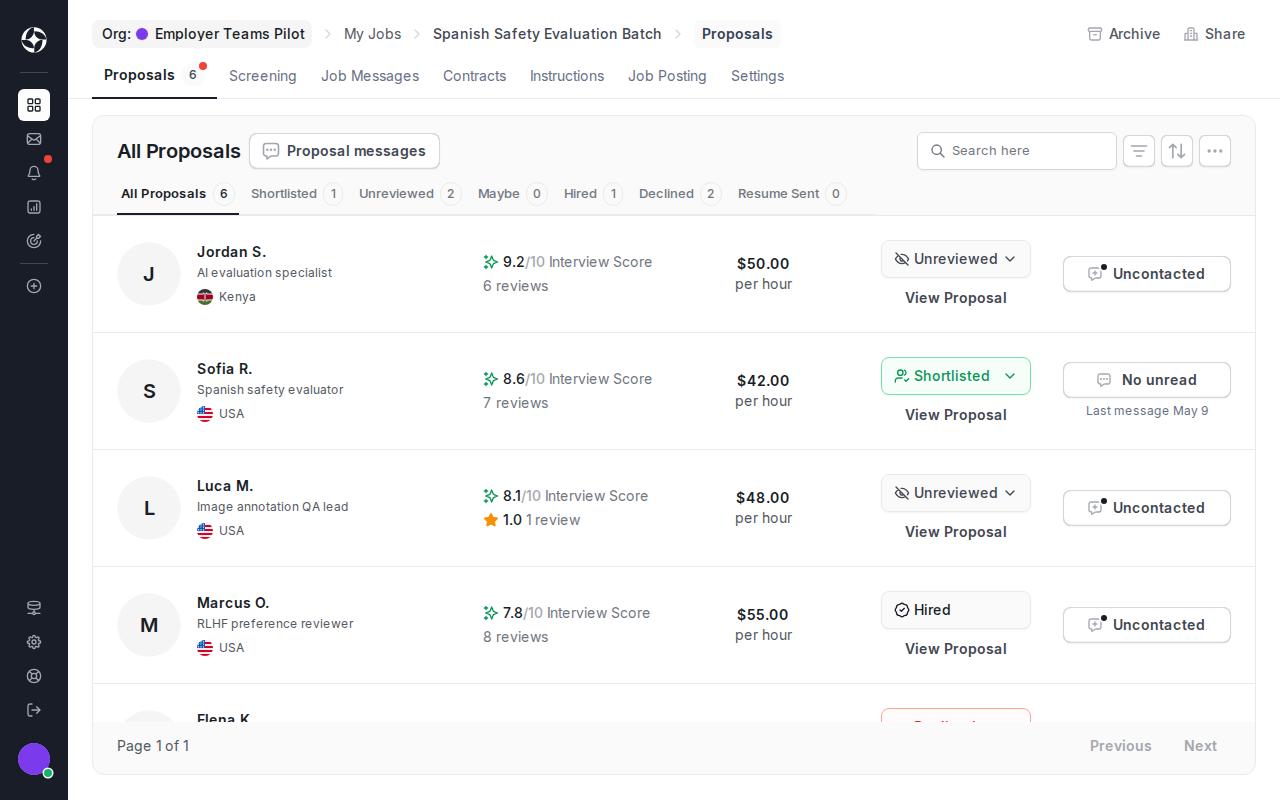
Decide who to review first
Section titled “Decide who to review first”Proposal rows help you triage candidates quickly:
- Interview score summarizes the AI interview result.
- Status filters separate all, shortlisted, unreviewed, maybe, hired, declined, and resume-sent candidates.
- Rate shows the candidate’s proposed pricing.
- Proposal messages opens pre-hire conversations for candidate questions. Select multiple candidates first when you want to send the same pre-hire question to several applicants.
- View Proposal opens the candidate’s full proposal and profile context.
Use these signals to decide which applicants deserve deeper review, not as an automatic hiring decision.
Review a candidate proposal
Section titled “Review a candidate proposal”Click View Proposal to open the candidate detail modal. Review the candidate profile, bid, location, AI interview score, interview summary, and client-ready profile context before you change the proposal status or hire.
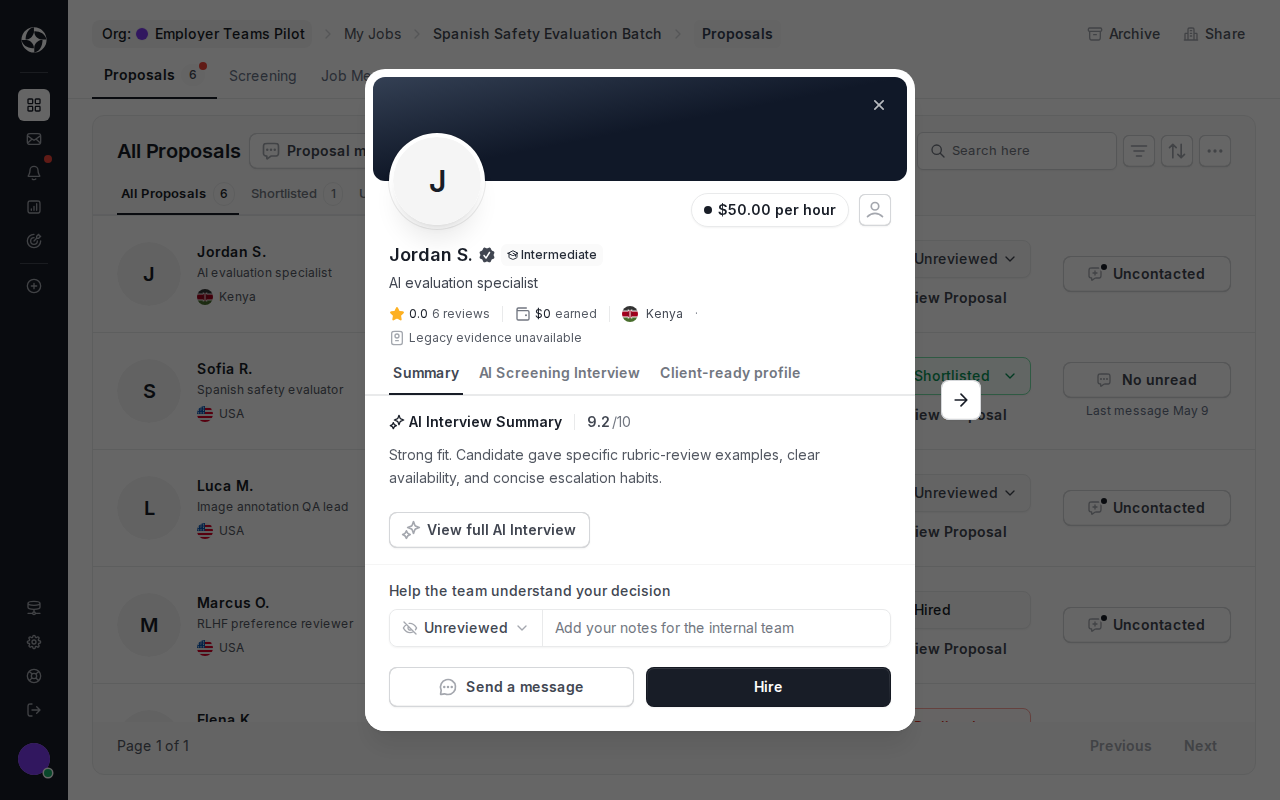
Use the status selector to keep review state visible to your team. Common statuses include Unreviewed, Shortlisted, Maybe, Hired, Declined, and Resume Sent. Add internal notes when your team needs context for the decision.
Message candidates before hiring
Section titled “Message candidates before hiring”Use proposal messages for pre-hire questions about availability, work samples, domain experience, or project details. Proposal messages stay tied to the proposal.
To message several applicants at once, select the candidates from the Proposals tab, then choose Proposal messages. Review the recipients and message text before sending. Use bulk messages for shared questions or next-step instructions, not for final hiring decisions.
After you hire, OpenTrain creates a separate job message thread for post-hire work. Keep delivery instructions, milestone questions, and ongoing coordination in the job message thread.
Hire an AI trainer
Section titled “Hire an AI trainer”When you are ready to hire:
Open the candidate proposal
Click View Proposal from the Proposals tab.
Review the candidate context
Check the proposal message, AI interview answers, resume/profile context, rate, and any screening signals.
Start the hire flow
Click Hire and enter the first milestone hours or amount, milestone name, optional due date, and description.
Fund the first milestone
Review the deposit total and payment method, then confirm Hire & Deposit when you are ready to create the contract and fund the first milestone.
Coordinate post-hire work
Use the job message thread, instructions, and contract tab for ongoing work.
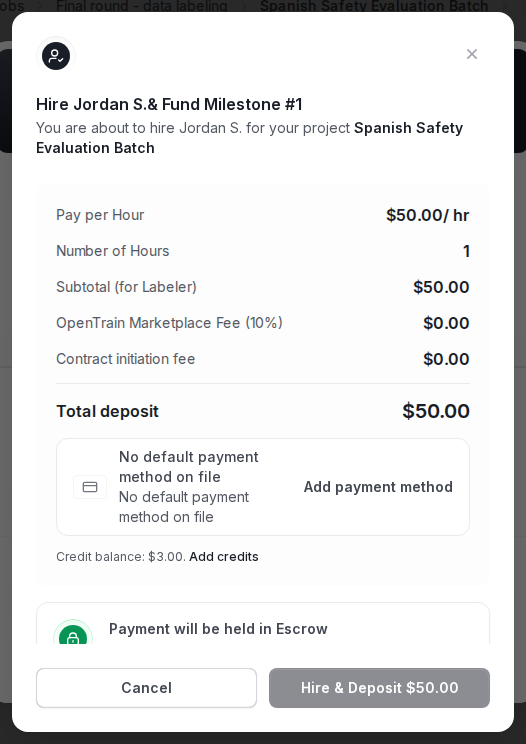
Hiring creates the contract and first milestone. The proposal message remains available for pre-hire context, but the job message thread is the correct place for post-contract communication.
What happens after hire
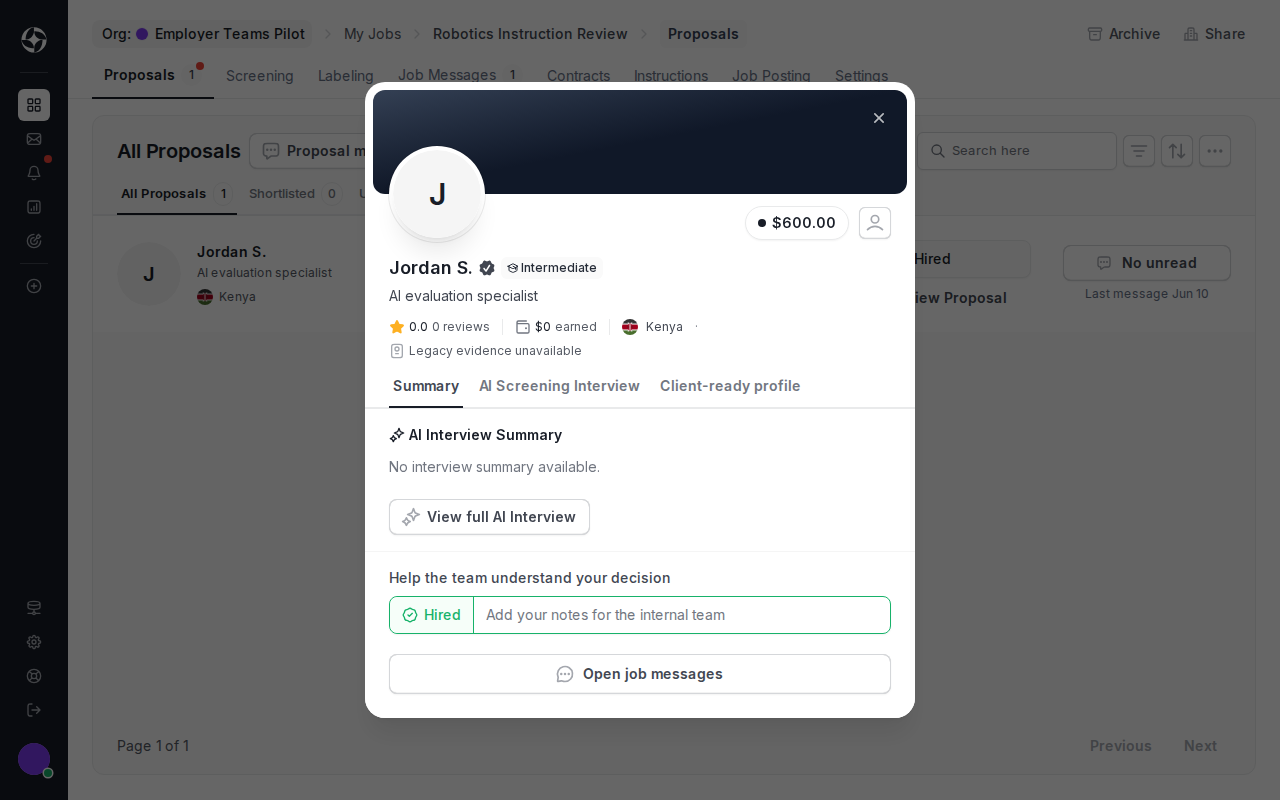
Section titled “What happens after hire”The job workspace becomes the project control surface:
- Messages — post-hire communication with the AI trainer.
- Contract — active contract and milestone timeline.
- Instructions — task guidelines for hired AI trainers.
- Agent Guide — what your team’s agents receive for this job and the Playbook you publish for them. See Agent Guide workspace.
- Job Posting — the published job details.
- Settings — job configuration and visibility controls.
Use Done Hiring when the job is fully staffed and you no longer want new proposals.
Organize review with folders
Section titled “Organize review with folders”Folders group related jobs by client, campaign, or hiring sprint. Folder-level screening can aggregate structured answers across multiple jobs, which is useful when several roles share the same evaluation criteria.