
.svg)
.svg)
OPENTRAIN AI DOCUMENTATION
Folders and team access
Organize jobs in folders, invite teammates, and control which jobs or folders each teammate can open.
Folders help you group related jobs by client, campaign, hiring sprint, or workstream. Team access controls which teammates can open each job or folder.
Set up the team first
Section titled “Set up the team first”Only organization owners can invite teammates. Open Employer Settings -> Team to add people to the organization.
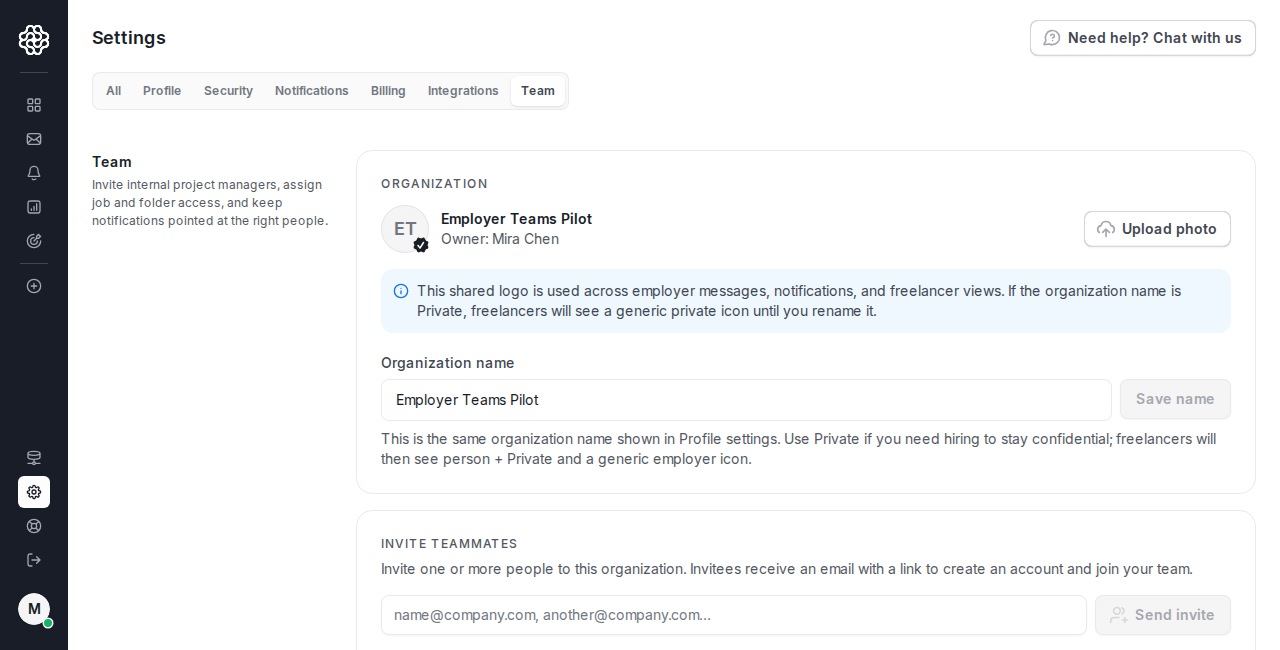
After the teammate joins, you can share jobs or folders with them.
Share a job
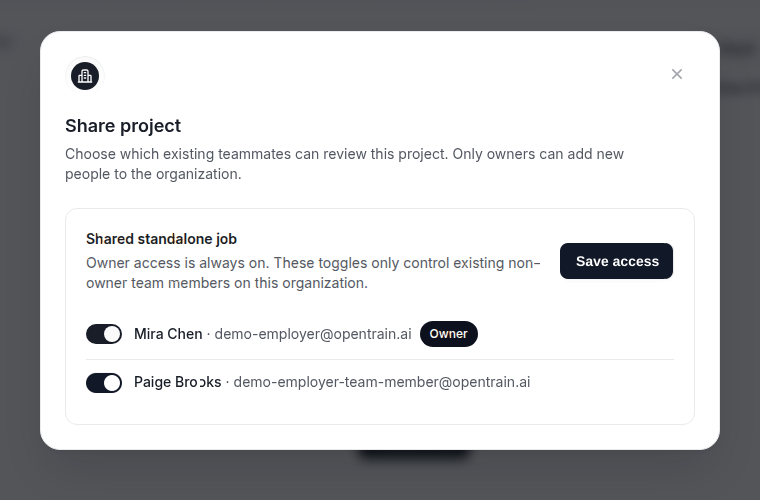
Section titled “Share a job”Open the job and click Share in the job header.

Choose an existing teammate and save access.
Share a folder
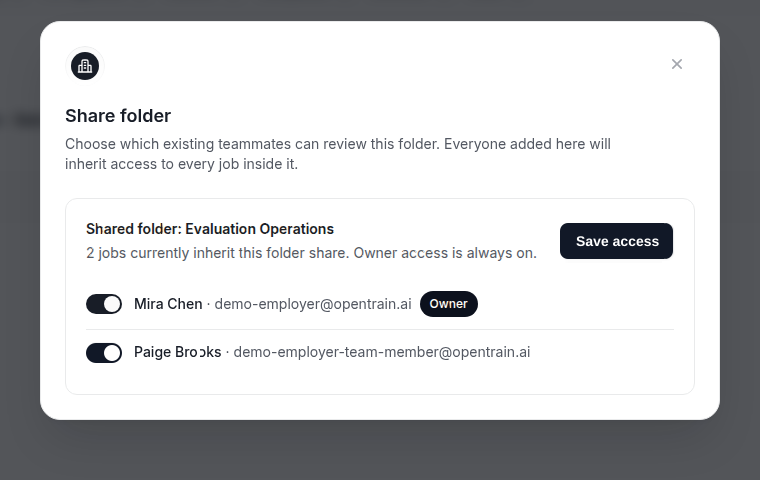
Section titled “Share a folder”Open the folder detail page and use Share from the folder header. Everyone added to a folder share inherits access to the jobs inside that folder.

Review project access
Section titled “Review project access”Use Job Settings -> Project access when you need a more detailed access review.
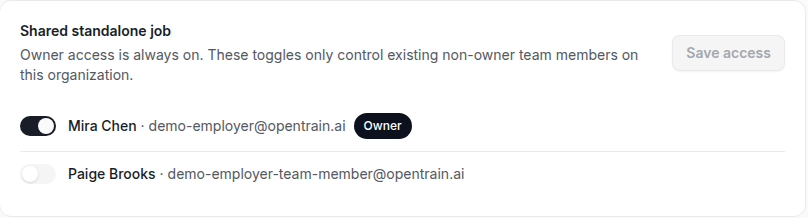
Removing project access does not remove the person from your organization. To remove a teammate entirely, use Employer Settings -> Team.