
.svg)
.svg)
OPENTRAIN AI DOCUMENTATION
Manage your email notifications
How AI trainers turn off OpenTrain job emails and reminders: the unsubscribe link in each email, the Notifications tab in Settings, and what to send support if you get the same email more than once.
OpenTrain sends emails about jobs that match your profile, reminders to finish an application or interview, and notices such as new mail in your Work Email inbox. You can turn off some of these emails with the unsubscribe link in the email or in Settings. The table in Settings shows which control each kind of email has. The two ways are:
- Use the unsubscribe link in the email. It works without signing in.
- Use the Notifications tab in Settings. Settings opens after you finish onboarding.
Turn off an email from the email itself
Section titled “Turn off an email from the email itself”Open the email
Scroll to the last lines. They say you can manage your email preferences or unsubscribe.
Select unsubscribe
A page opens and names the kind of email it turns off, for example Unsubscribe from job match emails?
Confirm
Select Unsubscribe. The page tells you the emails are off.
The page covers the kind of email it names. To see and change every kind in one place, use Settings.
Choose your emails in Settings
Section titled “Choose your emails in Settings”Settings opens after you finish onboarding. That means a verified email, an account type, and the AI trainer onboarding steps. Once you have finished, the manage your email preferences link at the bottom of any OpenTrain email opens Settings → Notifications. If you are signed out, you sign in first and come back to that page.
If you have not finished onboarding, Settings is not open to you yet. Use the unsubscribe link in the email instead. It works without signing in and turns off only that kind of email. You can use Settings after you finish onboarding.
Open Notifications
Sign in, then go to Settings → Notifications.
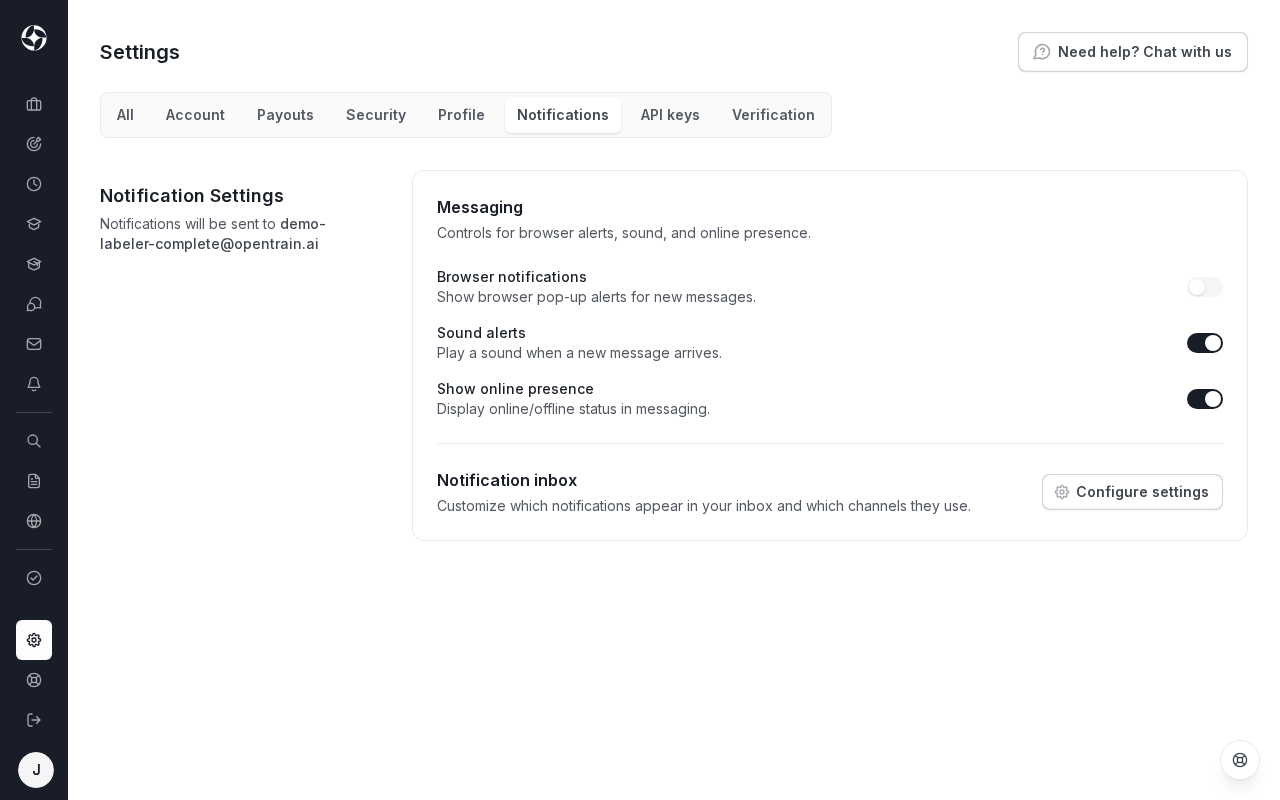
Open the notification list
Under Notification inbox, select Configure settings. A window lists each kind of notification, with columns for In-app, Push, and Email.
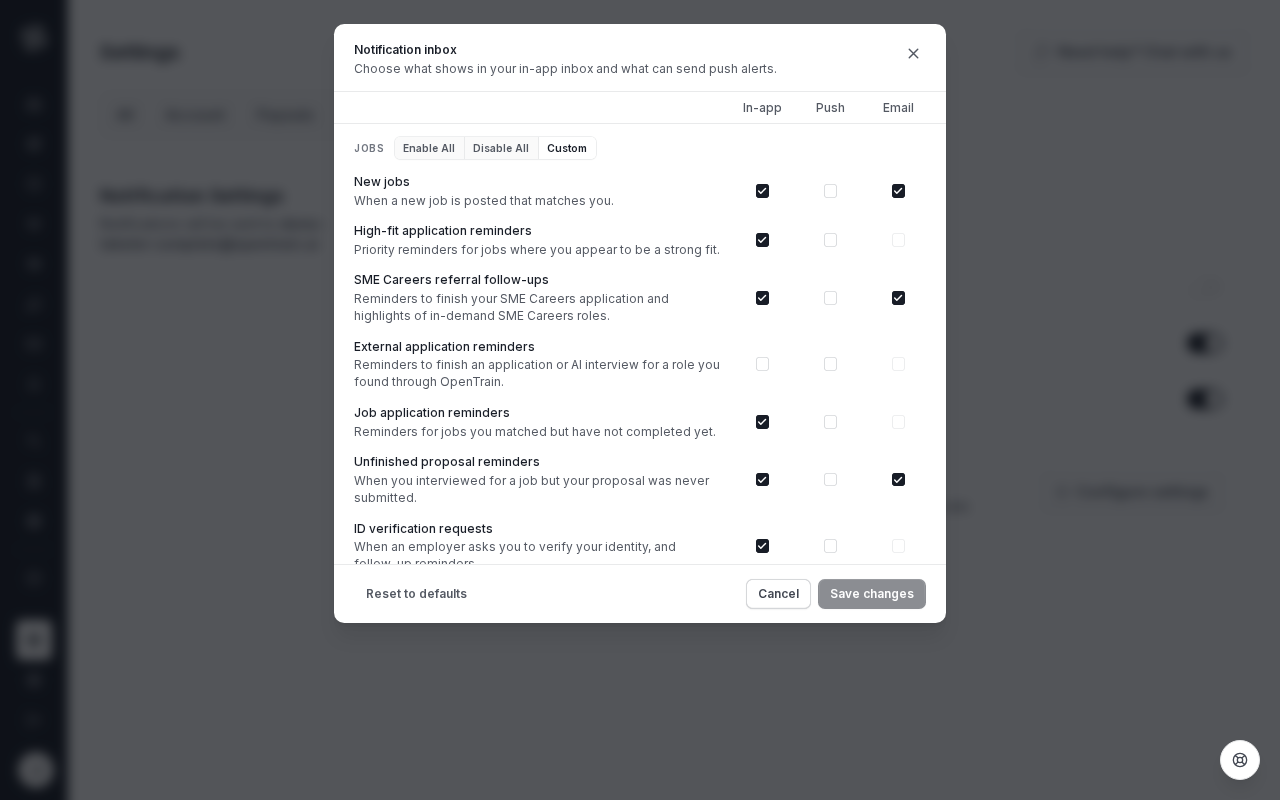
Switch emails off
In the Email column, switch off the kinds you don’t want. A dimmed Email switch means you can’t change that email here. The table below says which rows these are.
Save
Select Save changes.
Job and reminder emails
Section titled “Job and reminder emails”| Row in the list | What it covers | Email switch |
|---|---|---|
| New jobs | When a new job is posted that matches you. | You can switch it off. |
| Unfinished proposal reminders | When you interviewed for a job but your proposal was never submitted. | You can switch it off. |
| New work inbox email | An email to your sign-up address when new mail reaches your Work Email inbox. | You can switch it off. |
| External application reminders | Reminders to finish an application or AI interview for a role you found through OpenTrain. | Dimmed. Use the unsubscribe link in the reminder email. |
| High-fit application reminders and Job application reminders | Reminders for jobs that fit you or that you matched but have not completed. | Dimmed. There is no email setting for these rows. |
The window also lists messages, payments, contracts, and other notifications.
If you get the same email more than once
Section titled “If you get the same email more than once”Email support@opentrain.ai from the address on your account. Include the subject line and the date and time each copy arrived. You don’t need to forward the emails. Never send your password or a verification code.
What these settings don’t cover
Section titled “What these settings don’t cover”- Sign-in codes and password reset emails are not part of these settings. See Sign-in and verification code help.
- OpenTrain can’t promise how many emails you get or when a change takes effect.