


OPENTRAIN AI DOCUMENTATION
Create an AI trainer account
Sign up as an AI trainer on OpenTrain AI, build your profile from your résumé, and verify your email so you can apply to jobs.
Use an AI trainer account if you want to find paid AI training and data labeling work on OpenTrain AI, apply to jobs, and get paid. Setup has two parts: create your account, then build your profile from your résumé.
If you run a data labeling company with a team, set up an agency account instead. If you want to hire AI trainers, see Create an employer account.
Before you start
Section titled “Before you start”- An email address you can open. At the end of setup, OpenTrain AI sends a 6-digit code to it.
- Your résumé as a PDF, DOC, DOCX, or TXT file, up to 10 MB, or its text to paste in. OpenTrain AI reads it and fills in most of your profile for you.
- A mobile phone, in some countries, to receive a 6-digit code by text message.
Create your account
Section titled “Create your account”Open the sign-up page
Go to app.opentrain.ai and choose Sign up. On Create your AI Trainer account, enter your email address and a password of at least 8 characters, then select Create account.
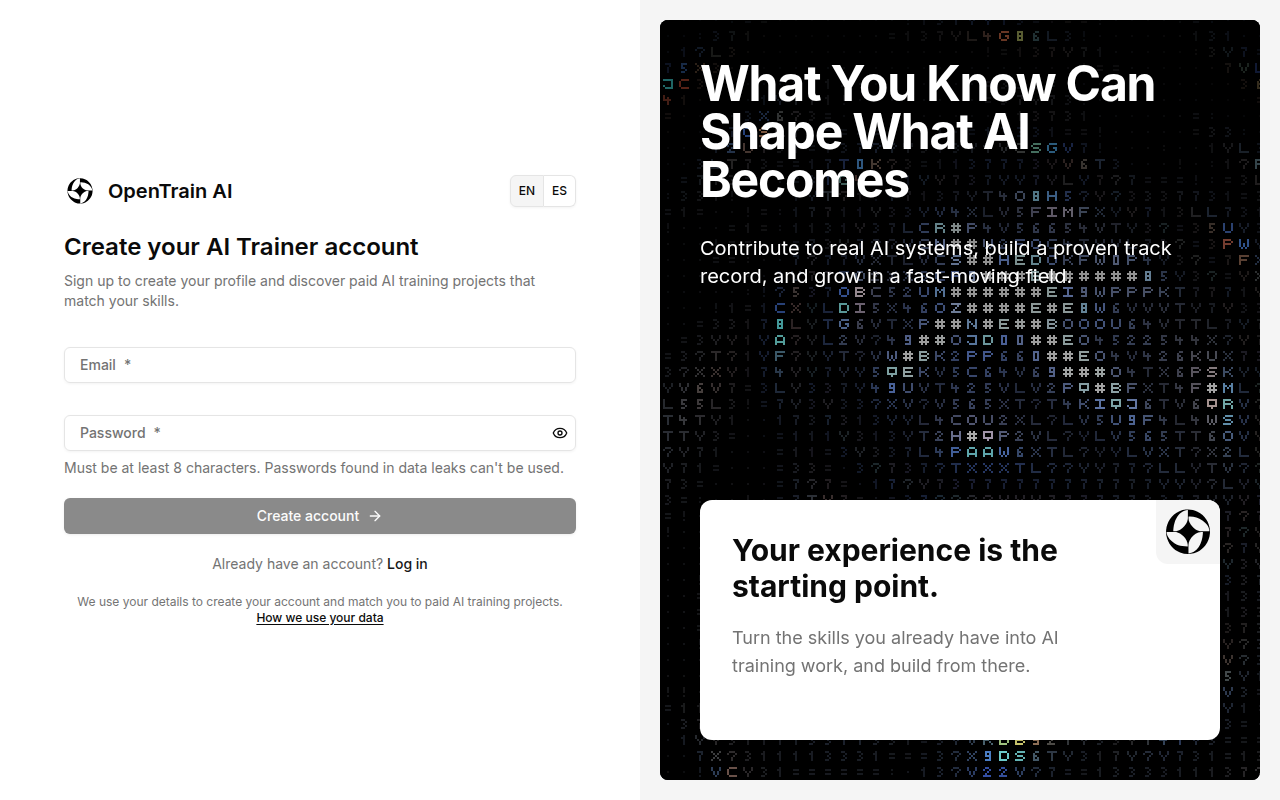
Choose the AI trainer account type
On Tell us more about your goal, select I’m a Freelance AI Trainer. Tick the box to agree to the Terms of Service and Privacy Policy, then select Continue.
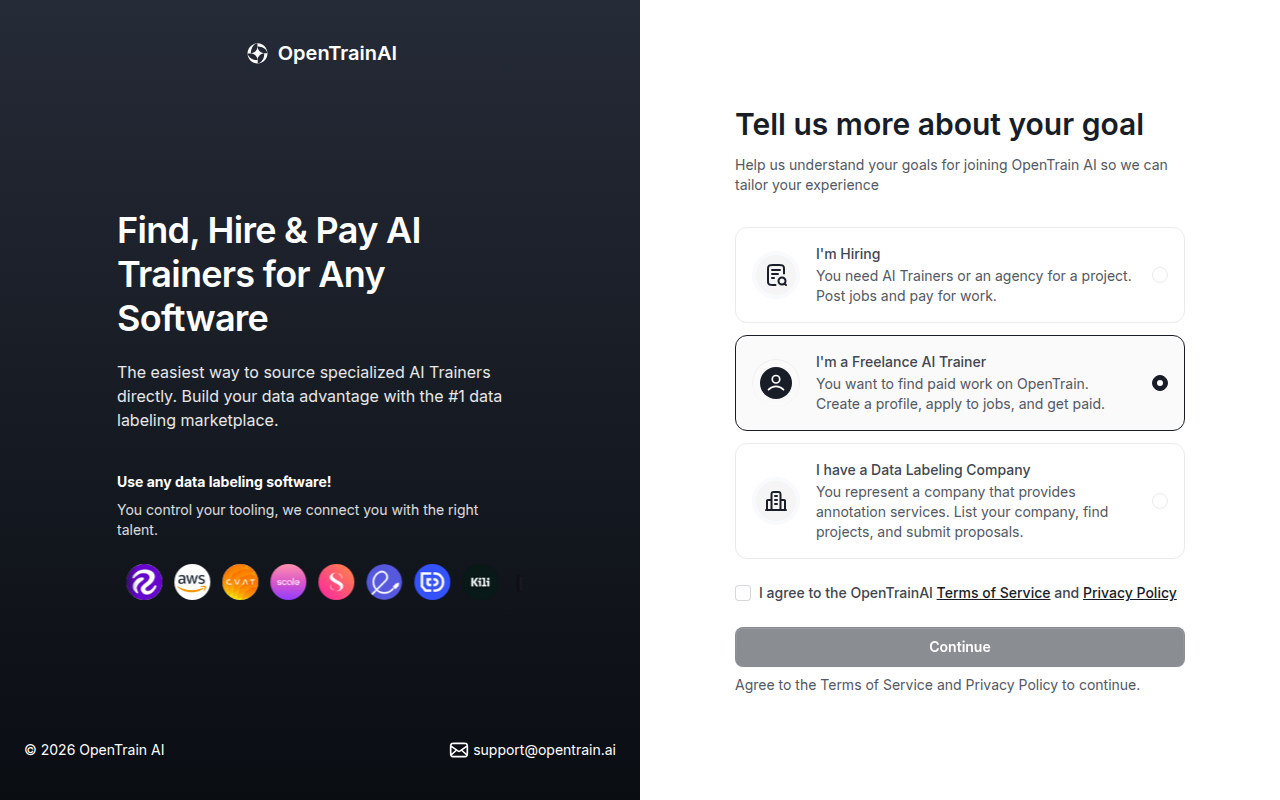
Start onboarding
OpenTrain AI prepares your account. When you see You’re all set!, tick the box to agree to the Terms of Service and Privacy Policy, then select Start Onboarding.
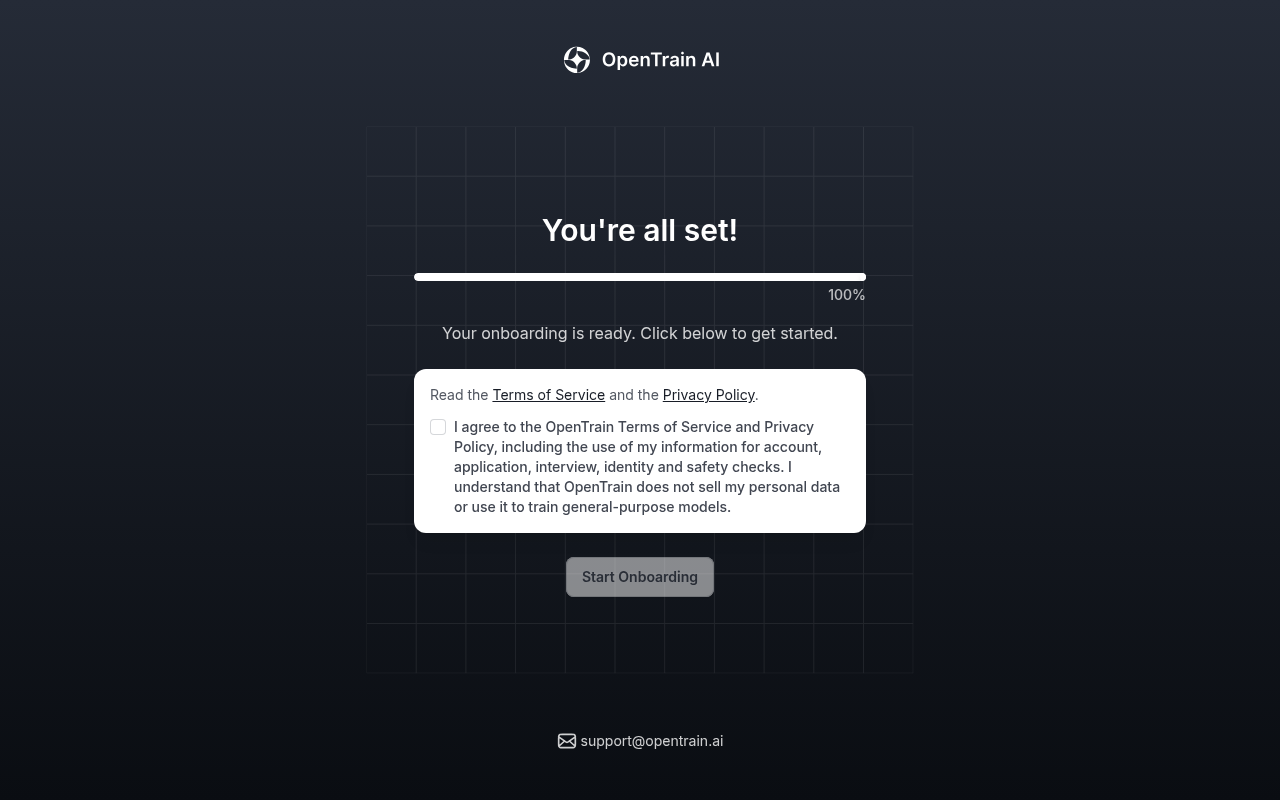
Build your profile
Section titled “Build your profile”Next, OpenTrain AI builds your profile from your résumé. It takes about 30 minutes, and your progress is saved, so you can stop and come back later. A counter at the top of each screen shows where you are, for example 1/7. Your profile goes live, and you can apply to jobs, only after you finish.
Upload your résumé
On Start with your résumé, select Choose my résumé and upload your résumé. You can also select Paste my résumé text instead. If you keep a separate résumé for AI training or data labeling work, open Have a second résumé for AI training or data labeling? and add it there. Then select Continue: build my profile.
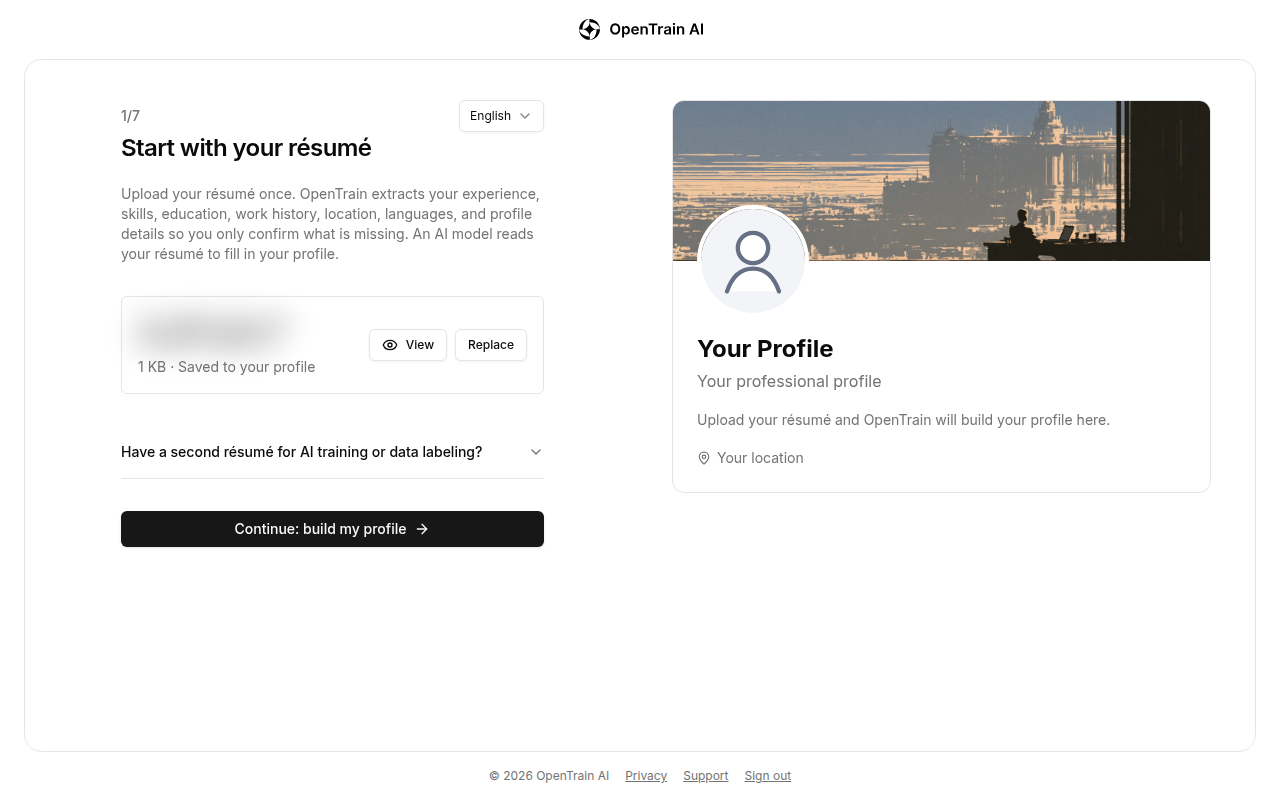
An AI model reads your résumé and fills in your experience, skills, education, work history, location, and languages. Wait on Building your profile until it finishes.
Confirm your details
On Confirm your details, fill in what your résumé did not say: the country you live in, your city, your LinkedIn profile (optional), your preferred hourly rate in US dollars, your weekly availability, and who can see your profile.
In some countries, OpenTrain AI also asks you to verify a phone number. Enter a mobile number, then enter the 6-digit code from the text message. Your number is not shared with employers.
If your résumé left out other details, such as your AI training experience or the languages you work in, OpenTrain AI asks for them one at a time.
Review your profile
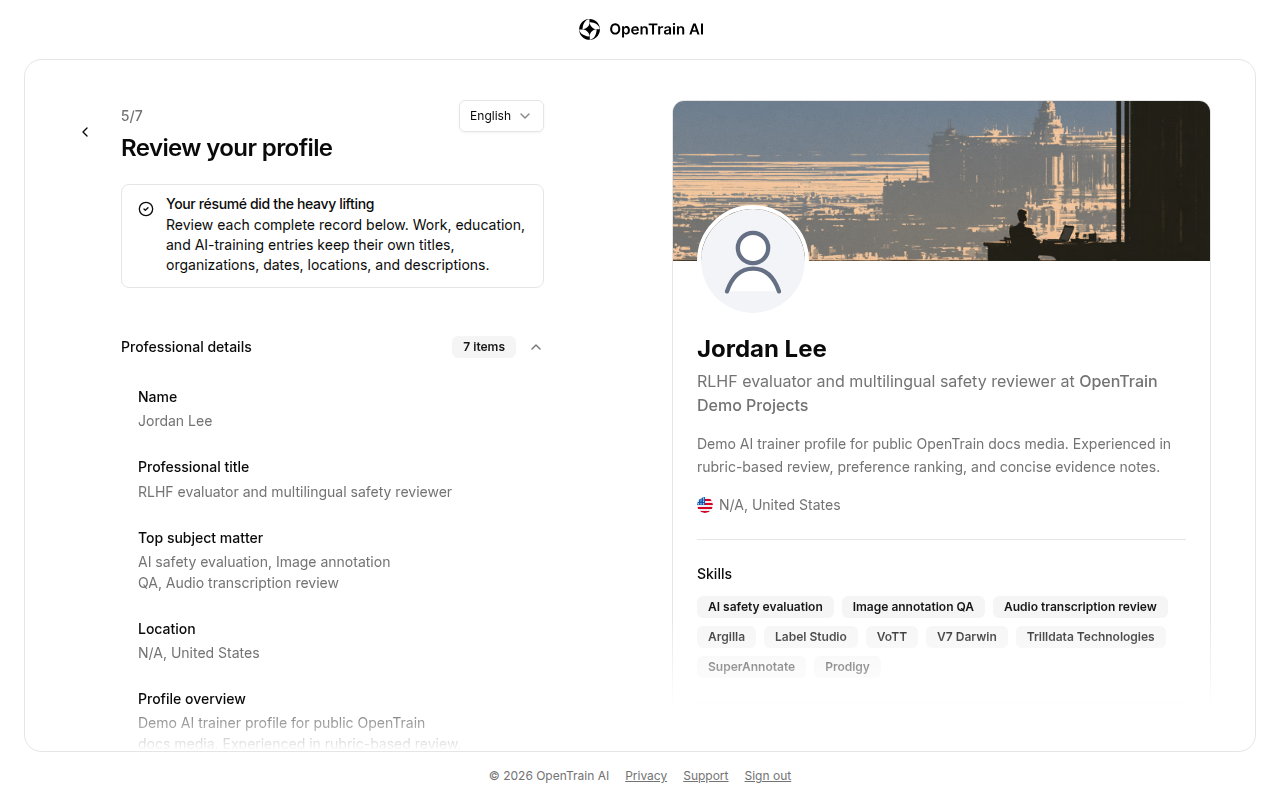
Review your profile shows everything OpenTrain AI took from your résumé, in sections: professional details, AI training and data labeling experience, work history, education, and rate and availability. Select Edit section to fix anything that is wrong. Then select Continue to profile photo.
Add a profile photo
Upload a clear photo so employers can recognize you, then select Continue with this photo. You can also select Skip for now and add one later.
Verify your email and publish
OpenTrain AI sends a 6-digit code to your email address. Enter it and select Verify email and publish profile. If the code did not arrive, select Send a new code. If the email address is wrong, select Wrong email? Update it.
When you see Your OpenTrain profile is live, select Go to my workspace.
If the code does not arrive or is not accepted, see Sign-in and verification code help.
For what to write in your profile, and how to make it stand out to employers, see Profile setup.
After you finish
Section titled “After you finish”Go to my workspace opens your AI trainer home. From here you can find jobs, see your applications, and manage your work. If you started from a job’s apply link, OpenTrain AI takes you back to that job instead.
Next steps:
- Find jobs and send proposals.
- Some jobs ask for identity verification or an AI interview.
- Set up payouts so you can get paid.
If you forget your password later, select Forgot password on the sign-in page. For other sign-in problems, see Sign-in and verification code help.