


OPENTRAIN AI DOCUMENTATION
Find projects and send proposals
How an agency browses projects open to agencies on OpenTrain AI, saves projects, sends proposals, and what happens when the 3 free proposals are used.
Find Projects lists the open projects whose employers accept agencies. Every agency can browse them, on any plan. You send a proposal from the project’s page.
Which projects you see
Section titled “Which projects you see”When employers post a job, they choose who can apply. An agency account sees only the open projects that accept agencies. Jobs open only to individual AI trainers do not appear. An AI trainer account sees a different list under Find Jobs.
The number of projects goes up and down with what employers post. OpenTrain AI does not promise a number of projects.
Browse and save projects
Section titled “Browse and save projects”Open Find Projects
Select Find Projects in the side navigation.
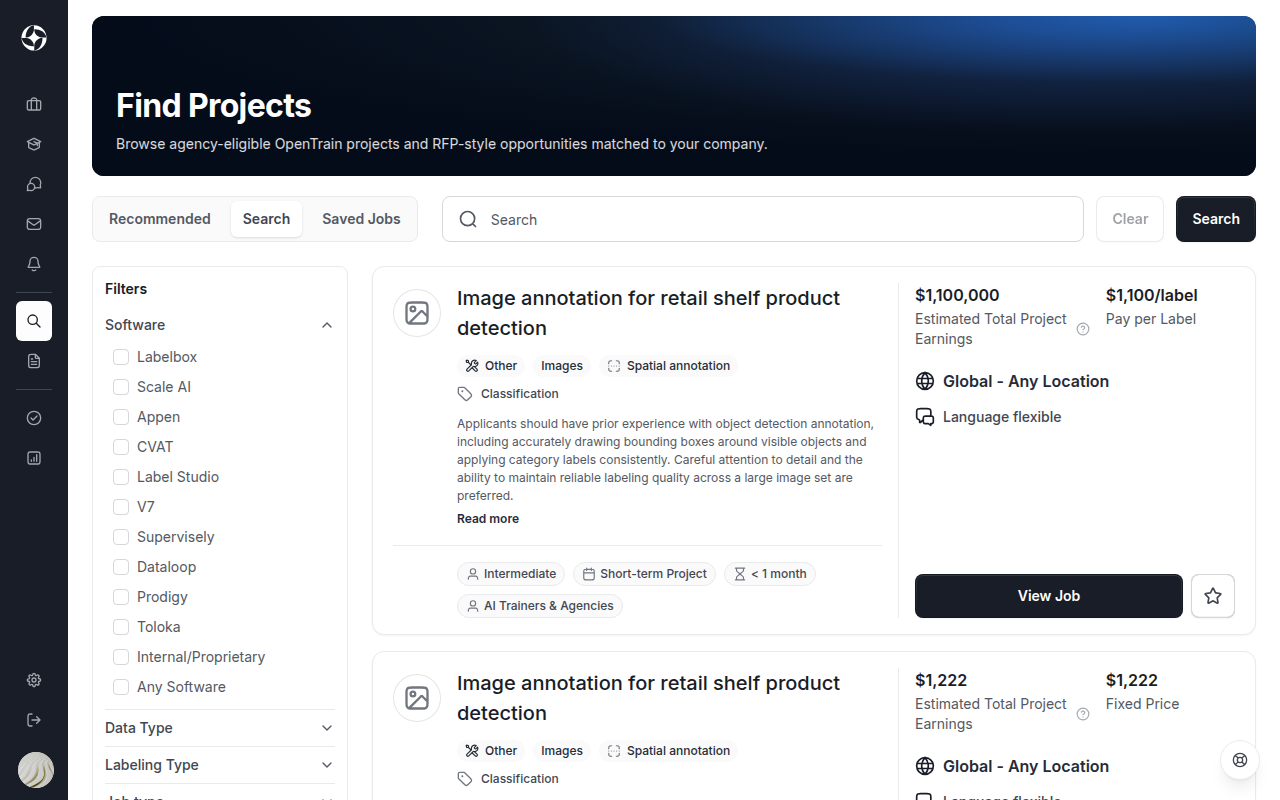
Search or filter
Use the Recommended, Search, and Saved Jobs tabs, the search box, and the filters (such as Software, Data Type, and Labeling Type) to narrow the list to the work your team does.
Save projects for later
Select the star on a project card to save it. Your saved projects appear on the Saved Jobs tab.
Open the project
Select View Job to read the full listing: the work, the budget, the required tools and data types, and any location limits. Check that your team fits before you send a proposal.
Send a proposal
Section titled “Send a proposal”Start the proposal
On the project page, select Submit a proposal. If you already started one, the button reads Continue Proposal.
Finish your agency profile first, if asked
If required fields of your agency profile are missing, OpenTrain AI asks you to complete them first and links to agency setup. See Complete your agency profile.
Complete the proposal and send it
Answer the questions the employer set, enter your bid, and submit. Some employers add an AI screening interview before the bid. The proposal steps are the same as for AI trainers; see Applying for a job.
On the Free plan, the proposal shows how many of your free proposals are left, for example 2 of 3 free proposals left.
When your 3 free proposals are used
Section titled “When your 3 free proposals are used”The Free plan includes 3 proposals in total, not 3 a month. Every proposal your agency has sent counts, including ones sent during a trial or on a paid plan, and ones you withdrew.
When a Free agency has used all 3, Submit a proposal opens a plan window instead of the proposal, and nothing is sent. Select See plans and trial (or See plans if you already used your trial) to start the 30-day Basic trial or choose Basic or Pro. A proposal you started stays as a draft, so you can send it once you have a plan. See Agency plans and billing.
After you send a proposal
Section titled “After you send a proposal”The employer reviews your proposal and your agency profile. They may message you with questions, accept your proposal, or decline it. Employer messages about your proposal appear in Messages; see Proposal messages.
Once an employer has contacted your agency or responded to your proposal, you can keep talking through OpenTrain AI or any other channel you choose.