


OPENTRAIN AI
账户设置
选择您的 OpenTrain AI 账户类型,验证您的电子邮箱,并以雇主、AI trainer 或数据标注公司的身份完成设置。
本页面概述了各类账户类型的账户设置流程。如需包含屏幕截图的详细分步指导,请参阅创建 AI trainer 账户、创建雇主账户或创建机构账户。
已经拥有账户?请前往 app.opentrain.ai 登录。如果您无法登录,请参阅登录及解决登录问题。
选择您的账户类型
Section titled “选择您的账户类型”在 app.opentrain.ai 填写注册表单后,OpenTrain AI 会询问您的目标。从三种账户类型中选择一种,同意服务条款和隐私政策,然后选择 Continue。
- I’m Hiring: for companies and teams that need AI trainers or an agency for a project. You post jobs, review candidates, run AI screening, and pay for work through milestones.
- I’m a Freelance AI Trainer: for individuals who want paid AI training or data labeling work. You build a profile, apply to jobs, and get paid.
- I have a Data Labeling Company: for companies that provide annotation services with a team. You list your company, find projects, and submit proposals.
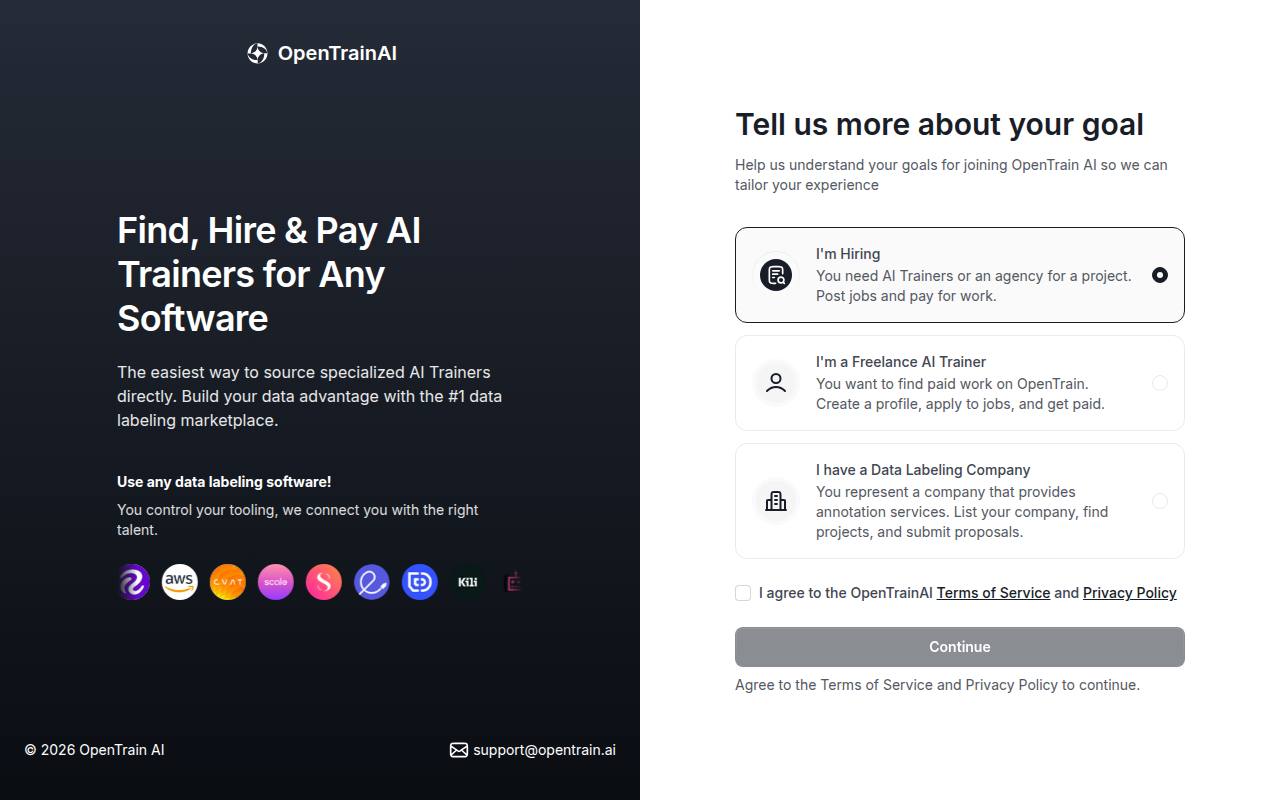
下一个屏幕会显示 You’re joining as 以及您选择的账户类型。选择 Continue,或选择 Change role 返回并选择其他类型。
OpenTrain AI 会向您的电子邮件地址发送一个 6 位验证码,以确认该邮箱属于您。何时收到验证码取决于您的账户类型:
- 雇主和数据标注公司在添加公司详细信息后、继续设置之前输入验证码。
- AI trainers 在个人资料设置结束时,选择 Verify email and publish profile 时输入验证码。
如果未收到验证码或验证码未被接受,请参阅登录及解决登录问题。
完善您的个人资料
Section titled “完善您的个人资料”在您选择 I’m Hiring 后,OpenTrain AI 会要求您提供公司详细信息:
- Company/Organization: the name that appears on your job postings. To hide it, select Keep my company name anonymous on OpenTrain.
- Country: where your company is based.
选择 Confirm,然后输入通过电子邮件收到的 6 位验证码。在设置工作区期间,一段简短的导览将向您介绍 OpenTrain AI 的工作原理。最后,选择 Go to Dashboard 或 Start posting my first job。
在雇佣并向 AI trainers 支付报酬之前,请添加一种付款方式。工作区详细信息、团队成员以及发布首个职位前需要执行的操作,请参阅创建雇主账户。
AI Trainers
Section titled “AI Trainers”AI trainers 可根据简历生成个人资料:
- 上传您的简历。OpenTrain AI 会解析简历并填入您的个人资料。
- 确认详细信息,并补充简历中未提及的内容,例如您的时薪要求和空闲时间。
- 检查您的个人资料并添加头像,或暂时跳过头像设置。
- 使用 6 位验证码验证您的电子邮箱,即可发布个人资料。
每个屏幕和选项的详细信息,请参阅创建 AI trainer 账户。如需日后修改资料,请参阅个人资料设置。
机构新手引导
Section titled “机构新手引导”如果您经营一家拥有团队的数据标注公司,请选择 I have a Data Labeling Company,而不要以个人 AI trainer 身份注册。填写公司名称、国家/地区并完成邮箱验证后,选择 Start Onboarding。机构设置分为七个步骤:
- Company Details: website, primary location, other locations, phone number, logo, company overview, and LinkedIn page.
- Company Skillset: experience level, industry specializations, labeling software, data types, and task types.
- Languages: English level and other languages.
- Headcount & Security: your full-time equivalent employee count (FTE), seat capacity, the security certifications your company holds (SOC 2, ISO 27001, HIPAA, GDPR, PCI DSS, FedRAMP or FISMA), and a short overview of your security and privacy practices. This step never asks for a password, API key, token, one-time code or sign-in link: do not enter one here or anywhere else in your profile. See What not to send.
- Pricing: hourly rate, and whether you accept pay-per-label and fixed-price projects.
- Data Labeling/AI Training Experience: past labeling projects.
- Review details: check your answers and select Finish Onboarding.
有关各个步骤、方案计划以及如何发送提案的说明,请参阅机构指南:创建机构账户、完善机构资料、寻找项目并发送提案以及机构方案与账单。
如果您忘记了密码:
前往登录页面
访问 app.opentrain.ai 并选择 Forgot password?。
输入您的电子邮箱
输入与您账户关联的电子邮件地址。OpenTrain AI 会向该地址发送密码重置链接。
设置新密码
点击邮件中的链接。您将进入密码重置页面,在此输入并确认您的新密码。
有关其他登录问题,请参阅登录及解决登录问题。