> ## Documentation Index
> Fetch the complete documentation index at: https://opentrain.ai/docs/llms.txt
> Use this file to discover all available pages before exploring further.
# Use your Work Email
> How AI trainers access, read, organize, and send email from an OpenTrain-managed @opentrain.work address.
Work Email gives you an OpenTrain-managed `@opentrain.work` address for project invitations, client tools, and work-related email. It is separate from the personal email address you use to sign in to OpenTrain.
Work Email is available when a mailbox has been assigned to your account. If you do not see **Work Email** in your AI Trainer navigation, [email support](mailto:support@opentrain.ai).
Most AI trainers use Work Email to receive project invitations, workspace access links, and other email needed to begin work.
## Open your Inbox
Sign in with your normal OpenTrain account. You do not need a separate password for your `@opentrain.work` address.
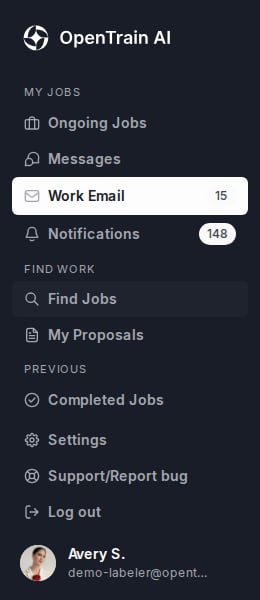
Select the envelope icon for **Work Email** in the AI Trainer side navigation. You can also [open Work Email directly](https://app.opentrain.ai/ai-trainer?q=work_email).
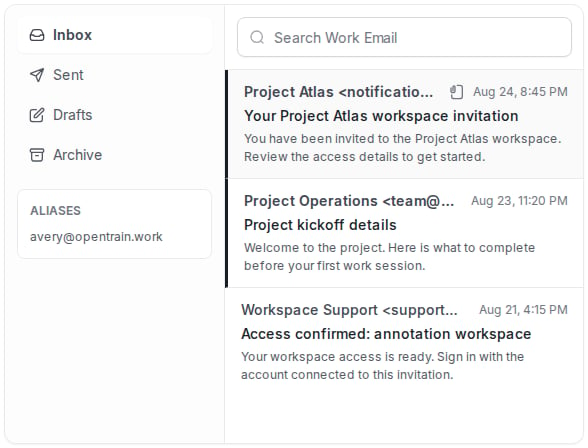
 Work Email opens to **Inbox**. Incoming messages appear in the center list. Unread messages use bold text and a dark line on the left.
 Select the sender or subject of the email you want to read. The email opens beside the Inbox on a computer, or on a separate screen on a phone.
## Read an email
When you open an email, check the **From** address, subject, and message before following an invitation link or downloading a file. Your `@opentrain.work` address appears on the **To** line.
Select the sender or subject of the email you want to read. The email opens beside the Inbox on a computer, or on a separate screen on a phone.
## Read an email
When you open an email, check the **From** address, subject, and message before following an invitation link or downloading a file. Your `@opentrain.work` address appears on the **To** line.
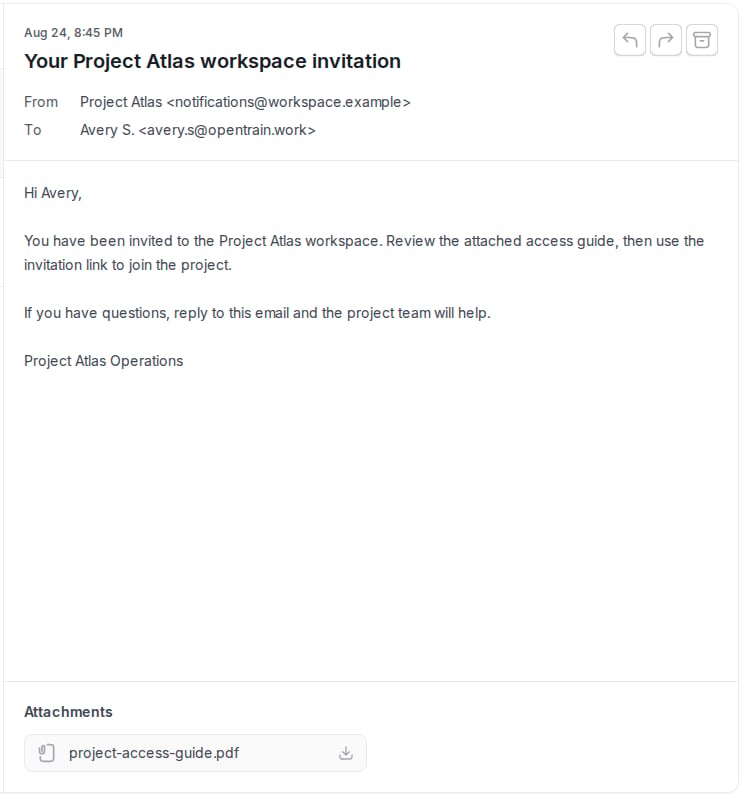 From an open email, you can:
* **Reply** to the sender.
* **Forward** the email to another recipient.
* **Archive** the email to remove it from the Inbox without deleting it.
* Download an attachment by selecting its file name.
Before opening a link or attachment, confirm that you recognize the sender and expected the email. If an invitation looks suspicious, ask your project manager to confirm it.
## Find and organize email
Use the folders on the left side of Work Email:
* **Inbox** contains email you have received.
* **Sent** contains email you have sent.
* **Drafts** contains messages you saved without sending.
* **Archive** contains messages you removed from the Inbox without deleting.
Use **Search Work Email** to find messages by a word or phrase. Select **Refresh** if you are waiting for a new project invitation or access email.
Your primary `@opentrain.work` address appears at the top of Work Email. Any additional address assigned to you appears under **Aliases**.
## Send a Work Email
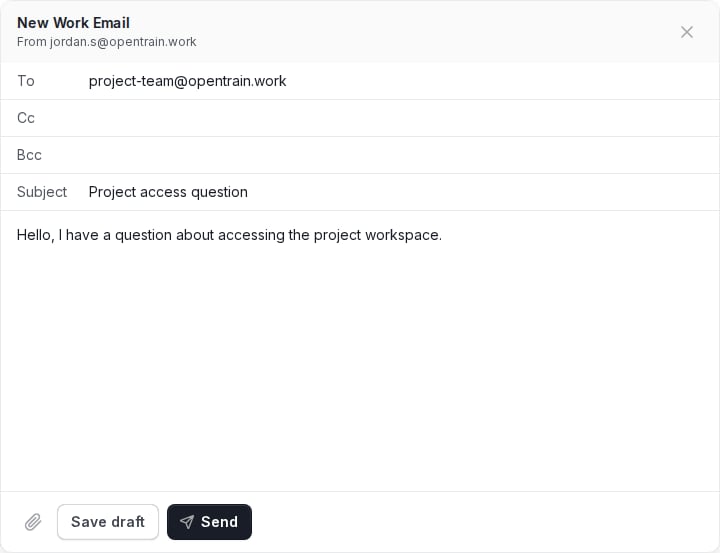
Select **Compose**. The composer shows the `@opentrain.work` address that will send the email.
Enter the recipient in **To**. Add **Cc** or **Bcc** recipients when needed, then add a subject and write your message.
Select the attachment icon and choose the file you want to attach.
Select **Send** when the message is ready. Select **Save draft** if you want to finish it later from the Drafts folder.
From an open email, you can:
* **Reply** to the sender.
* **Forward** the email to another recipient.
* **Archive** the email to remove it from the Inbox without deleting it.
* Download an attachment by selecting its file name.
Before opening a link or attachment, confirm that you recognize the sender and expected the email. If an invitation looks suspicious, ask your project manager to confirm it.
## Find and organize email
Use the folders on the left side of Work Email:
* **Inbox** contains email you have received.
* **Sent** contains email you have sent.
* **Drafts** contains messages you saved without sending.
* **Archive** contains messages you removed from the Inbox without deleting.
Use **Search Work Email** to find messages by a word or phrase. Select **Refresh** if you are waiting for a new project invitation or access email.
Your primary `@opentrain.work` address appears at the top of Work Email. Any additional address assigned to you appears under **Aliases**.
## Send a Work Email
Select **Compose**. The composer shows the `@opentrain.work` address that will send the email.
Enter the recipient in **To**. Add **Cc** or **Bcc** recipients when needed, then add a subject and write your message.
Select the attachment icon and choose the file you want to attach.
Select **Send** when the message is ready. Select **Save draft** if you want to finish it later from the Drafts folder.
 ## Work Email and OpenTrain Messages are different
| Use | Best place |
| ------------------------------------------------------------------ | ----------------------------------------- |
| Talk with an employer about a proposal or active OpenTrain job | [OpenTrain Messages](/docs/messaging/overview) |
| Receive a client-tool or project-workspace invitation | **Work Email** |
| Send or receive regular email for project access | **Work Email** |
| Keep an in-platform job conversation with its proposal or contract | [OpenTrain Messages](/docs/messaging/overview) |
If an employer tells you that an invitation was sent to your Work Email, open the Inbox and select **Refresh**. Search for the tool or project name, then check Archive. If it still does not appear, ask the employer or project manager to resend it.
## Troubleshooting
Work Email appears after a mailbox is assigned to your account. Email [support@opentrain.ai](mailto:support@opentrain.ai) from the email address connected to your OpenTrain account and ask whether Work Email is available for you.
Select **Refresh**, then reload the page. If the problem continues, email [support@opentrain.ai](mailto:support@opentrain.ai) and include a screenshot of the message you see. Do not include passwords or access codes.
Search for the project or tool name, check Archive, and select **Refresh**. Confirm that the sender used the `@opentrain.work` address shown at the top of your mailbox. Ask the employer or project manager to resend the invitation if necessary.
Confirm that the recipient address and subject are complete, then try again. If the message is still blocked, save it as a draft and email [support@opentrain.ai](mailto:support@opentrain.ai) with the error text. Do not share passwords or one-time access codes.
Go directly to your Work Email inbox.
Learn where contracts, instructions, job messages, and active work live.
Open a Hubstaff invitation from Work Email and connect the desktop timer.
## Work Email and OpenTrain Messages are different
| Use | Best place |
| ------------------------------------------------------------------ | ----------------------------------------- |
| Talk with an employer about a proposal or active OpenTrain job | [OpenTrain Messages](/docs/messaging/overview) |
| Receive a client-tool or project-workspace invitation | **Work Email** |
| Send or receive regular email for project access | **Work Email** |
| Keep an in-platform job conversation with its proposal or contract | [OpenTrain Messages](/docs/messaging/overview) |
If an employer tells you that an invitation was sent to your Work Email, open the Inbox and select **Refresh**. Search for the tool or project name, then check Archive. If it still does not appear, ask the employer or project manager to resend it.
## Troubleshooting
Work Email appears after a mailbox is assigned to your account. Email [support@opentrain.ai](mailto:support@opentrain.ai) from the email address connected to your OpenTrain account and ask whether Work Email is available for you.
Select **Refresh**, then reload the page. If the problem continues, email [support@opentrain.ai](mailto:support@opentrain.ai) and include a screenshot of the message you see. Do not include passwords or access codes.
Search for the project or tool name, check Archive, and select **Refresh**. Confirm that the sender used the `@opentrain.work` address shown at the top of your mailbox. Ask the employer or project manager to resend the invitation if necessary.
Confirm that the recipient address and subject are complete, then try again. If the message is still blocked, save it as a draft and email [support@opentrain.ai](mailto:support@opentrain.ai) with the error text. Do not share passwords or one-time access codes.
Go directly to your Work Email inbox.
Learn where contracts, instructions, job messages, and active work live.
Open a Hubstaff invitation from Work Email and connect the desktop timer.