> ## Documentation Index
> Fetch the complete documentation index at: https://opentrain.ai/docs/llms.txt
> Use this file to discover all available pages before exploring further.
# Set up Hubstaff
> Accept your Hubstaff invitation through OpenTrain Work Email, install the desktop timer, and verify the connection for your project.
Use this guide when an OpenTrain Project To-do asks you to install and verify Hubstaff. The setup connects your OpenTrain project to the Hubstaff desktop timer.
Begin from your assigned Project To-do. Do not sign up independently with a personal email address. Your invitation is delivered to your OpenTrain Work Email inbox and is connected to the work address shown in OpenTrain.
## What you need
* An assigned **Install and verify Hubstaff** Project To-do
* Access to [Work Email](/docs/trainers/work-email) inside OpenTrain
* A Windows, macOS, or Linux computer where you can install the Hubstaff desktop application
## Set up and verify Hubstaff
Open **Ongoing Jobs**, select the correct job, and then select **Project To-dos**. Find **Install and verify Hubstaff**.
The card shows your invitation status and provides two direct actions: **Open Work Email inbox** and **View Hubstaff setup guide**.
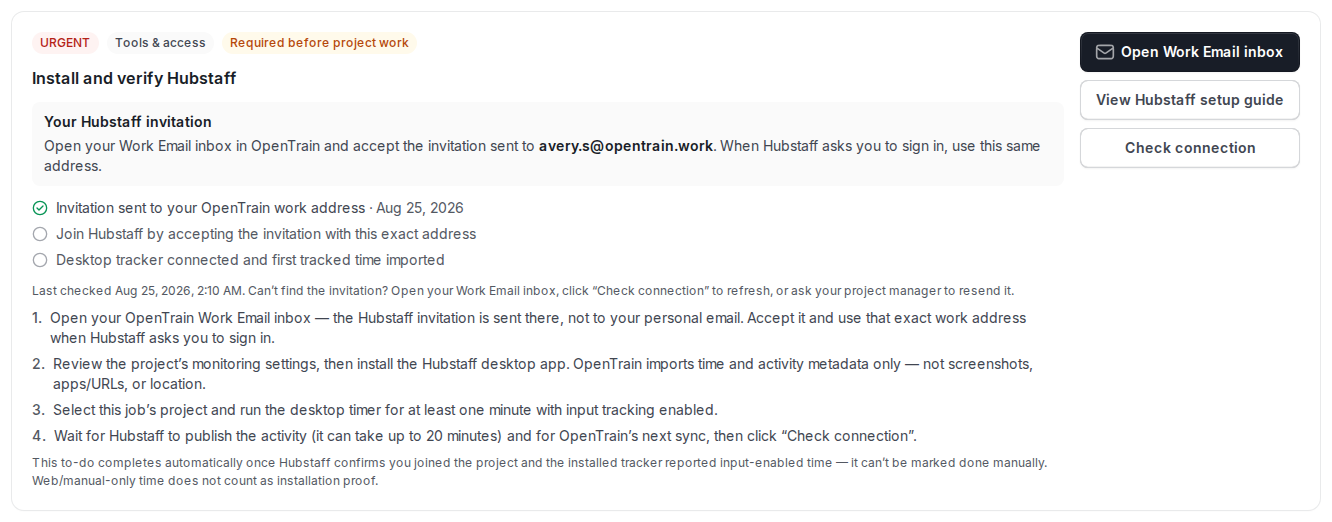 Select **Open Work Email inbox**. Work Email opens inside OpenTrain; you do not need another email application or a separate Work Email password.
In **Inbox**, find the message from Hubstaff and select its subject to read it.
Select **Open Work Email inbox**. Work Email opens inside OpenTrain; you do not need another email application or a separate Work Email password.
In **Inbox**, find the message from Hubstaff and select its subject to read it.
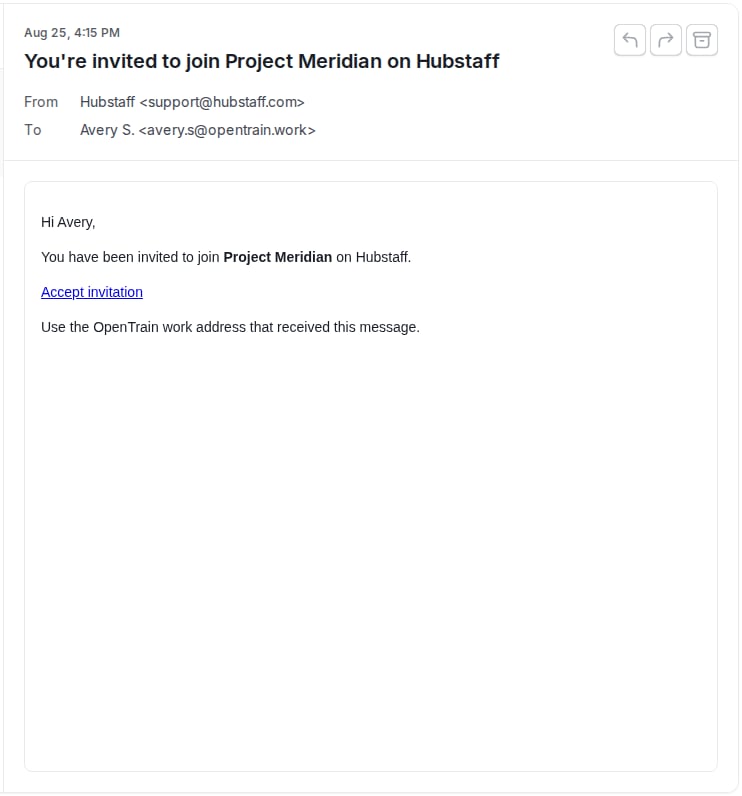
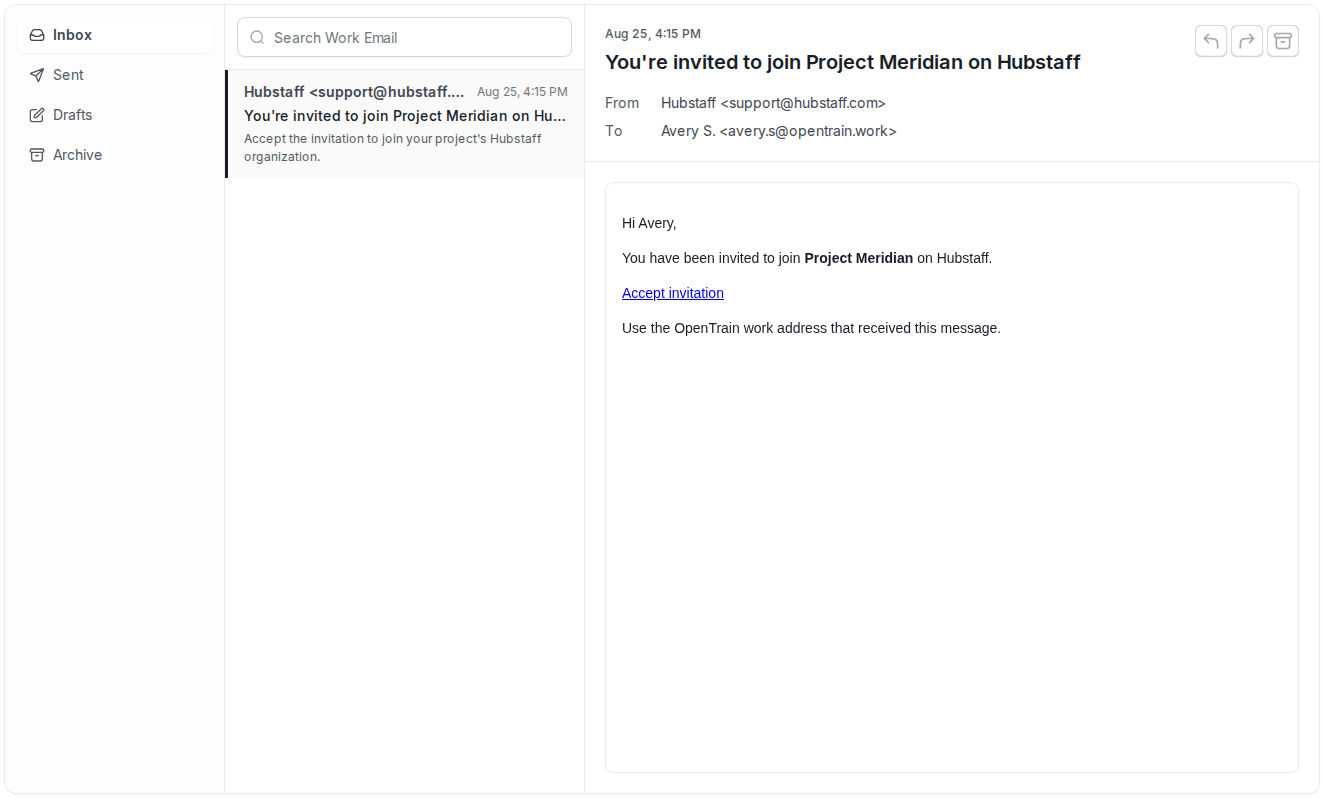 Confirm the project name and sender, then select the invitation action in the email.
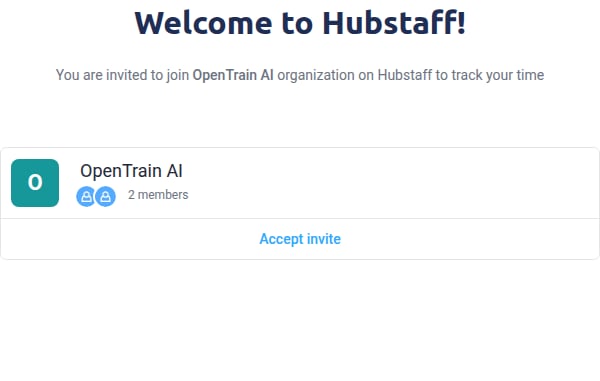
 The invitation opens a Hubstaff page that says you were invited to join **OpenTrain AI**. Confirm that organization name, then select **Accept invite**.
 Do not use Hubstaff's generic **Get started** or **Sign up for free** links. Those links can create an unrelated Hubstaff workspace. Always begin with the invitation inside OpenTrain Work Email.
If this is your first Hubstaff invitation, Hubstaff opens an invitation-specific account form. Enter your first and last name. Your `@opentrain.work` address is already filled in from the invitation and should not be changed.
Create a new password for **Hubstaff**, accept Hubstaff's terms, and select **Create my account**.
Do not use Hubstaff's generic **Get started** or **Sign up for free** links. Those links can create an unrelated Hubstaff workspace. Always begin with the invitation inside OpenTrain Work Email.
If this is your first Hubstaff invitation, Hubstaff opens an invitation-specific account form. Enter your first and last name. Your `@opentrain.work` address is already filled in from the invitation and should not be changed.
Create a new password for **Hubstaff**, accept Hubstaff's terms, and select **Create my account**.
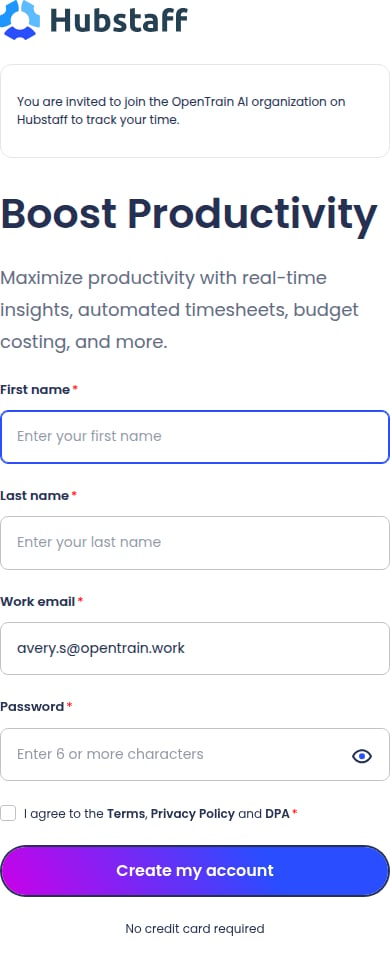 Your Hubstaff username is your full `@opentrain.work` address. OpenTrain does not send you a Hubstaff password. You create this password yourself on the form above. It is separate from your OpenTrain password, so keep it private and store it securely.
If you already created a Hubstaff account with this same work address, Hubstaff may ask you to sign in instead. Use the Hubstaff password you previously created, or select **Forgot your password?** to reset it.
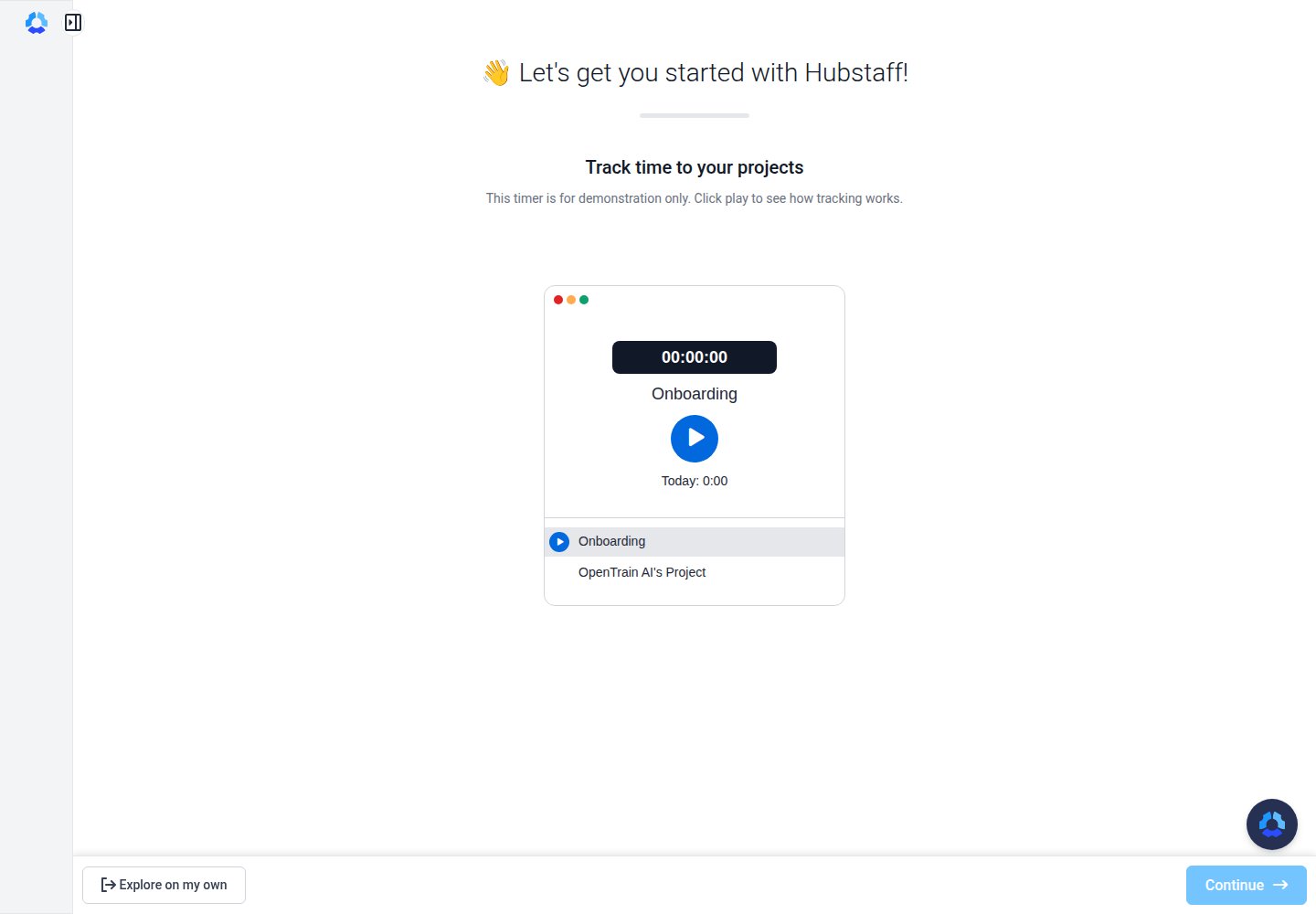
After account creation, Hubstaff may show a short product introduction with a demonstration timer. This is only a Hubstaff walkthrough. It is not your OpenTrain project and does not count as paid or verified project time.
Select **Explore on my own** to continue directly to your account. You can also complete the walkthrough if you want to learn the interface first.
Your Hubstaff username is your full `@opentrain.work` address. OpenTrain does not send you a Hubstaff password. You create this password yourself on the form above. It is separate from your OpenTrain password, so keep it private and store it securely.
If you already created a Hubstaff account with this same work address, Hubstaff may ask you to sign in instead. Use the Hubstaff password you previously created, or select **Forgot your password?** to reset it.
After account creation, Hubstaff may show a short product introduction with a demonstration timer. This is only a Hubstaff walkthrough. It is not your OpenTrain project and does not count as paid or verified project time.
Select **Explore on my own** to continue directly to your account. You can also complete the walkthrough if you want to learn the interface first.
 Review the monitoring notice for your project before tracking. Depending on the project settings, Hubstaff can record time, keyboard and mouse activity levels, screenshots, and application or website activity while the timer is running.
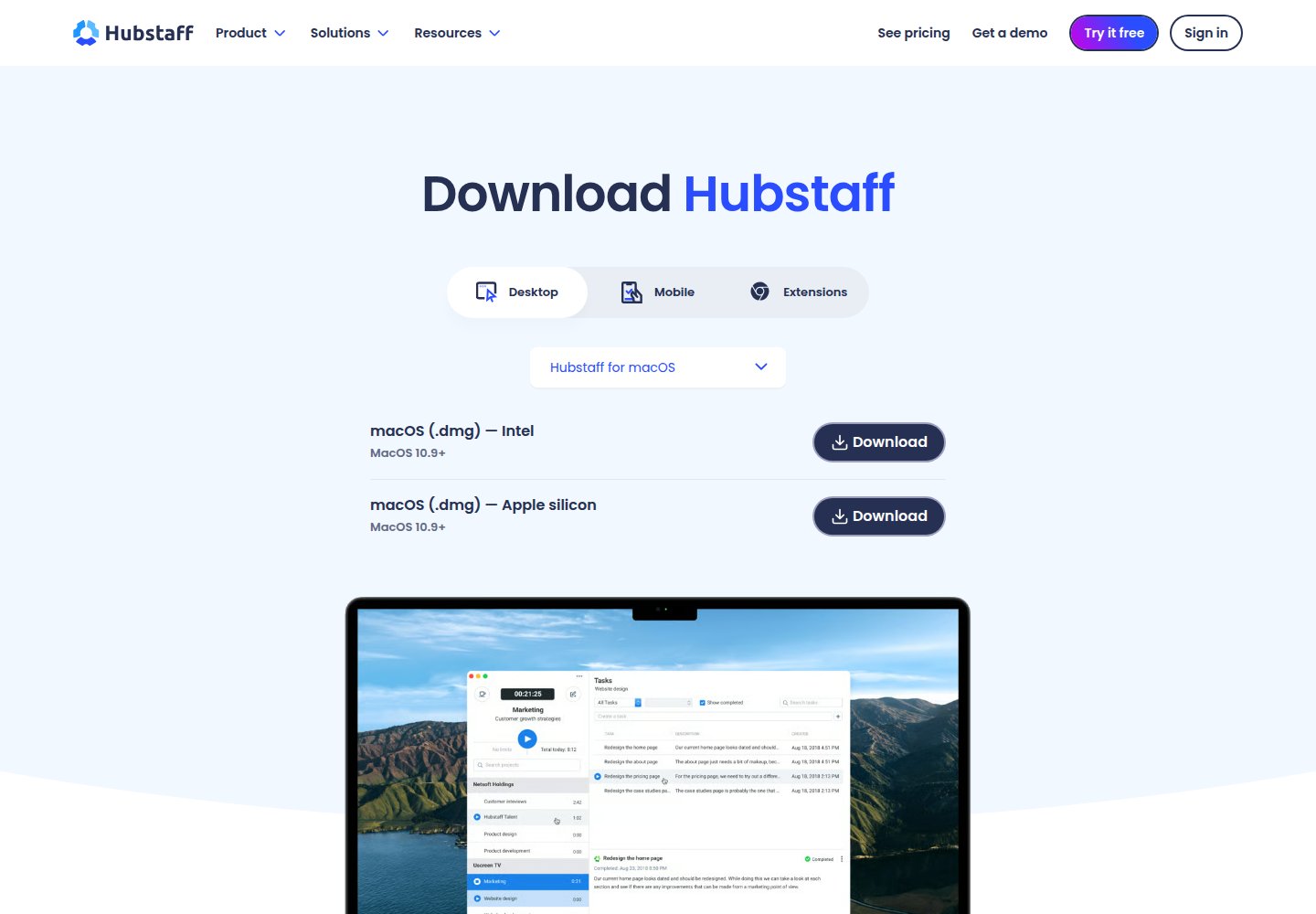
Download and install the [Hubstaff desktop application](https://hubstaff.com/download). Then sign in with the account connected to your OpenTrain Work Email invitation.
On Hubstaff's download page, keep **Desktop** selected, choose your operating system, and select **Download**. The page normally detects your computer automatically; use the operating-system menu if it selects the wrong one.
Review the monitoring notice for your project before tracking. Depending on the project settings, Hubstaff can record time, keyboard and mouse activity levels, screenshots, and application or website activity while the timer is running.
Download and install the [Hubstaff desktop application](https://hubstaff.com/download). Then sign in with the account connected to your OpenTrain Work Email invitation.
On Hubstaff's download page, keep **Desktop** selected, choose your operating system, and select **Download**. The page normally detects your computer automatically; use the operating-system menu if it selects the wrong one.
 OpenTrain imports time and activity metadata for this connection. OpenTrain does not import Hubstaff screenshots, application or website history, or location data. Information collected inside Hubstaff may still be available to authorized project managers through Hubstaff according to the disclosed project settings.
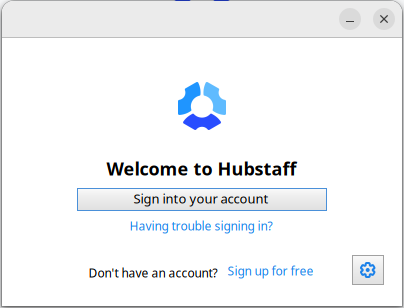
Open the installed Hubstaff desktop application and select **Sign into your account**. Hubstaff opens its secure sign-in in your browser.
Sign in with:
* **Email:** the full `@opentrain.work` address that received the invitation
* **Password:** the Hubstaff password you created in step 4
If the browser is still signed in from account creation, Hubstaff may approve the desktop application without asking for the password again.
OpenTrain imports time and activity metadata for this connection. OpenTrain does not import Hubstaff screenshots, application or website history, or location data. Information collected inside Hubstaff may still be available to authorized project managers through Hubstaff according to the disclosed project settings.
Open the installed Hubstaff desktop application and select **Sign into your account**. Hubstaff opens its secure sign-in in your browser.
Sign in with:
* **Email:** the full `@opentrain.work` address that received the invitation
* **Password:** the Hubstaff password you created in step 4
If the browser is still signed in from account creation, Hubstaff may approve the desktop application without asking for the password again.
 Do not enter your normal OpenTrain password unless you deliberately chose the same password for Hubstaff. OpenTrain and Hubstaff are separate accounts.
Open the Hubstaff desktop application and select **Refresh** in the bottom-left corner. Stay in the **Projects** view, find the project associated with your OpenTrain job, and select the small **Play** button directly beside the project name.
Do not open the task pane, create a task, or use a task-level timer. If Hubstaff asks you to select a task, return to the **Projects** view and use the **Play** button beside the project name instead.
Keep the desktop timer running for at least one full minute while using your keyboard or mouse normally. Then stop the timer.
The web timer and manually entered time do not provide the desktop activity needed for OpenTrain's installation check.
Return to the **Install and verify Hubstaff** card and select **Check connection**.
Hubstaff can take up to 20 minutes to publish new activity. If the card still shows a pending connection, wait and select **Check connection** again. The to-do completes automatically after OpenTrain confirms that you joined the correct project and received input-enabled time from the desktop application.
## Track project time after setup
For each work session:
1. Open the Hubstaff desktop application.
2. Select **Refresh** if the project list may be out of date.
3. Find the project associated with your OpenTrain job in the **Projects** view.
4. Select the **Play** button directly beside the project name when you begin the covered project activity.
5. Stop the timer when you finish or take a non-working break.
6. Follow any additional time-submission or approval instructions provided by the project team.
Verify the project name before starting the timer. Time recorded against a different Hubstaff project will not appear as evidence for this OpenTrain job.
## Troubleshooting
Open [Work Email](https://app.opentrain.ai/ai-trainer?q=work_email), select **Inbox**, search for `Hubstaff`, and select **Refresh**. Check **Archive** as well. If the invitation is still missing, ask the project manager to check or resend your assignment.
Sign out of the Hubstaff account currently open in your browser. Return to OpenTrain Work Email, reopen the invitation, and continue with the `@opentrain.work` address shown in your Project To-do.
Confirm that you accepted the invitation and signed in with the same OpenTrain work address. Sign out and back in to refresh the project list. If it is still missing, contact the project manager.
Return to the desktop application's **Projects** view and select **Refresh** in the bottom-left corner. Find the correct project, then select the small **Play** button directly beside the project name. Do not open the task pane or create a task unless your project instructions explicitly require one.
If there is no **Play** button beside the correct project, capture the entire Hubstaff desktop application window and contact the project manager.
Confirm that you used the desktop application, selected the **Play** button beside the correct project, enabled input tracking, and recorded at least one full minute. Wait up to 20 minutes for Hubstaff to publish the activity, then select **Check connection** again.
Review Hubstaff's [quick-start guide](https://support.hubstaff.com/quick-start-guide-for-new-users/) and installation instructions for your operating system. If a managed computer prevents installation or permissions, contact the project manager before beginning training or project work.
Go directly to your OpenTrain-managed inbox.
Download the current desktop application for your operating system.
Do not enter your normal OpenTrain password unless you deliberately chose the same password for Hubstaff. OpenTrain and Hubstaff are separate accounts.
Open the Hubstaff desktop application and select **Refresh** in the bottom-left corner. Stay in the **Projects** view, find the project associated with your OpenTrain job, and select the small **Play** button directly beside the project name.
Do not open the task pane, create a task, or use a task-level timer. If Hubstaff asks you to select a task, return to the **Projects** view and use the **Play** button beside the project name instead.
Keep the desktop timer running for at least one full minute while using your keyboard or mouse normally. Then stop the timer.
The web timer and manually entered time do not provide the desktop activity needed for OpenTrain's installation check.
Return to the **Install and verify Hubstaff** card and select **Check connection**.
Hubstaff can take up to 20 minutes to publish new activity. If the card still shows a pending connection, wait and select **Check connection** again. The to-do completes automatically after OpenTrain confirms that you joined the correct project and received input-enabled time from the desktop application.
## Track project time after setup
For each work session:
1. Open the Hubstaff desktop application.
2. Select **Refresh** if the project list may be out of date.
3. Find the project associated with your OpenTrain job in the **Projects** view.
4. Select the **Play** button directly beside the project name when you begin the covered project activity.
5. Stop the timer when you finish or take a non-working break.
6. Follow any additional time-submission or approval instructions provided by the project team.
Verify the project name before starting the timer. Time recorded against a different Hubstaff project will not appear as evidence for this OpenTrain job.
## Troubleshooting
Open [Work Email](https://app.opentrain.ai/ai-trainer?q=work_email), select **Inbox**, search for `Hubstaff`, and select **Refresh**. Check **Archive** as well. If the invitation is still missing, ask the project manager to check or resend your assignment.
Sign out of the Hubstaff account currently open in your browser. Return to OpenTrain Work Email, reopen the invitation, and continue with the `@opentrain.work` address shown in your Project To-do.
Confirm that you accepted the invitation and signed in with the same OpenTrain work address. Sign out and back in to refresh the project list. If it is still missing, contact the project manager.
Return to the desktop application's **Projects** view and select **Refresh** in the bottom-left corner. Find the correct project, then select the small **Play** button directly beside the project name. Do not open the task pane or create a task unless your project instructions explicitly require one.
If there is no **Play** button beside the correct project, capture the entire Hubstaff desktop application window and contact the project manager.
Confirm that you used the desktop application, selected the **Play** button beside the correct project, enabled input tracking, and recorded at least one full minute. Wait up to 20 minutes for Hubstaff to publish the activity, then select **Check connection** again.
Review Hubstaff's [quick-start guide](https://support.hubstaff.com/quick-start-guide-for-new-users/) and installation instructions for your operating system. If a managed computer prevents installation or permissions, contact the project manager before beginning training or project work.
Go directly to your OpenTrain-managed inbox.
Download the current desktop application for your operating system.