> ## Documentation Index
> Fetch the complete documentation index at: https://opentrain.ai/docs/llms.txt
> Use this file to discover all available pages before exploring further.
# Complete project to-dos
> Find assigned Project To-dos in OpenTrain and learn how to complete acknowledgements, forms, quizzes, reviewed items, and verified setup actions.
Project To-dos are the actions an employer assigns to you for a specific job. They may include reading updated instructions, completing training or a quiz, signing an agreement, submitting requested evidence, or setting up a required tool.
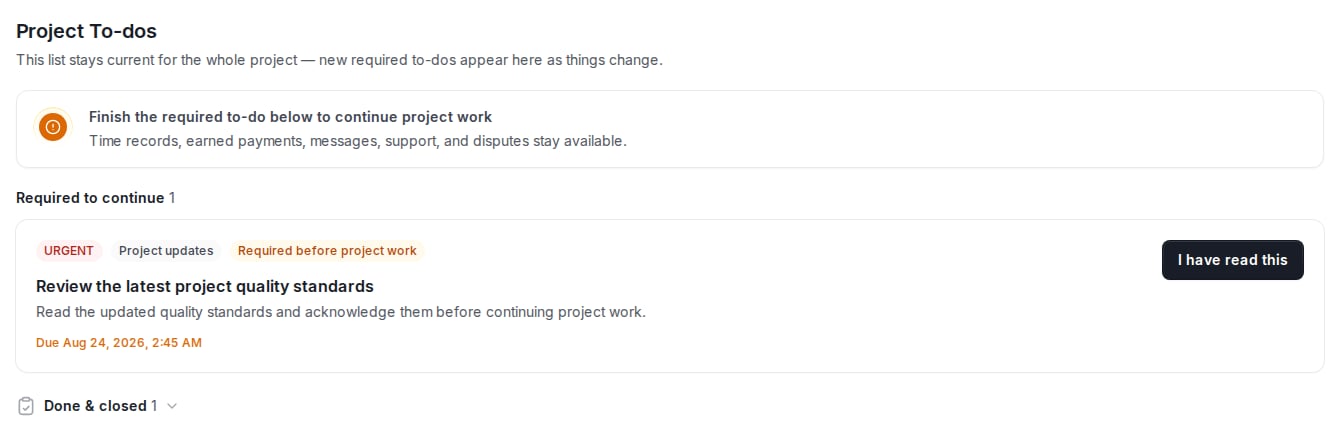
Finish every item labeled **Required before project work** before starting or returning to project work. OpenTrain may temporarily block the project's work area until those items no longer need action from you.
## Find your Project To-dos
Sign in to OpenTrain and select **Ongoing Jobs** from the left navigation.
Find the correct job and select **Start working** or **Manage**.
Open the **Project To-dos** tab at the top of the job. Review this tab whenever you return to a project because employers can assign new items as requirements change.
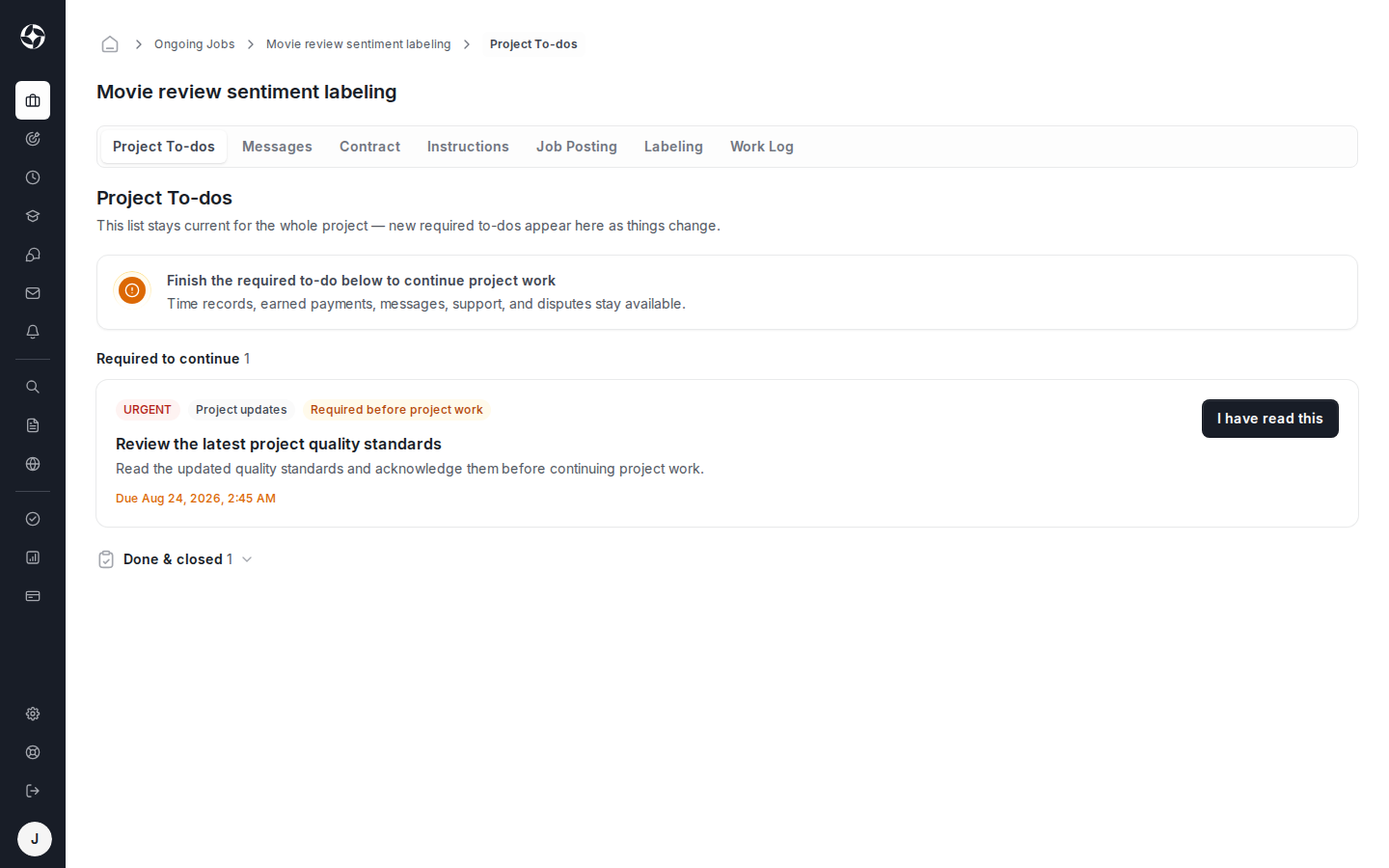 OpenTrain shows the **Project To-dos** tab only when at least one to-do has been assigned to your contract. If you were told to expect a to-do but the tab is missing, confirm that you opened the correct job and ask the project manager to check your assignment.
## Understand the list
| Section | What it means | What you should do |
| ----------------------------------- | -------------------------------------------------------------------- | --------------------------------------- |
| **Required to continue** | An item needs your action before you can continue project work. | Complete it first. |
| **Other open to-dos** | An assigned item is open but is not currently blocking project work. | Complete it by the shown due date. |
| **Waiting on your project manager** | You submitted the item and the next action belongs to the employer. | Wait for approval or returned feedback. |
| **Done & closed** | The item was completed, waived, replaced, or closed. | Use this section to check your history. |
Each card identifies the category, priority, instructions, due date when one applies, and the action you must take.
OpenTrain shows the **Project To-dos** tab only when at least one to-do has been assigned to your contract. If you were told to expect a to-do but the tab is missing, confirm that you opened the correct job and ask the project manager to check your assignment.
## Understand the list
| Section | What it means | What you should do |
| ----------------------------------- | -------------------------------------------------------------------- | --------------------------------------- |
| **Required to continue** | An item needs your action before you can continue project work. | Complete it first. |
| **Other open to-dos** | An assigned item is open but is not currently blocking project work. | Complete it by the shown due date. |
| **Waiting on your project manager** | You submitted the item and the next action belongs to the employer. | Wait for approval or returned feedback. |
| **Done & closed** | The item was completed, waived, replaced, or closed. | Use this section to check your history. |
Each card identifies the category, priority, instructions, due date when one applies, and the action you must take.
 ## Complete an assigned item
1. Read the full title, description, due date, and any linked instructions.
2. Complete the requested action using the button on the card.
3. Return to **Project To-dos** and confirm that the item moved forward or no longer needs action from you.
The button and completion behavior depend on the type of to-do:
| Action you see | What happens |
| -------------------------------- | ---------------------------------------------------------------------------------------------------------------------------------- |
| **I have read this** | Confirms that you read the assigned material. |
| **Mark complete** | Records your confirmation that you completed the stated action. |
| **Open form or quiz** | Opens an OpenTrain form or quiz. Follow the instructions shown there; some quizzes require a passing score. |
| **Submit for review** | Sends the required written response, link, or file to the employer. The item remains incomplete until it is approved. |
| **Open required action** | Opens the linked service or resource in a new tab. Complete the action there, then follow the completion instructions on the card. |
| A **check** or **verify** action | Asks OpenTrain to check an external service. The item completes only after that service confirms the requirement. |
A submitted item may be returned with feedback. When that happens, read the feedback on the card, make the requested change, and submit it again.
## If a required item blocks project work
OpenTrain can block the project's work area while a required item needs your action. It does not block your messages, time records, earned payments, support, or disputes.
Complete the items under **Required to continue** first. If an item is already under **Waiting on your project manager**, you have completed your current step and should wait for the employer's review.
## Get help
* For unclear to-do instructions, missing assignments, or returned feedback, use the job's **Messages** tab to contact the project team.
* For an OpenTrain account or platform problem, select **Support/Report bug** in the left navigation.
* If an external service does not verify your action, re-read the setup steps on the card before asking the project manager to check the assignment.
Find setup guides for the time tracking tool assigned to your project.
Accept the invitation, install the desktop timer, and verify the connection.
## Complete an assigned item
1. Read the full title, description, due date, and any linked instructions.
2. Complete the requested action using the button on the card.
3. Return to **Project To-dos** and confirm that the item moved forward or no longer needs action from you.
The button and completion behavior depend on the type of to-do:
| Action you see | What happens |
| -------------------------------- | ---------------------------------------------------------------------------------------------------------------------------------- |
| **I have read this** | Confirms that you read the assigned material. |
| **Mark complete** | Records your confirmation that you completed the stated action. |
| **Open form or quiz** | Opens an OpenTrain form or quiz. Follow the instructions shown there; some quizzes require a passing score. |
| **Submit for review** | Sends the required written response, link, or file to the employer. The item remains incomplete until it is approved. |
| **Open required action** | Opens the linked service or resource in a new tab. Complete the action there, then follow the completion instructions on the card. |
| A **check** or **verify** action | Asks OpenTrain to check an external service. The item completes only after that service confirms the requirement. |
A submitted item may be returned with feedback. When that happens, read the feedback on the card, make the requested change, and submit it again.
## If a required item blocks project work
OpenTrain can block the project's work area while a required item needs your action. It does not block your messages, time records, earned payments, support, or disputes.
Complete the items under **Required to continue** first. If an item is already under **Waiting on your project manager**, you have completed your current step and should wait for the employer's review.
## Get help
* For unclear to-do instructions, missing assignments, or returned feedback, use the job's **Messages** tab to contact the project team.
* For an OpenTrain account or platform problem, select **Support/Report bug** in the left navigation.
* If an external service does not verify your action, re-read the setup steps on the card before asking the project manager to check the assignment.
Find setup guides for the time tracking tool assigned to your project.
Accept the invitation, install the desktop timer, and verify the connection.