> ## Documentation Index
> Fetch the complete documentation index at: https://opentrain.ai/docs/llms.txt
> Use this file to discover all available pages before exploring further.
# Managing Work
> How to manage active contracts, job messages, contract details, job instructions, calendar items, and reports as an AI trainer on OpenTrain AI.
Once an employer accepts your proposal, a contract is created and your work begins. The AI trainer dashboard and the contract detail pages are where you manage everything from there.
## The AI Trainer dashboard
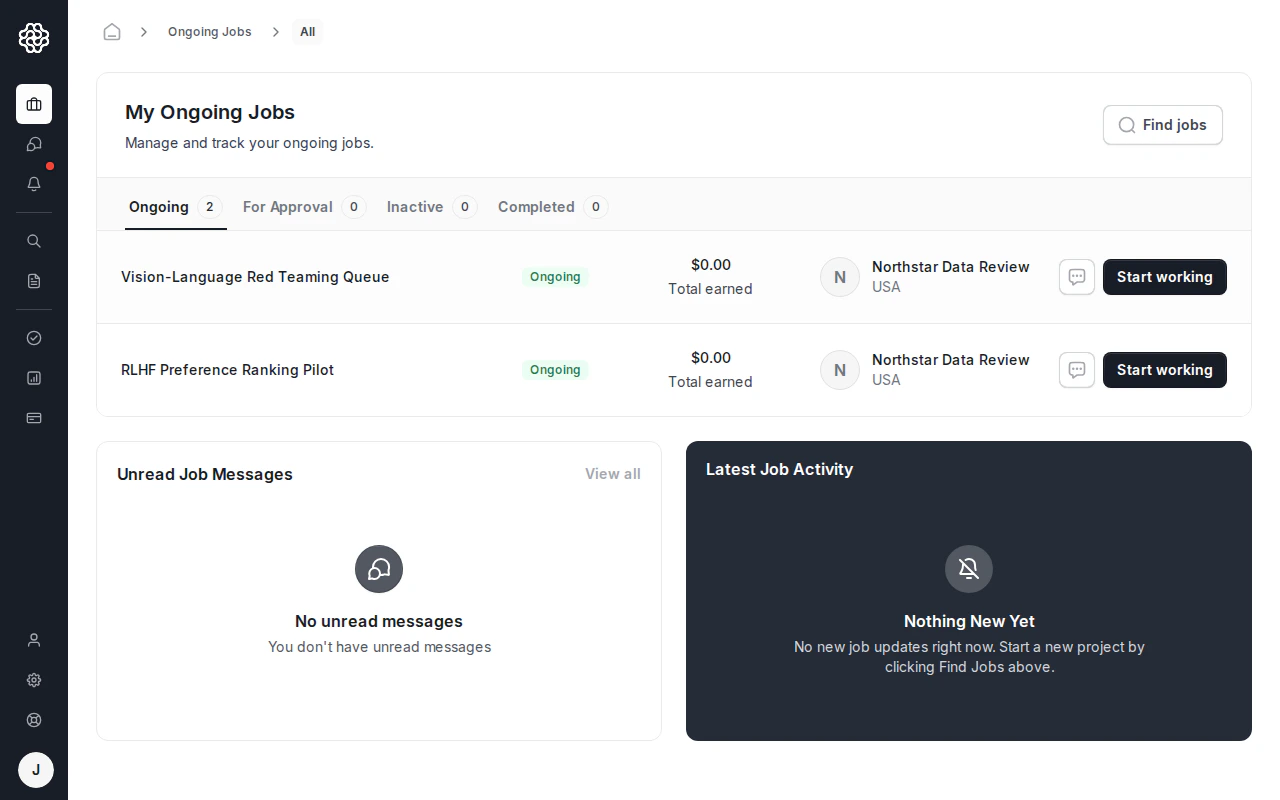
Your main dashboard is accessible from the main navigation. Use the dashboard sections and side navigation to move between:
| Tab | What's here |
| ------------- | ----------------------------------------------------------- |
| **My Jobs** | All active contracts and their status |
| **Finished** | Completed contracts |
| **Proposals** | Proposals you have submitted that are pending review |
| **Messages** | All conversations — both proposal messages and job messages |
| **Calendar** | Scheduled sessions or events your employer has set |
| **Reports** | Invoices and payout records |
The dashboard also shows recommended jobs on the home view so you can keep applying while managing active work.
 ## Manage-job view
For each active contract, click **Start working** or **Manage** to open the manage-job view. This page keeps the job-specific work areas together:
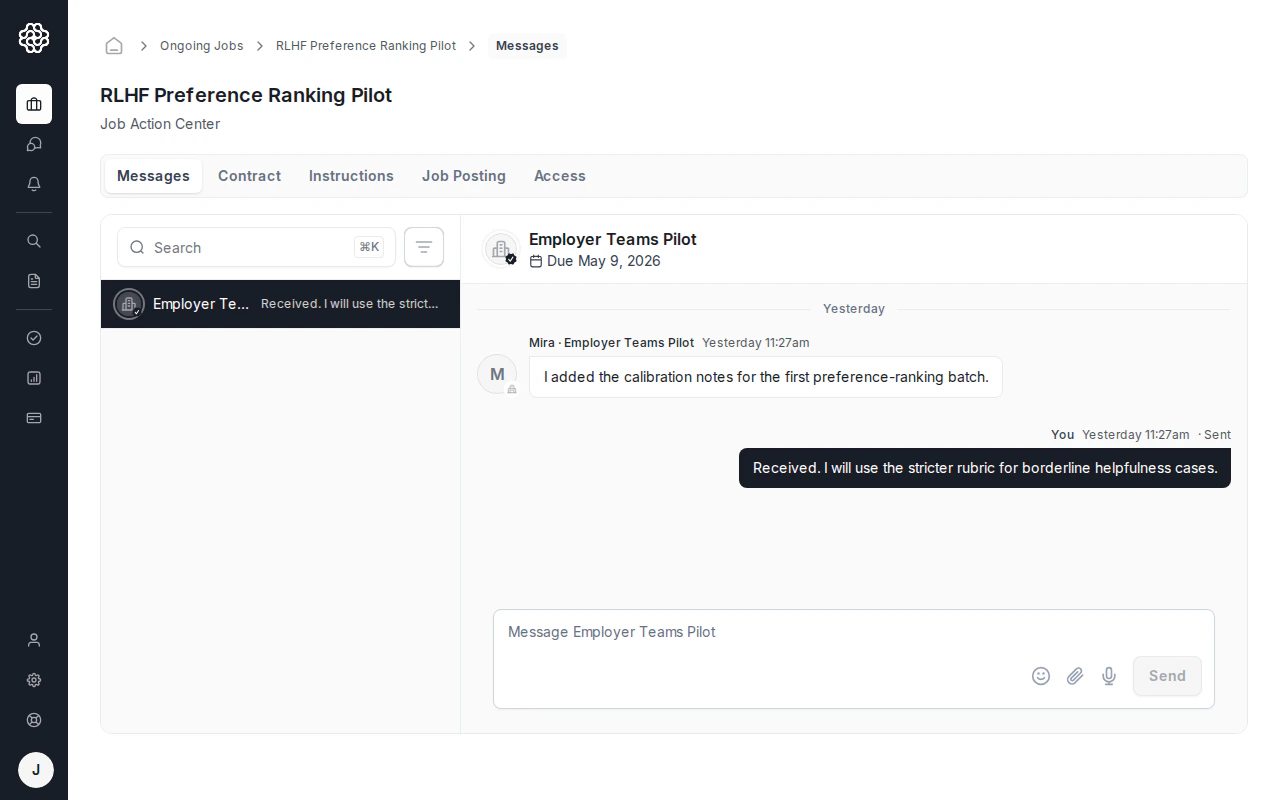
All conversations related to this job — your 1:1 messages with the employer and any group channels they have set up for the team. You can send messages, view message history, and see who else is on the job.
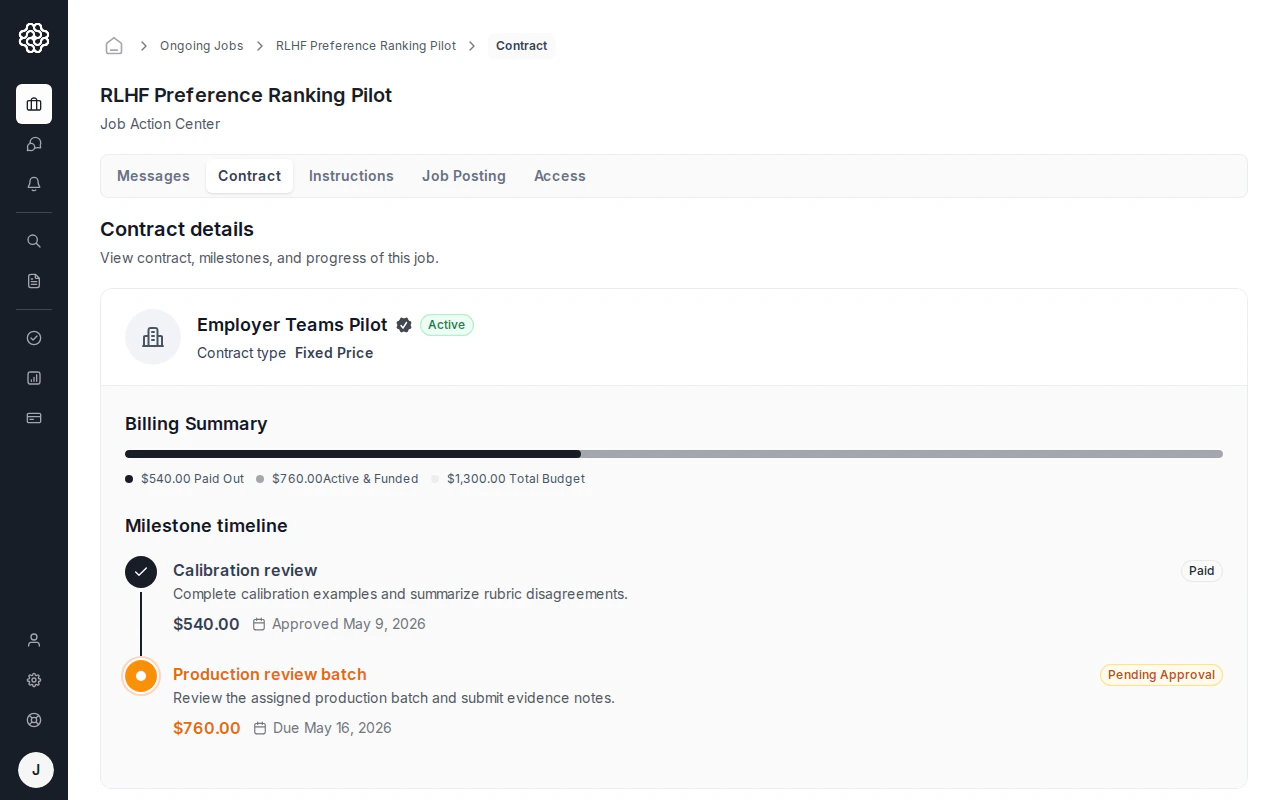
The contract detail showing the agreed scope, budget, milestones, and status. Use this tab to submit milestone work. For the full payment workflow, see [Payments & payouts](/trainers/payments-payouts).
Job instructions created by the employer as a collaborative document. This tab is available when the employer has published instructions for the project. Read this carefully before starting work — it is the primary source of truth for what the employer expects.
The original job post and scope context, useful when you need to check what the employer asked for before work began.
Job access details, such as team or tool access managed by the employer for the active contract.
## Manage-job view
For each active contract, click **Start working** or **Manage** to open the manage-job view. This page keeps the job-specific work areas together:
All conversations related to this job — your 1:1 messages with the employer and any group channels they have set up for the team. You can send messages, view message history, and see who else is on the job.
The contract detail showing the agreed scope, budget, milestones, and status. Use this tab to submit milestone work. For the full payment workflow, see [Payments & payouts](/trainers/payments-payouts).
Job instructions created by the employer as a collaborative document. This tab is available when the employer has published instructions for the project. Read this carefully before starting work — it is the primary source of truth for what the employer expects.
The original job post and scope context, useful when you need to check what the employer asked for before work began.
Job access details, such as team or tool access managed by the employer for the active contract.
 ## Contract detail page
You can also access a full contract detail view from your dashboard. This page shows:
* The full contract terms and scope
* Milestone list with funding status
* Work submission and approval history
## Contract detail page
You can also access a full contract detail view from your dashboard. This page shows:
* The full contract terms and scope
* Milestone list with funding status
* Work submission and approval history
 ## Milestones
Employers pay through milestones. Each milestone represents a deliverable or phase of work with a defined amount. The **Contract** tab shows milestone amounts, due dates, and current status so you can see what work is funded and what still needs review.
Use [Payments & payouts](/trainers/payments-payouts) for the step-by-step payout workflow, including **Complete & Request Payout**, payout method setup from **Settings -> Payouts**, payout invoices, and country availability.
## Job instructions
Employers can create detailed job instructions as a collaborative document inside the platform. When instructions are published, they appear in the **Instructions** tab of your manage-job view.
## Milestones
Employers pay through milestones. Each milestone represents a deliverable or phase of work with a defined amount. The **Contract** tab shows milestone amounts, due dates, and current status so you can see what work is funded and what still needs review.
Use [Payments & payouts](/trainers/payments-payouts) for the step-by-step payout workflow, including **Complete & Request Payout**, payout method setup from **Settings -> Payouts**, payout invoices, and country availability.
## Job instructions
Employers can create detailed job instructions as a collaborative document inside the platform. When instructions are published, they appear in the **Instructions** tab of your manage-job view.
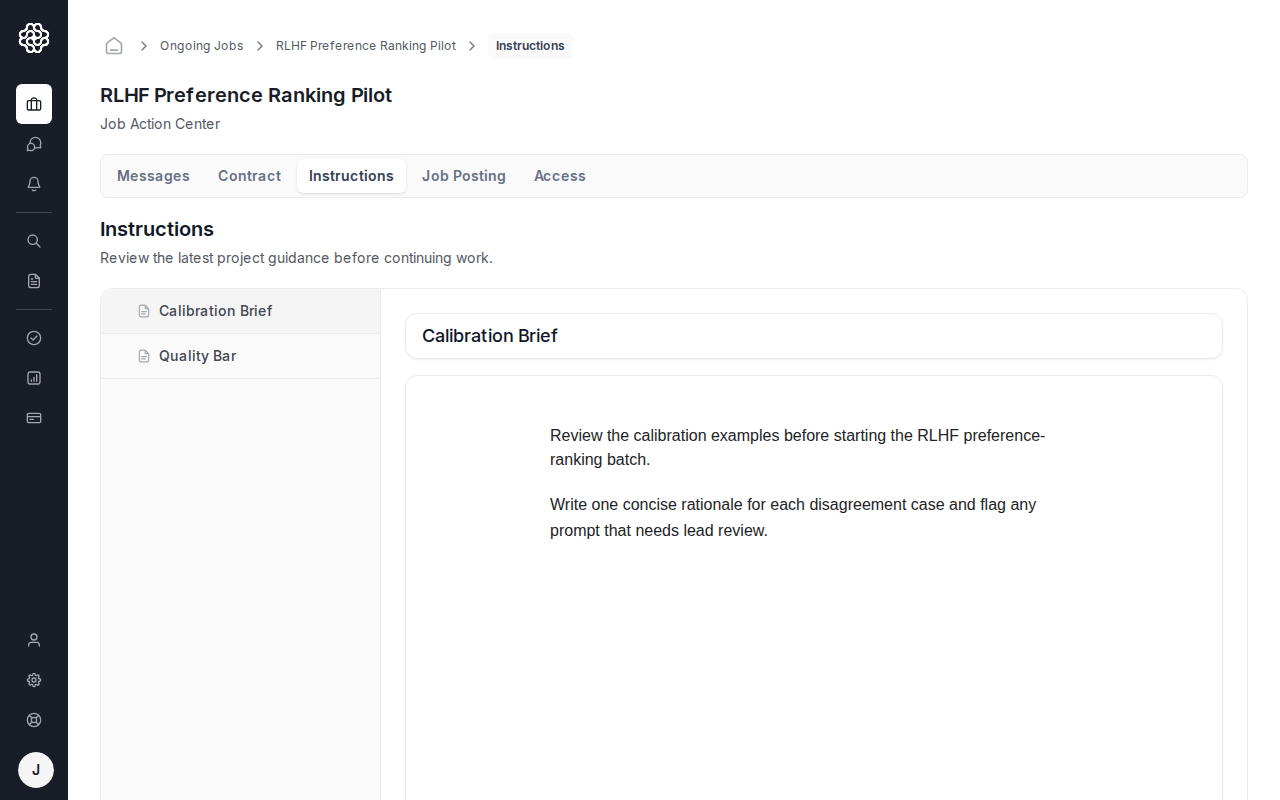 Instructions often include:
* Task guidelines and quality standards
* Examples of acceptable and unacceptable annotations
* Tools or platforms to use
* File naming conventions or submission formats
Check the instructions before starting work and re-read them whenever they are updated. The employer can edit instructions at any time during the contract.
## Calendar
The **Calendar** tab on your dashboard shows any scheduled events the employer has created — kickoff calls, check-ins, or deadline markers. Calendar entries are created by the employer and appear on your calendar automatically.
## Reports
The **Reports** tab on your dashboard lists invoices and payout records. Use it to find records for completed or pending payment rows. For invoice download details, see [Payments & payouts](/trainers/payments-payouts#payout-invoices-and-reports).
Instructions often include:
* Task guidelines and quality standards
* Examples of acceptable and unacceptable annotations
* Tools or platforms to use
* File naming conventions or submission formats
Check the instructions before starting work and re-read them whenever they are updated. The employer can edit instructions at any time during the contract.
## Calendar
The **Calendar** tab on your dashboard shows any scheduled events the employer has created — kickoff calls, check-ins, or deadline markers. Calendar entries are created by the employer and appear on your calendar automatically.
## Reports
The **Reports** tab on your dashboard lists invoices and payout records. Use it to find records for completed or pending payment rows. For invoice download details, see [Payments & payouts](/trainers/payments-payouts#payout-invoices-and-reports).