> ## Documentation Index
> Fetch the complete documentation index at: https://opentrain.ai/docs/llms.txt
> Use this file to discover all available pages before exploring further.
# Finding Jobs
> How to find, evaluate, and apply to AI training and data labeling jobs on OpenTrain AI.
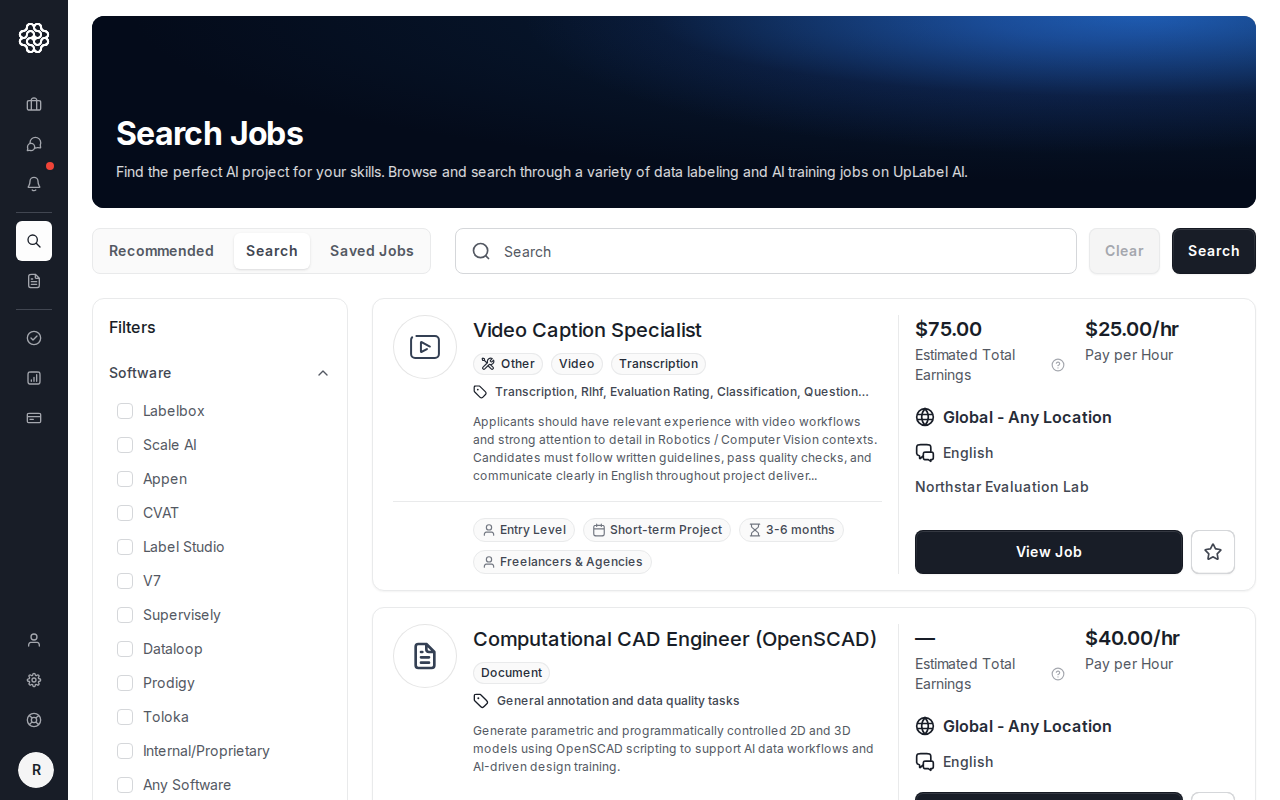
The **Find Jobs** section is your primary tool for discovering work. It shows open projects from employers around the world, with recommended matches, search, saved jobs, filters, and job cards.
From your AI trainer dashboard, click **Find jobs** to open job discovery.
 ## The job feed
The feed has three tabs:
Jobs ranked for you by the matching engine based on your skills, languages, labeling experience, location, and experience level. The recommendations update as your profile changes and as new jobs are posted.
Your recommended jobs improve as your profile becomes more complete. Adding labeling experience entries, selecting your software tools, and confirming your languages all influence your ranking.
Browse all open jobs with text search and filters. Available filters include:
* **Software** — specific labeling or annotation platform
* **Data type** — image, text, audio, video, code, etc.
* **Label type** — bounding box, RLHF, SFT, evaluation, etc.
* **Experience level** — entry, intermediate, or expert
* **Budget type** — hourly, per-label, or fixed price
* **Hours per week** and **project length**
Use search when you want to find jobs for a specific tool or task type that may not be surfaced in your recommendations yet.
Jobs you have bookmarked. Save any job from the recommended or search tab to review later. Saved jobs remain in this list until you remove them or the job closes.
## How matching works
The matching engine scores every open job against your profile using:
* **Skills** — software tools, data types, and label types you have listed
* **Labeling experience** — the specific platforms and task types from your experience entries
* **Languages** — jobs that require specific languages are matched against your listed languages
* **Location** — some employers restrict applications to certain countries
* **Experience level** — your declared level (entry, intermediate, expert) is compared to the job's requirements
Jobs where you meet more of the criteria rank higher. Jobs that require something you do not have listed appear lower or are filtered out entirely. This is why a complete profile leads to meaningfully better matches.
## Browsing job details
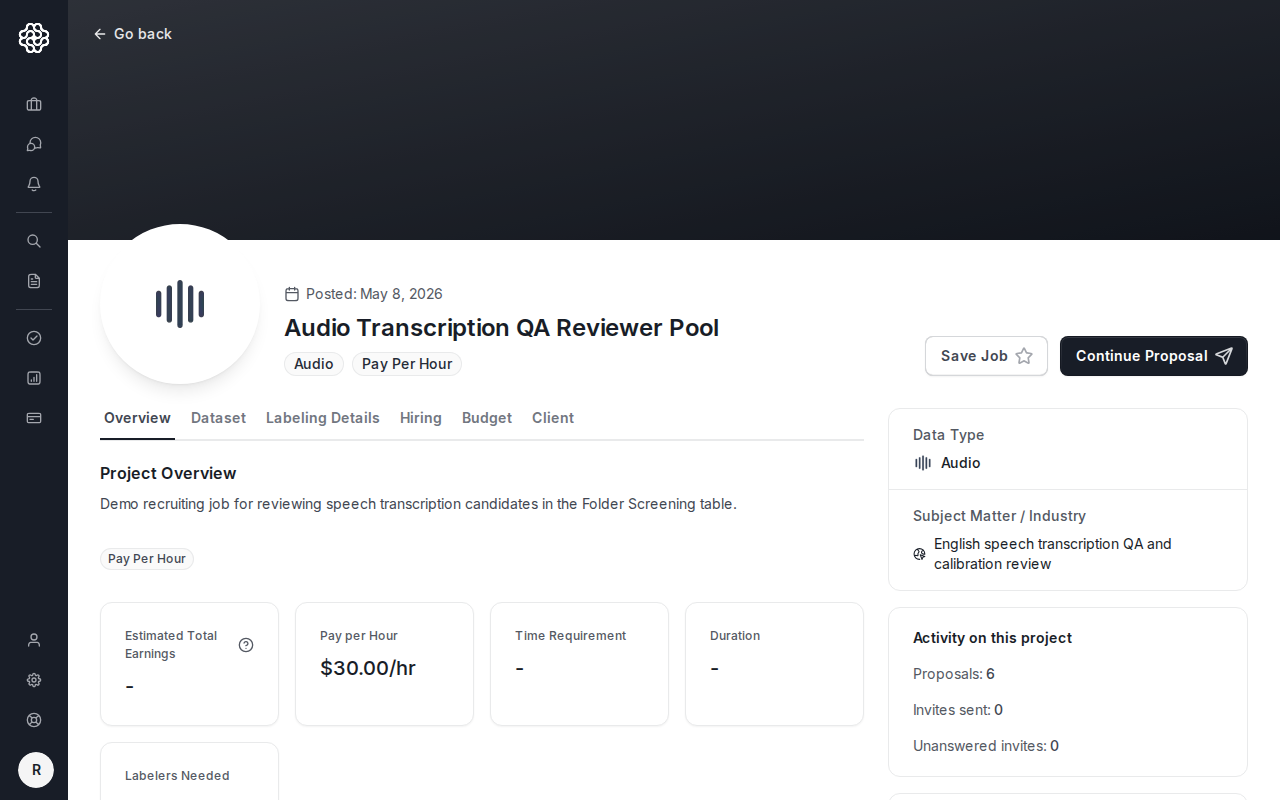
Click any job card to open the full listing. The detail page shows:
* **Job description** — what the work involves, subject matter, and any special requirements
* **Labeling details** — software, data type, label types, and languages required
* **Budget** — hourly rate, per-label rate, or fixed price depending on the payment model
* **Hiring criteria** — experience level, talent type (freelancer vs. agency), and location restrictions
* **Employer profile** — company name, photo, and country
Review the full detail page before applying. Pay attention to the required software and data types — if the job lists them as required and your profile does not include them, your proposal may not be considered.
## The job feed
The feed has three tabs:
Jobs ranked for you by the matching engine based on your skills, languages, labeling experience, location, and experience level. The recommendations update as your profile changes and as new jobs are posted.
Your recommended jobs improve as your profile becomes more complete. Adding labeling experience entries, selecting your software tools, and confirming your languages all influence your ranking.
Browse all open jobs with text search and filters. Available filters include:
* **Software** — specific labeling or annotation platform
* **Data type** — image, text, audio, video, code, etc.
* **Label type** — bounding box, RLHF, SFT, evaluation, etc.
* **Experience level** — entry, intermediate, or expert
* **Budget type** — hourly, per-label, or fixed price
* **Hours per week** and **project length**
Use search when you want to find jobs for a specific tool or task type that may not be surfaced in your recommendations yet.
Jobs you have bookmarked. Save any job from the recommended or search tab to review later. Saved jobs remain in this list until you remove them or the job closes.
## How matching works
The matching engine scores every open job against your profile using:
* **Skills** — software tools, data types, and label types you have listed
* **Labeling experience** — the specific platforms and task types from your experience entries
* **Languages** — jobs that require specific languages are matched against your listed languages
* **Location** — some employers restrict applications to certain countries
* **Experience level** — your declared level (entry, intermediate, expert) is compared to the job's requirements
Jobs where you meet more of the criteria rank higher. Jobs that require something you do not have listed appear lower or are filtered out entirely. This is why a complete profile leads to meaningfully better matches.
## Browsing job details
Click any job card to open the full listing. The detail page shows:
* **Job description** — what the work involves, subject matter, and any special requirements
* **Labeling details** — software, data type, label types, and languages required
* **Budget** — hourly rate, per-label rate, or fixed price depending on the payment model
* **Hiring criteria** — experience level, talent type (freelancer vs. agency), and location restrictions
* **Employer profile** — company name, photo, and country
Review the full detail page before applying. Pay attention to the required software and data types — if the job lists them as required and your profile does not include them, your proposal may not be considered.
 ## Applying for a job
From the Find Jobs feed, click **View Job** on a job card.
Review the full listing, then click **Submit a proposal**. If you already started the proposal, the button may read **Continue Proposal**. If your profile is incomplete, you will be prompted to finish it before continuing.
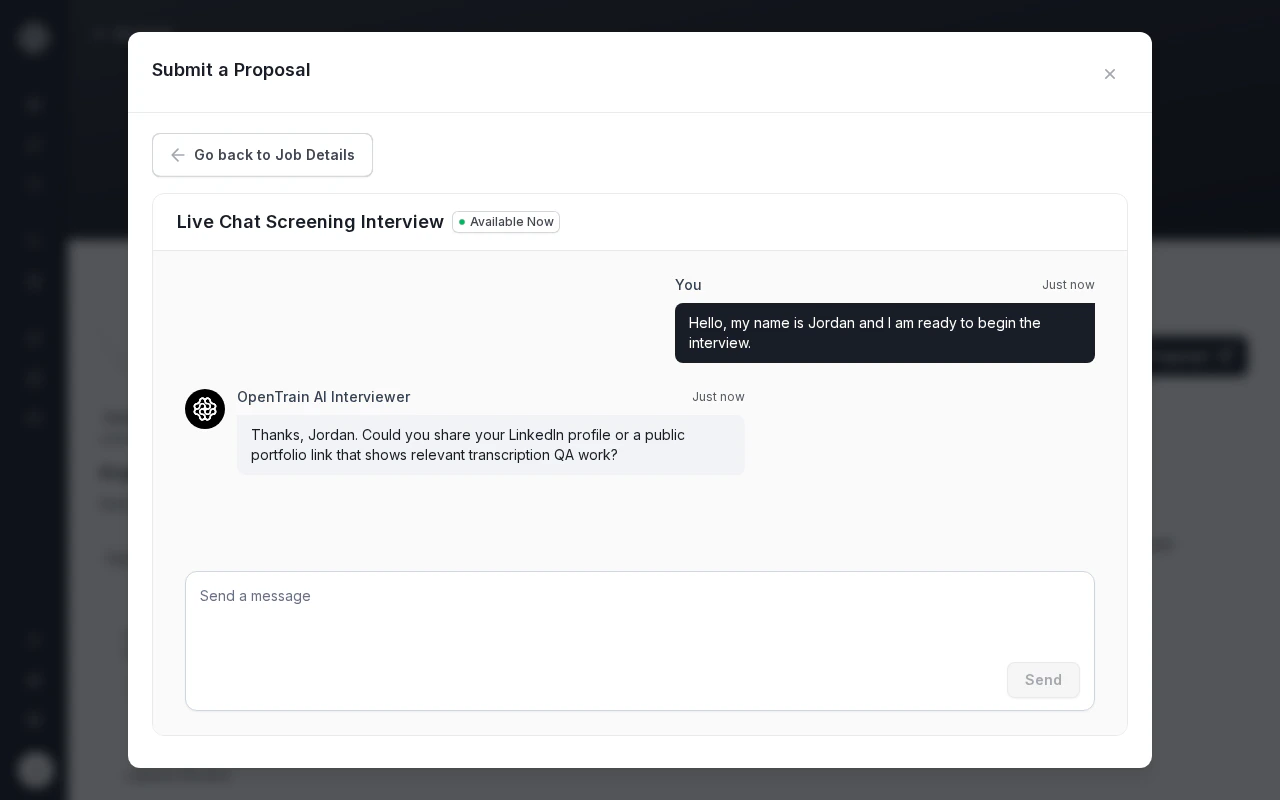
Many employers configure a structured screening step. If this job requires one, the proposal modal opens directly into the AI interview. You must complete the interview before you can submit your proposal.
See [AI interview](/trainers/ai-interview) for a full walkthrough.
Enter your bid price. Depending on the job's payment model, this is your hourly rate, your per-label rate, or your fixed project price. The form shows an estimated total earnings based on the volume the employer has specified.
Review the summary and submit. Your proposal is sent to the employer immediately.
## Applying for a job
From the Find Jobs feed, click **View Job** on a job card.
Review the full listing, then click **Submit a proposal**. If you already started the proposal, the button may read **Continue Proposal**. If your profile is incomplete, you will be prompted to finish it before continuing.
Many employers configure a structured screening step. If this job requires one, the proposal modal opens directly into the AI interview. You must complete the interview before you can submit your proposal.
See [AI interview](/trainers/ai-interview) for a full walkthrough.
Enter your bid price. Depending on the job's payment model, this is your hourly rate, your per-label rate, or your fixed project price. The form shows an estimated total earnings based on the volume the employer has specified.
Review the summary and submit. Your proposal is sent to the employer immediately.
 ## Job types
Most jobs on the platform are standard listings. You apply, set your bid, and the employer reviews your proposal. There is no mandatory interview — the employer may have set optional questions or no screening at all.
Some employers enable structured AI screening. These jobs require you to complete an AI interview before your proposal can be submitted. The interview captures specific information the employer needs — like your LinkedIn URL, years of experience, weekly availability, and previous AI training background.
You can identify these jobs before applying: the job detail page will note that an AI interview is required, and the proposal flow will launch the interview automatically when you click Apply.
## After you submit
Once your proposal is submitted, it enters the employer's review queue. You can track all your active proposals from the **Proposals** tab on your dashboard.
The employer may:
* **Message you** with questions before deciding — these land in your **Messages** tab
* **Accept your proposal** — a contract is created and you move to active work
* **Decline your proposal** — you are notified and can apply to other jobs
There is no limit on how many proposals you can have active at once.
## Job types
Most jobs on the platform are standard listings. You apply, set your bid, and the employer reviews your proposal. There is no mandatory interview — the employer may have set optional questions or no screening at all.
Some employers enable structured AI screening. These jobs require you to complete an AI interview before your proposal can be submitted. The interview captures specific information the employer needs — like your LinkedIn URL, years of experience, weekly availability, and previous AI training background.
You can identify these jobs before applying: the job detail page will note that an AI interview is required, and the proposal flow will launch the interview automatically when you click Apply.
## After you submit
Once your proposal is submitted, it enters the employer's review queue. You can track all your active proposals from the **Proposals** tab on your dashboard.
The employer may:
* **Message you** with questions before deciding — these land in your **Messages** tab
* **Accept your proposal** — a contract is created and you move to active work
* **Decline your proposal** — you are notified and can apply to other jobs
There is no limit on how many proposals you can have active at once.