> ## Documentation Index
> Fetch the complete documentation index at: https://opentrain.ai/docs/llms.txt
> Use this file to discover all available pages before exploring further.
# How to delete your OpenTrain account
> How to delete your OpenTrain account, what gets removed, and what to wrap up first if you have an active contract or pending payout.
You can delete your OpenTrain account from the platform at any time.
## How to start
1. Sign in at **app.opentrain.ai**.
2. Open the [**Account** tab in AI Trainer settings](https://app.opentrain.ai/ai-trainer-settings?tab=account).
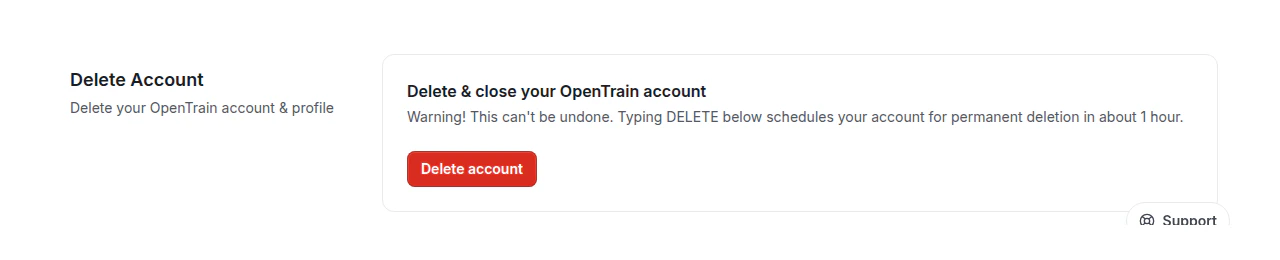
3. Scroll to the **Delete Account** section at the bottom of the page and click the red **Delete account** button.
 We then ask you to type **DELETE** to confirm.
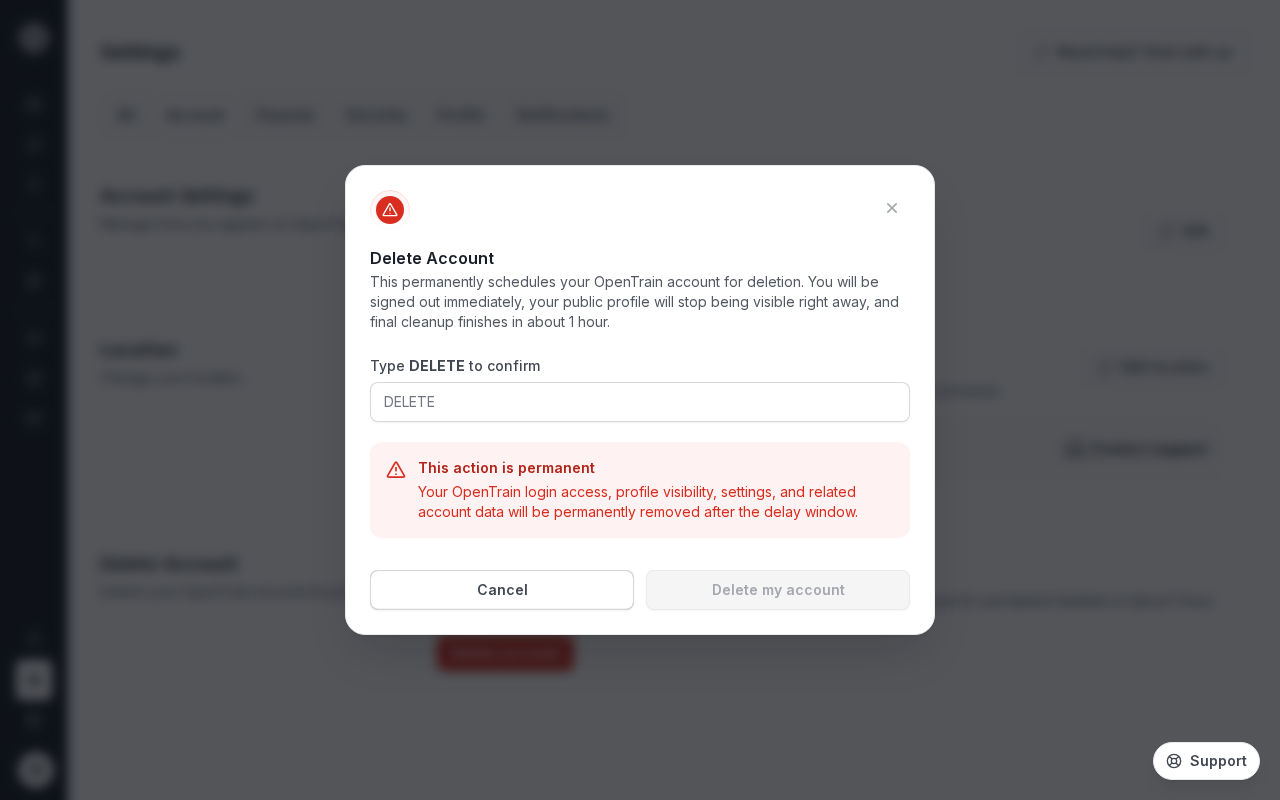 Once you confirm, your access ends and your AI trainer profile is hidden from the platform right away. Final cleanup runs about an hour later. The Account tab shows the approximate window — it does not show an exact scheduled time.
## What happens to your data
Some data is cleared, and some is kept on operational records. We're upfront about which is which.
* **Cleared or anonymized**: your name, profile photo, public profile content, and AI interview history.
* **Kept on operational records**: proposals you submitted, contracts you signed, payment records, direct-message history, and saved jobs. These stay attached to the jobs and employers they belong to so the platform's records of past work, payments, and conversations remain intact for the other party. Your name and profile no longer appear next to them once your account is closed.
If you want a specific record reviewed for removal, email [support@opentrain.ai](mailto:support@opentrain.ai) with the email on the account.
## Active work and payouts
If you have any of the following, you'll need to wrap them up before deletion can complete:
* An **active contract** on a job you were hired for.
* A **pending payout** that hasn't reached your bank account yet.
* **Any unpaid balance from completed milestones** that hasn't been transferred out.
The delete flow tells you which of these is open. Finish the contract, wait for the payout to land, and check that the unpaid-balance figure on your Payouts tab is zero before retrying.
## If deletion is stuck
If you've completed the steps above and the account still shows as **Scheduled for deletion**, email [support@opentrain.ai](mailto:support@opentrain.ai) with the email on the account. A human on our team will look into it.
Once you confirm, your access ends and your AI trainer profile is hidden from the platform right away. Final cleanup runs about an hour later. The Account tab shows the approximate window — it does not show an exact scheduled time.
## What happens to your data
Some data is cleared, and some is kept on operational records. We're upfront about which is which.
* **Cleared or anonymized**: your name, profile photo, public profile content, and AI interview history.
* **Kept on operational records**: proposals you submitted, contracts you signed, payment records, direct-message history, and saved jobs. These stay attached to the jobs and employers they belong to so the platform's records of past work, payments, and conversations remain intact for the other party. Your name and profile no longer appear next to them once your account is closed.
If you want a specific record reviewed for removal, email [support@opentrain.ai](mailto:support@opentrain.ai) with the email on the account.
## Active work and payouts
If you have any of the following, you'll need to wrap them up before deletion can complete:
* An **active contract** on a job you were hired for.
* A **pending payout** that hasn't reached your bank account yet.
* **Any unpaid balance from completed milestones** that hasn't been transferred out.
The delete flow tells you which of these is open. Finish the contract, wait for the payout to land, and check that the unpaid-balance figure on your Payouts tab is zero before retrying.
## If deletion is stuck
If you've completed the steps above and the account still shows as **Scheduled for deletion**, email [support@opentrain.ai](mailto:support@opentrain.ai) with the email on the account. A human on our team will look into it.