> ## Documentation Index
> Fetch the complete documentation index at: https://opentrain.ai/docs/llms.txt
> Use this file to discover all available pages before exploring further.
# Job Channels
> How to use post-hire job messaging on OpenTrain AI — direct messages with hired AI trainers and group channels for your job team.
Once you hire an AI trainer, a new set of conversations becomes available: job messages. These are separate from the proposal conversation and exist specifically for the active job contract.
There are two subtypes: **Job DMs** for 1:1 communication, and **Job Channels** for group conversations.
## Job DMs
When you hire an AI trainer, OpenTrain AI automatically creates a 1:1 direct message conversation between you and that AI trainer. You don't need to do anything — it's ready as soon as the hire is confirmed.
Job DMs are the right place for:
* Day-to-day check-ins with a specific AI trainer
* Sharing feedback on completed work
* Discussing milestone progress or blockers
* Any conversation that should stay private between you and one AI trainer
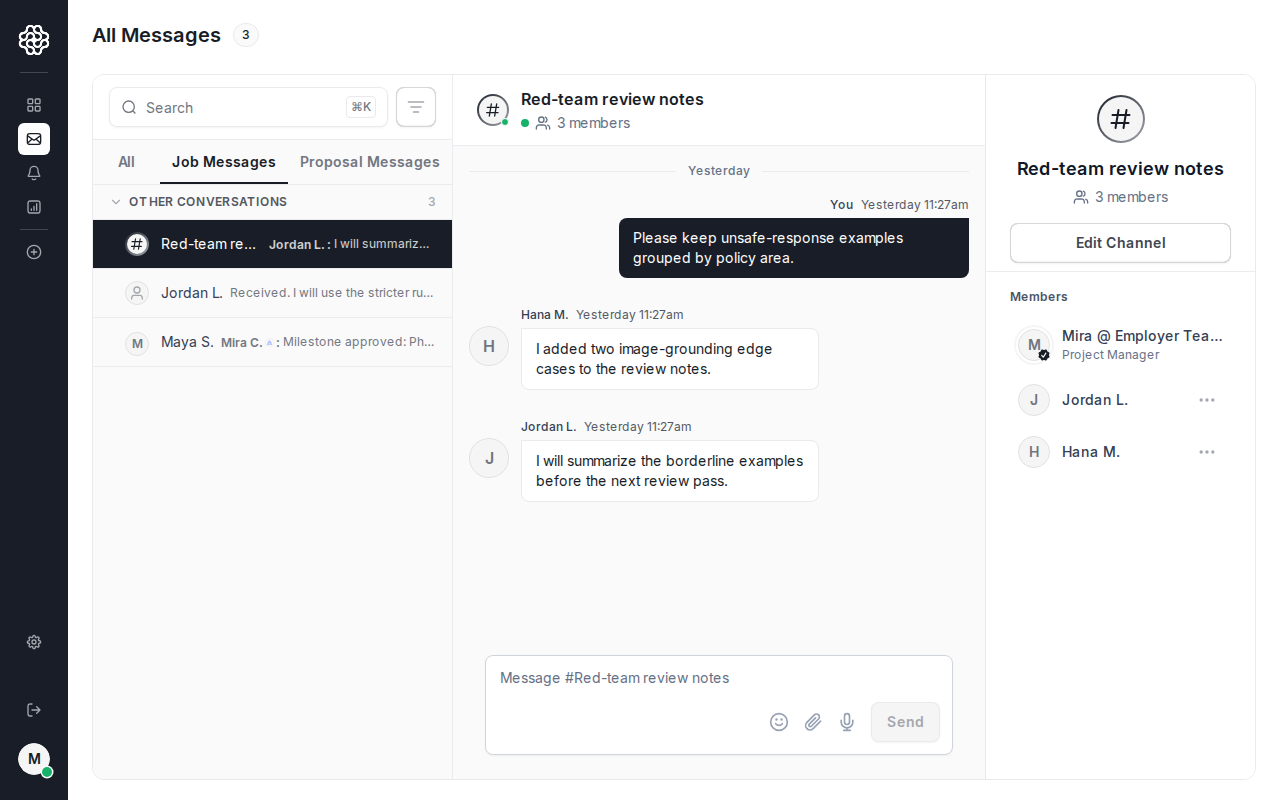
## Job channels
Job channels are group conversations you create for your job team. They're useful when you have multiple AI trainers working on the same job and need a shared space for updates, questions, or coordination.
 For complex jobs with multiple team members, create a dedicated channel early. Having a shared space for the whole team reduces duplicate messages and keeps everyone aligned without relying on individual DMs.
### Creating a channel
Navigate to the job in your employer dashboard and open the **Messages** tab.
Click the **+** or **Create channel** button to open the channel creation flow.
Give the channel a name that reflects its purpose — for example, `ProjectUpdates` or `DataQuestions`.
Select which hired AI trainers to include. You can add more participants later.
### Adding participants
After a channel is created, you can add participants at any time. Open the channel, click the channel name in the header to open channel settings, and use **Add participants** to include additional hired AI trainers.
You can also configure a channel to automatically include new hires for the job as they join the team.
## Finding job messages
All post-hire conversations — both Job DMs and Job Channels — appear in the **Job Messages** tab of your inbox.
You can filter further within that tab:
* **All** — every job conversation
* **Direct messages** — only 1:1 job DMs
* **Channels** — only group channels
## Messaging on mobile
The OpenTrain AI Android app is available for on-the-go communication. You can send and receive messages, check unread conversations, and stay connected with your job team from your phone.
Job messages and proposal messages appear in separate tabs. If you're looking for a conversation with a hired AI trainer and can't find it, make sure you're on the **Job Messages** tab — not Proposal Messages.
For complex jobs with multiple team members, create a dedicated channel early. Having a shared space for the whole team reduces duplicate messages and keeps everyone aligned without relying on individual DMs.
### Creating a channel
Navigate to the job in your employer dashboard and open the **Messages** tab.
Click the **+** or **Create channel** button to open the channel creation flow.
Give the channel a name that reflects its purpose — for example, `ProjectUpdates` or `DataQuestions`.
Select which hired AI trainers to include. You can add more participants later.
### Adding participants
After a channel is created, you can add participants at any time. Open the channel, click the channel name in the header to open channel settings, and use **Add participants** to include additional hired AI trainers.
You can also configure a channel to automatically include new hires for the job as they join the team.
## Finding job messages
All post-hire conversations — both Job DMs and Job Channels — appear in the **Job Messages** tab of your inbox.
You can filter further within that tab:
* **All** — every job conversation
* **Direct messages** — only 1:1 job DMs
* **Channels** — only group channels
## Messaging on mobile
The OpenTrain AI Android app is available for on-the-go communication. You can send and receive messages, check unread conversations, and stay connected with your job team from your phone.
Job messages and proposal messages appear in separate tabs. If you're looking for a conversation with a hired AI trainer and can't find it, make sure you're on the **Job Messages** tab — not Proposal Messages.