> ## Documentation Index
> Fetch the complete documentation index at: https://opentrain.ai/docs/llms.txt
> Use this file to discover all available pages before exploring further.
# Set up your employer team
> Invite teammates, manage your organization profile, and control which jobs and folders each teammate can open.
Use your employer team when more than one person needs to help post jobs, review candidates, manage project access, or coordinate work in OpenTrain AI.
Only organization owners can invite people to the team, remove team members, and manage organization-level settings. Team members can work on the jobs and folders they have access to.
## Open team settings
Sign in to [app.opentrain.ai](https://app.opentrain.ai), open **Employer Settings**, and select **Team**.
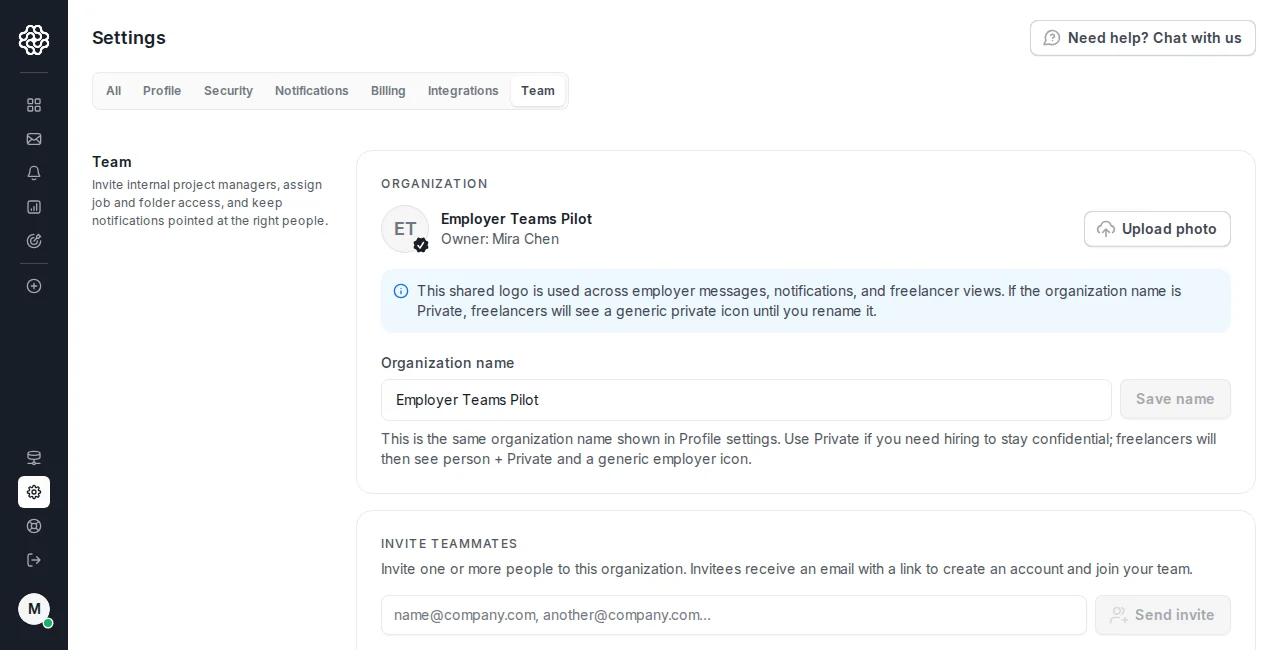 ## Invite a teammate
In **Invite teammates**, enter one or more email addresses. Press **Enter**, comma, or tab after each email address, then click **Send invite**.
## Invite a teammate
In **Invite teammates**, enter one or more email addresses. Press **Enter**, comma, or tab after each email address, then click **Send invite**.
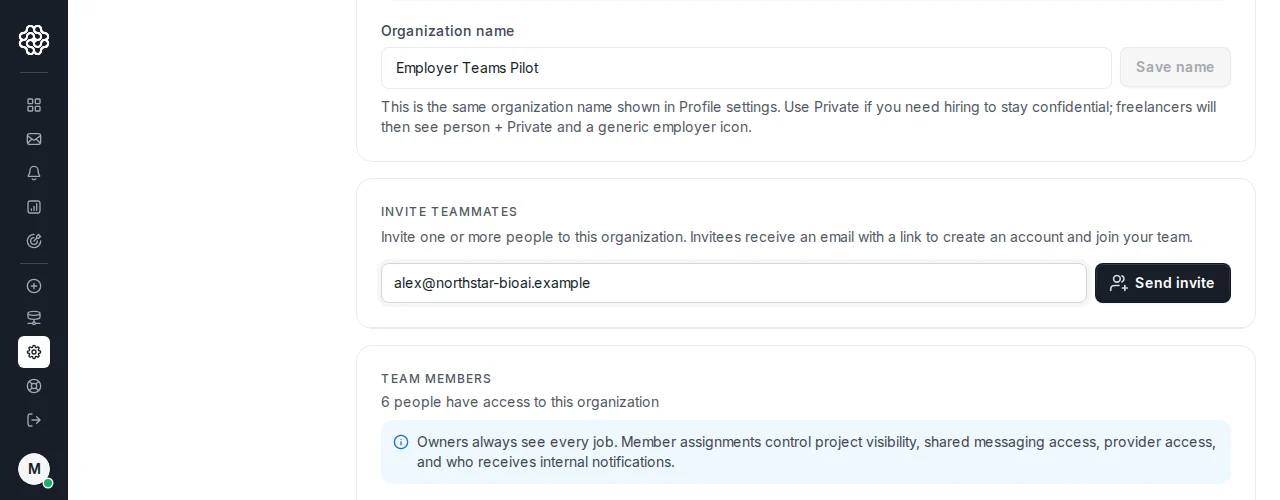 OpenTrain sends each invitee an email with a link to join your employer team. If the person already has an eligible employer account, OpenTrain can add them to the team. Otherwise, they create an employer account from the invite link.
## Confirm added teammates
Use **Team members** to confirm who already belongs to the organization, each person's role, and their current project access. After an invitee joins, this list is the confirmation state that they have been added to the employer team.
OpenTrain sends each invitee an email with a link to join your employer team. If the person already has an eligible employer account, OpenTrain can add them to the team. Otherwise, they create an employer account from the invite link.
## Confirm added teammates
Use **Team members** to confirm who already belongs to the organization, each person's role, and their current project access. After an invitee joins, this list is the confirmation state that they have been added to the employer team.
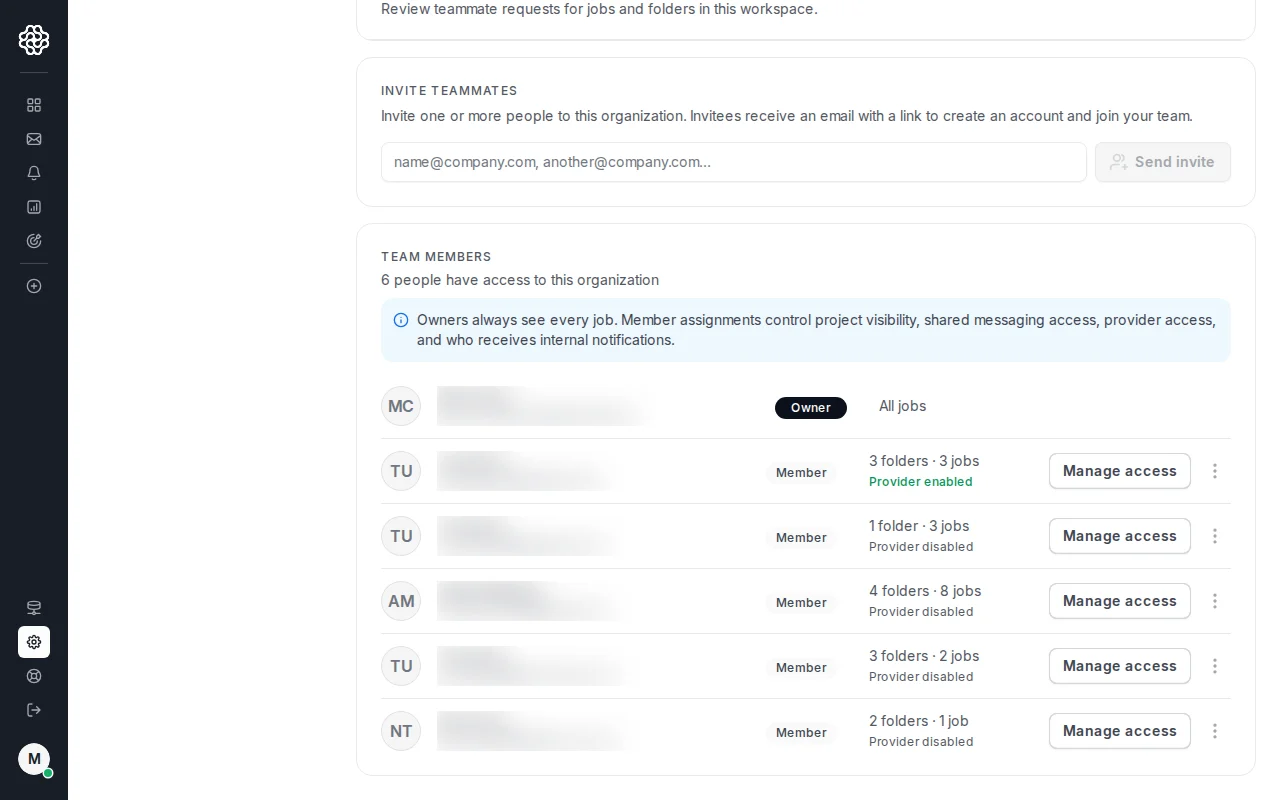 Owners always keep access to every job and folder. Other team members only see the jobs and folders assigned to them or shared with them.
## Manage a teammate's access
Click **Manage access** on a teammate row when you need to review or change that person's job and folder access.
Owners always keep access to every job and folder. Other team members only see the jobs and folders assigned to them or shared with them.
## Manage a teammate's access
Click **Manage access** on a teammate row when you need to review or change that person's job and folder access.
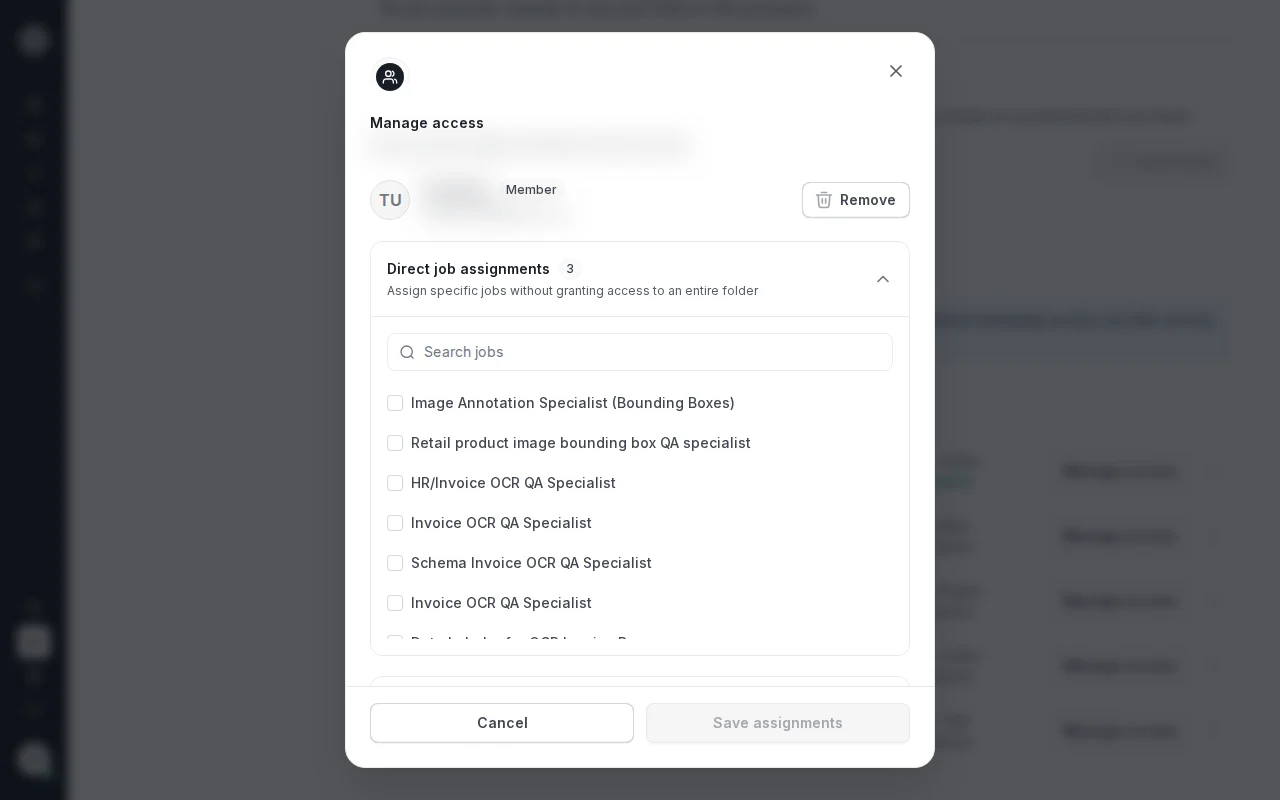 Project access controls which jobs and folders the teammate can open. It also affects shared project messaging and internal project notifications for that teammate.
## Remove a teammate
Use the teammate row menu when someone should no longer belong to the organization. Removing a teammate removes their organization membership and their access to jobs and folders in that organization.
If you only need to remove access to one job or folder, use **Manage access** or the project sharing page instead of removing the teammate from the organization.
## How this relates to project sharing
Team setup controls who can belong to the organization. Project sharing controls which existing teammates can open a specific job or folder.
After a teammate has joined the organization, use [Share projects with teammates](/docs/employers/sharing-projects) to share a standalone job or folder with them.
Project access controls which jobs and folders the teammate can open. It also affects shared project messaging and internal project notifications for that teammate.
## Remove a teammate
Use the teammate row menu when someone should no longer belong to the organization. Removing a teammate removes their organization membership and their access to jobs and folders in that organization.
If you only need to remove access to one job or folder, use **Manage access** or the project sharing page instead of removing the teammate from the organization.
## How this relates to project sharing
Team setup controls who can belong to the organization. Project sharing controls which existing teammates can open a specific job or folder.
After a teammate has joined the organization, use [Share projects with teammates](/docs/employers/sharing-projects) to share a standalone job or folder with them.