> ## Documentation Index
> Fetch the complete documentation index at: https://opentrain.ai/docs/llms.txt
> Use this file to discover all available pages before exploring further.
# Post a job
> Create and publish an employer job with the guided wizard, screening requirements, budget, and final review.
Posting a job turns your project brief into structured requirements that OpenTrain can use for matching, screening, proposal review, and hiring.
## Start from the dashboard
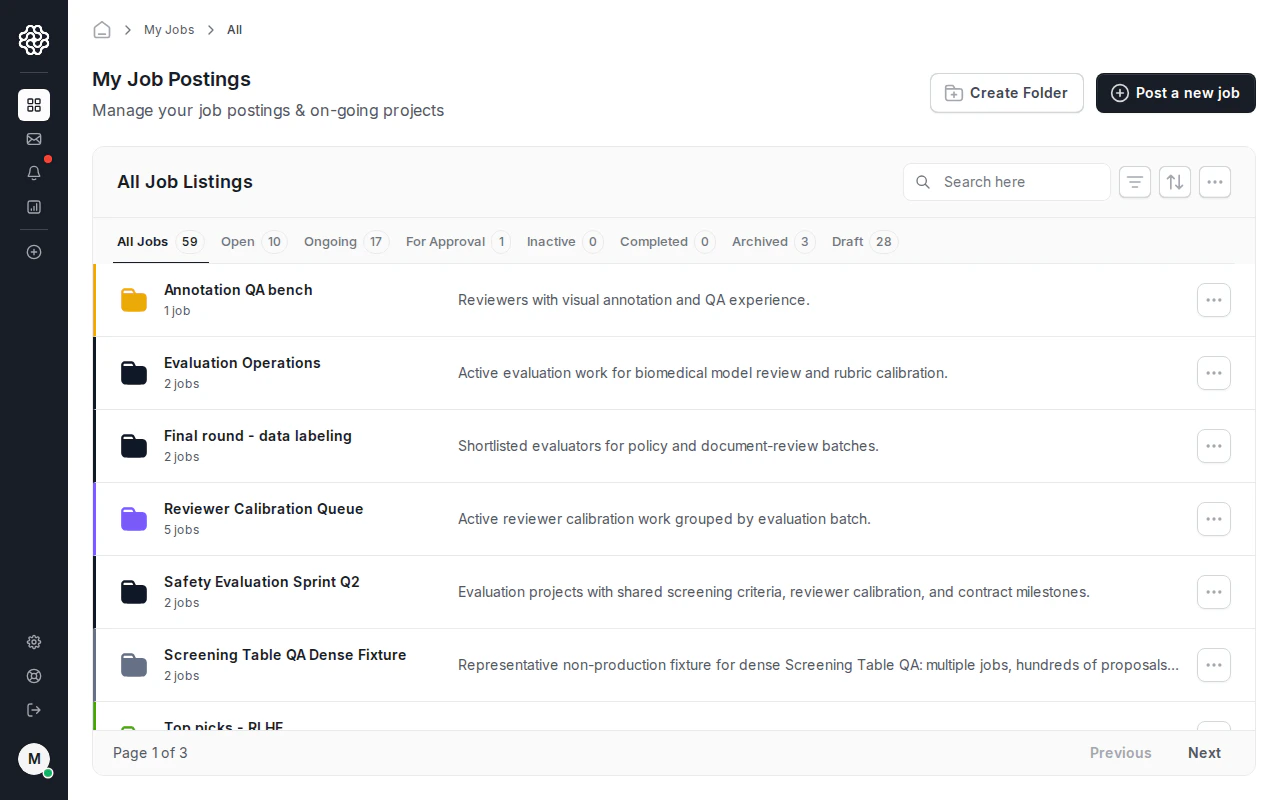
From **My Jobs**, click **Post a new job**.
 ## Add the job title and description
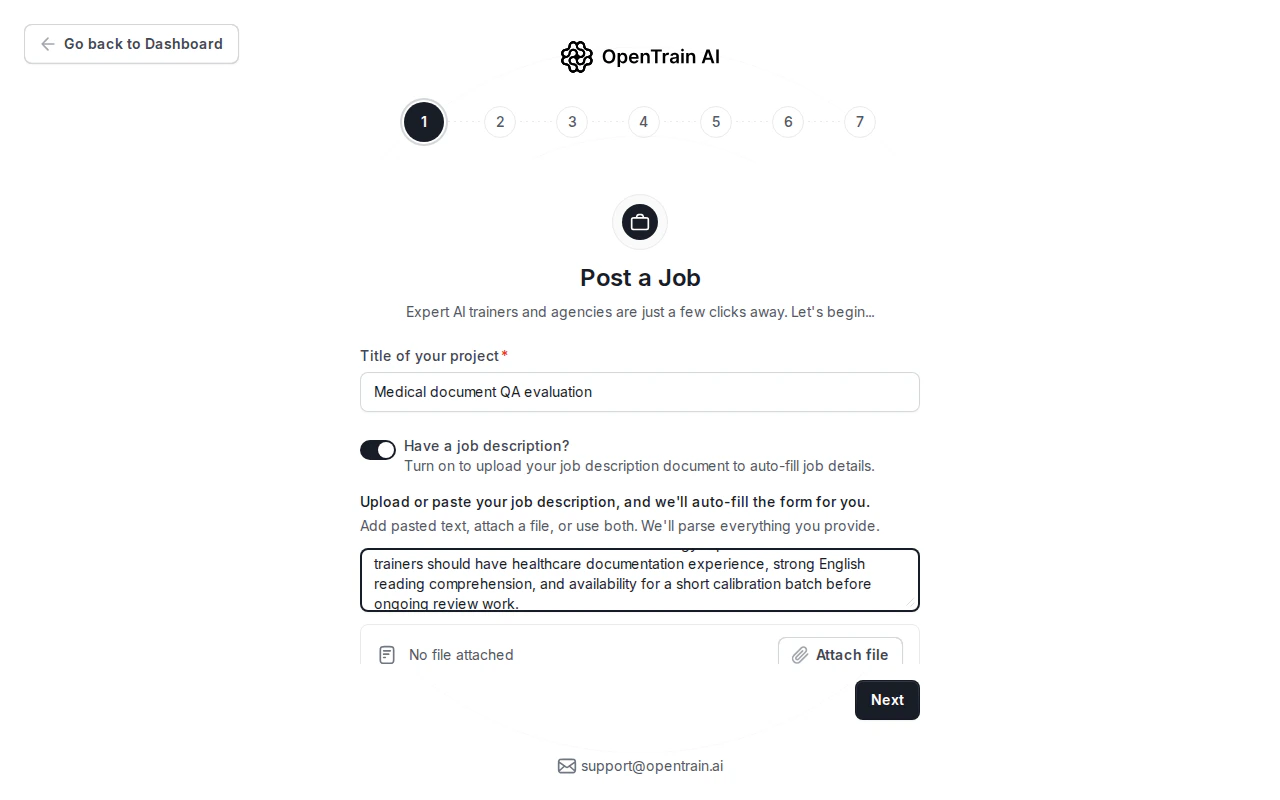
Start with the title. If you already have a brief, turn on **Have a job description?** and paste the text or attach a PDF. OpenTrain uses this content to help fill later wizard fields.
## Add the job title and description
Start with the title. If you already have a brief, turn on **Have a job description?** and paste the text or attach a PDF. OpenTrain uses this content to help fill later wizard fields.
 ## Review the structured details
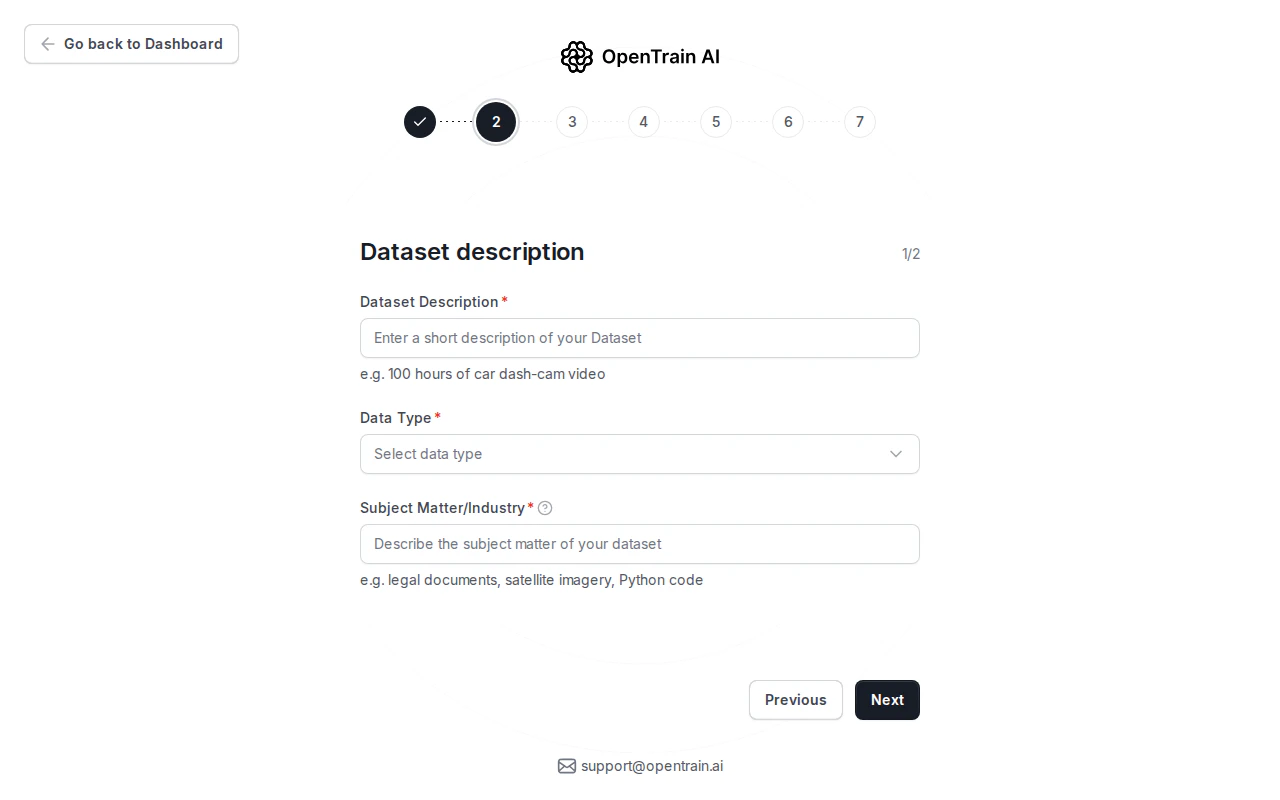
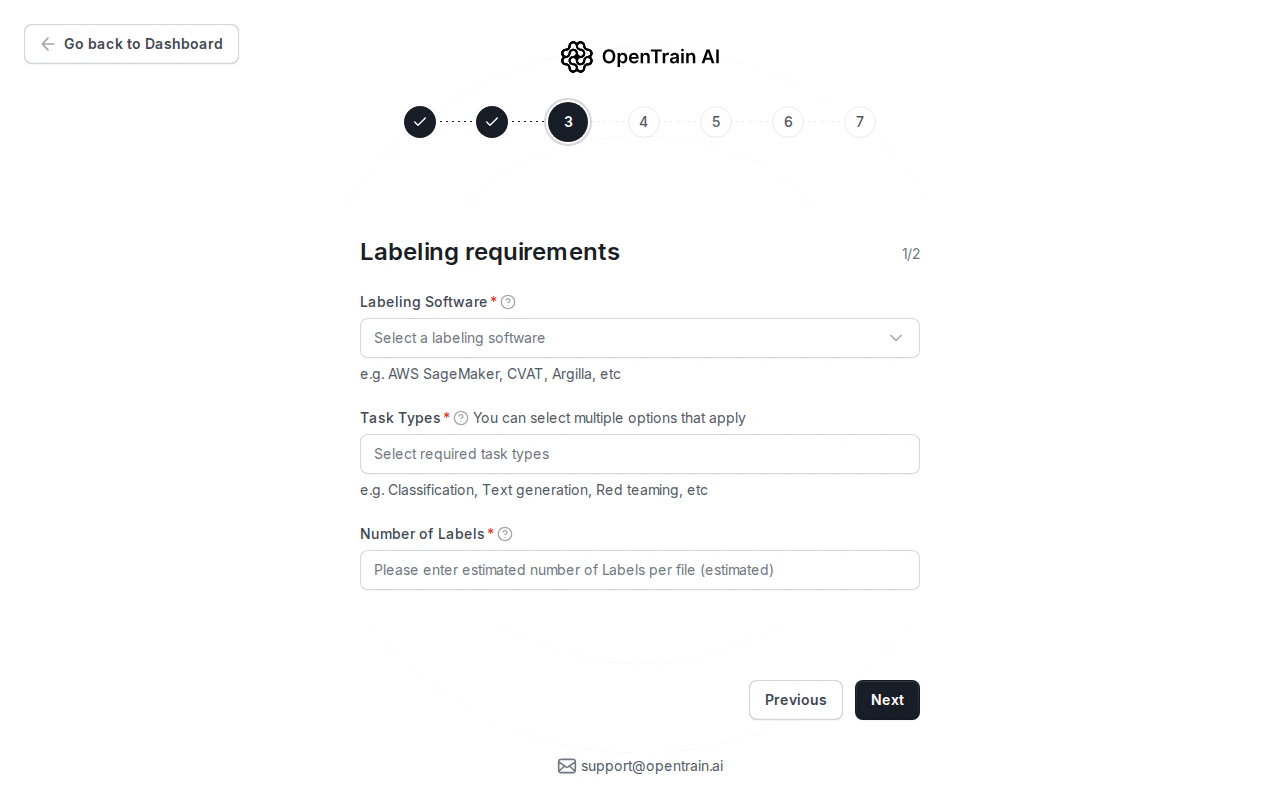
The next steps ask for the data type, subject matter, task type, tools, volume, location rules, and languages. Review these fields carefully because they drive matching and screening.
## Review the structured details
The next steps ask for the data type, subject matter, task type, tools, volume, location rules, and languages. Review these fields carefully because they drive matching and screening.
 ## Configure screening
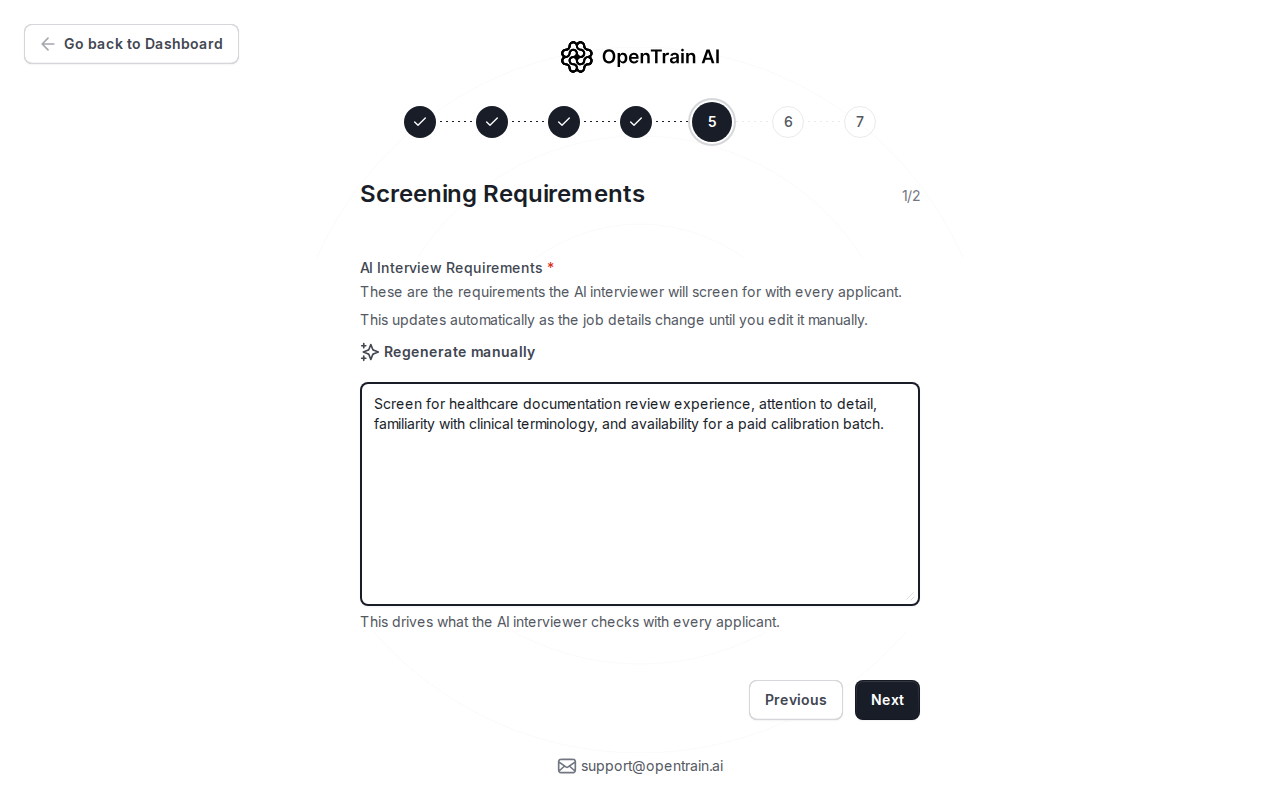
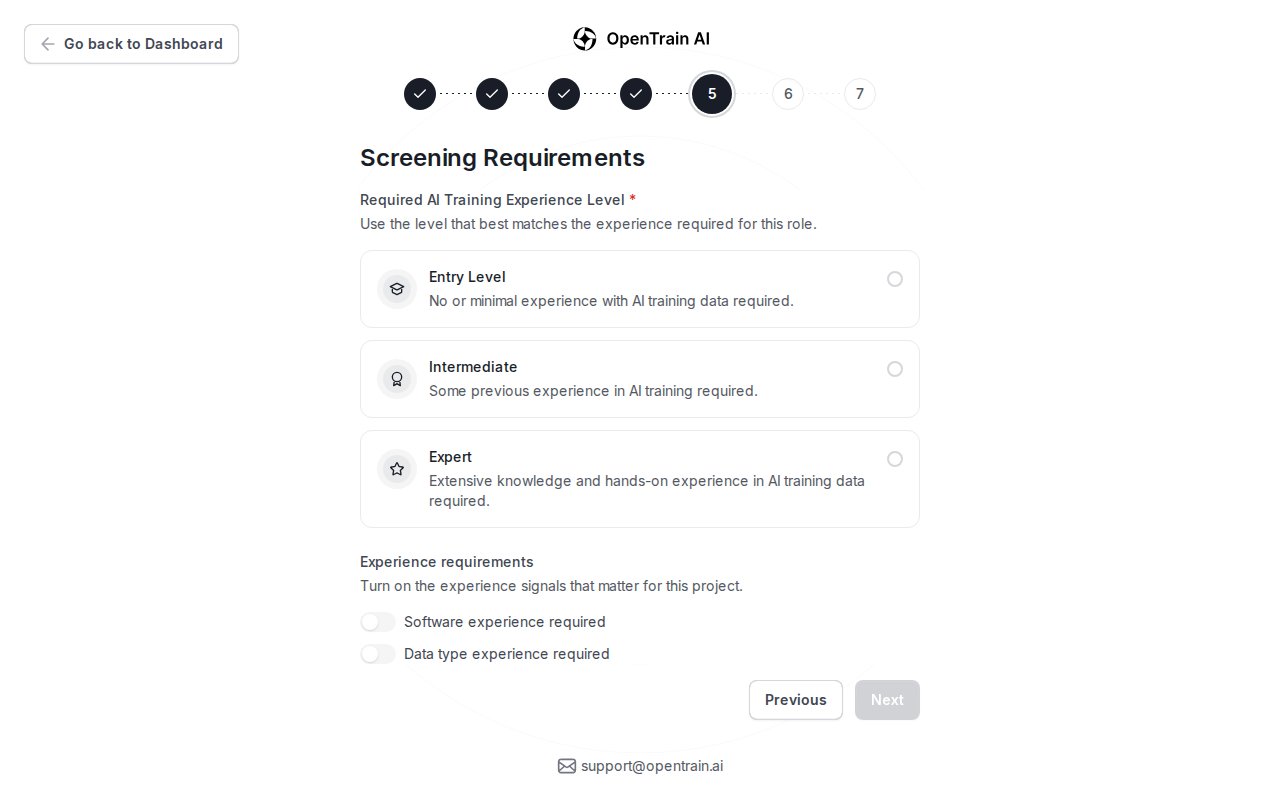
Use screening to collect comparable candidate evidence before proposal review. Add interview requirements, choose the expected experience level, and enable the screening signals that are live for your job.
## Configure screening
Use screening to collect comparable candidate evidence before proposal review. Add interview requirements, choose the expected experience level, and enable the screening signals that are live for your job.
 ## Set the budget
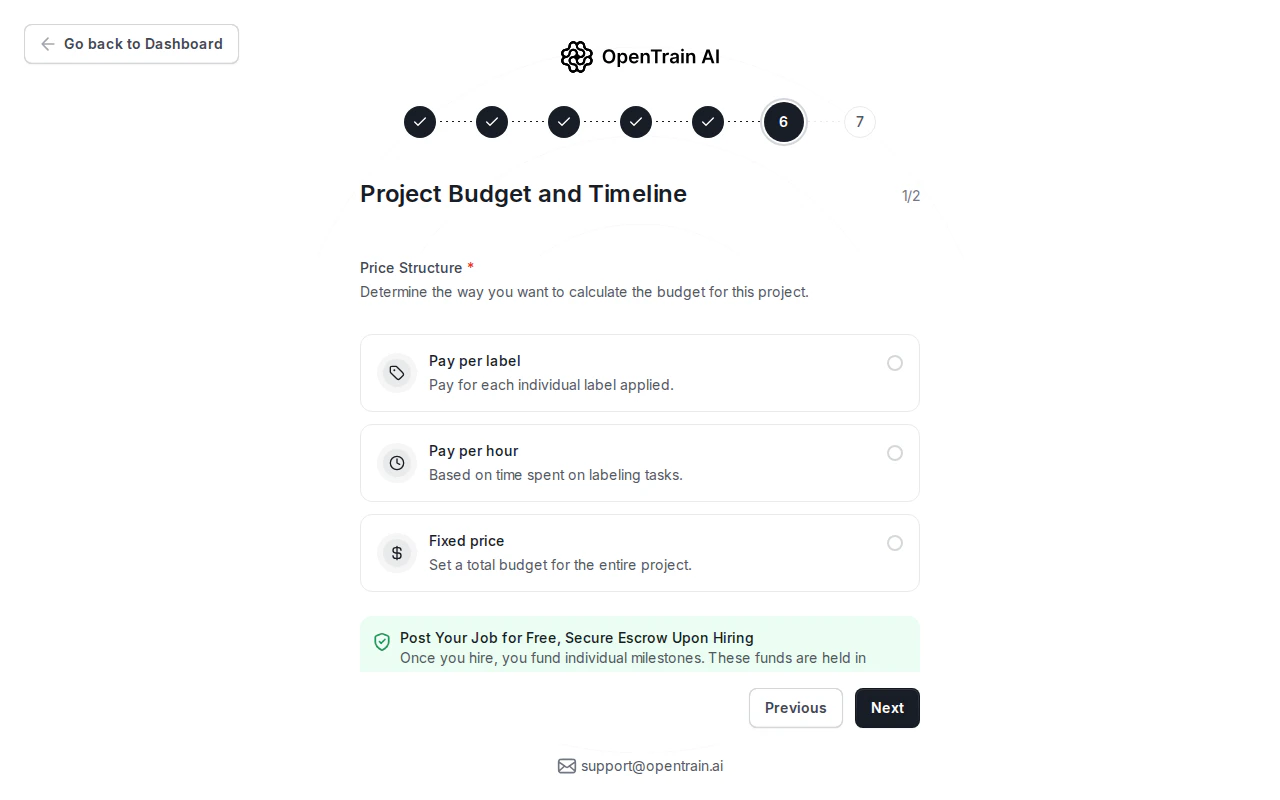
Choose the payment model for the job. You can use hourly, fixed-price, or per-label pricing where available. You do not fund the project when you publish; funding happens when you hire and create the first milestone.
## Set the budget
Choose the payment model for the job. You can use hourly, fixed-price, or per-label pricing where available. You do not fund the project when you publish; funding happens when you hire and create the first milestone.
 ## Review and publish
Use the final review step to check the public job description, screening settings, budget, and requirements. Publish only when the job is ready for candidates to see.
After publishing, OpenTrain saves the posting and can notify matched AI trainers who fit the requirements.
## Review and publish
Use the final review step to check the public job description, screening settings, budget, and requirements. Publish only when the job is ready for candidates to see.
After publishing, OpenTrain saves the posting and can notify matched AI trainers who fit the requirements.