> ## Documentation Index
> Fetch the complete documentation index at: https://opentrain.ai/docs/llms.txt
> Use this file to discover all available pages before exploring further.
# Employer overview
> See how employers use OpenTrain to post jobs, review screened AI trainers, hire, message, and manage payment.
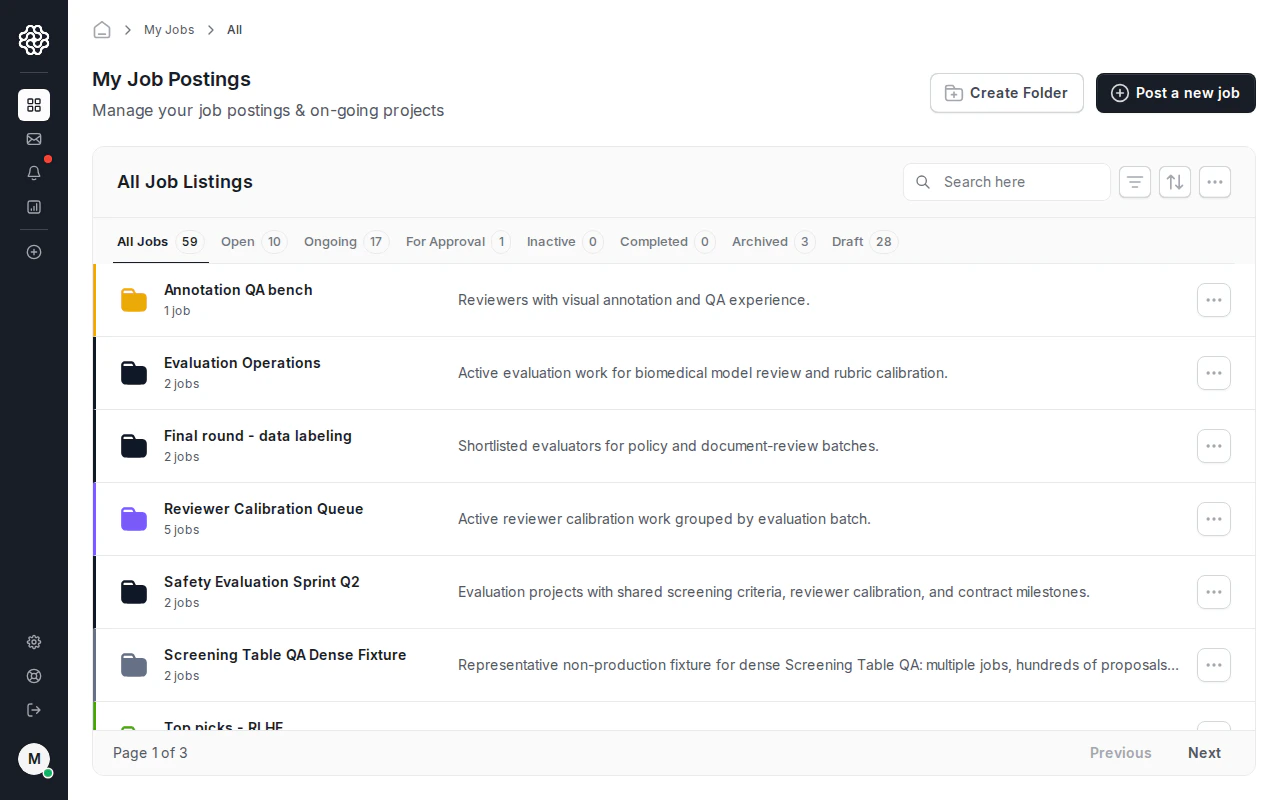
OpenTrain helps employers find, screen, hire, message, and pay AI trainers (data labelers). You can post a job, receive proposals from matched candidates, compare AI interview answers, hire directly, and manage the contract from the same employer workspace.
 ## What employers can do
* Post self-serve AI training and data-labeling jobs.
* Let OpenTrain match the job to relevant AI trainers.
* Require AI interview screening before proposals are submitted.
* Review proposal details, screening answers, rates, and candidate profiles.
* Message candidates before hiring.
* Hire AI trainers and fund the first milestone.
* Manage post-hire job messages, instructions, contracts, invoices, and payments.
## How the workflow fits together
Start from the employer dashboard and create a job in the guided wizard. You can paste a job description or upload a PDF, then review the structured job details before publishing.
OpenTrain uses the job requirements to notify relevant AI trainers. For recruiting-configured jobs, candidates complete an AI interview before they submit a proposal.
The job workspace shows proposals, interview scores, screening answers, rates, and candidate context so you can compare applicants faster than a manual spreadsheet review.
Use proposal messages for pre-hire questions. After hiring, use the job message thread for contract work and delivery coordination.
Hiring creates the contract, funds the first milestone, and opens the post-hire job workspace for the AI trainer.
Track funded milestones in the contract tab, approve completed work, and download invoices from reports.
## Why this is easier than manual sourcing
Manual sourcing usually means posting in multiple places, collecting unstructured applications, chasing candidates for screening answers, and rebuilding status tracking in a spreadsheet. OpenTrain turns that into one workflow:
* Job requirements are captured once in the posting wizard.
* Candidates answer the same screening questions before you review them.
* Proposal status, messages, hiring, milestones, and invoices stay tied to the job.
* Folder screening lets you compare candidates across related jobs or client projects.
## Go deeper
Walk through the job wizard from dashboard entry to screening, budget, and publish.
Compare proposals, screening evidence, rates, and candidate profiles before you hire.
Configure AI interview requirements and review the structured candidate answers.
Hire an AI trainer, fund the first milestone, and approve completed work.
Organize jobs in folders, invite teammates, and control who can open each job.
Set up payment methods, fund milestones, and download employer invoices.
## What employers can do
* Post self-serve AI training and data-labeling jobs.
* Let OpenTrain match the job to relevant AI trainers.
* Require AI interview screening before proposals are submitted.
* Review proposal details, screening answers, rates, and candidate profiles.
* Message candidates before hiring.
* Hire AI trainers and fund the first milestone.
* Manage post-hire job messages, instructions, contracts, invoices, and payments.
## How the workflow fits together
Start from the employer dashboard and create a job in the guided wizard. You can paste a job description or upload a PDF, then review the structured job details before publishing.
OpenTrain uses the job requirements to notify relevant AI trainers. For recruiting-configured jobs, candidates complete an AI interview before they submit a proposal.
The job workspace shows proposals, interview scores, screening answers, rates, and candidate context so you can compare applicants faster than a manual spreadsheet review.
Use proposal messages for pre-hire questions. After hiring, use the job message thread for contract work and delivery coordination.
Hiring creates the contract, funds the first milestone, and opens the post-hire job workspace for the AI trainer.
Track funded milestones in the contract tab, approve completed work, and download invoices from reports.
## Why this is easier than manual sourcing
Manual sourcing usually means posting in multiple places, collecting unstructured applications, chasing candidates for screening answers, and rebuilding status tracking in a spreadsheet. OpenTrain turns that into one workflow:
* Job requirements are captured once in the posting wizard.
* Candidates answer the same screening questions before you review them.
* Proposal status, messages, hiring, milestones, and invoices stay tied to the job.
* Folder screening lets you compare candidates across related jobs or client projects.
## Go deeper
Walk through the job wizard from dashboard entry to screening, budget, and publish.
Compare proposals, screening evidence, rates, and candidate profiles before you hire.
Configure AI interview requirements and review the structured candidate answers.
Hire an AI trainer, fund the first milestone, and approve completed work.
Organize jobs in folders, invite teammates, and control who can open each job.
Set up payment methods, fund milestones, and download employer invoices.