> ## Documentation Index
> Fetch the complete documentation index at: https://opentrain.ai/docs/llms.txt
> Use this file to discover all available pages before exploring further.
# Invoicing & payments
> Create and fund milestones, approve completed work, download invoices, and track employer payment history.
OpenTrain AI uses a milestone-based payment model. As an employer, you fund work in stages, review completed milestones, and approve payment release when the work is ready.
Hiring an AI trainer creates the contract and the first milestone. After that, the contract tab is where you manage funded work, add future milestones, approve completed work, and keep payment history tied to the job.
## Employer milestone workflow
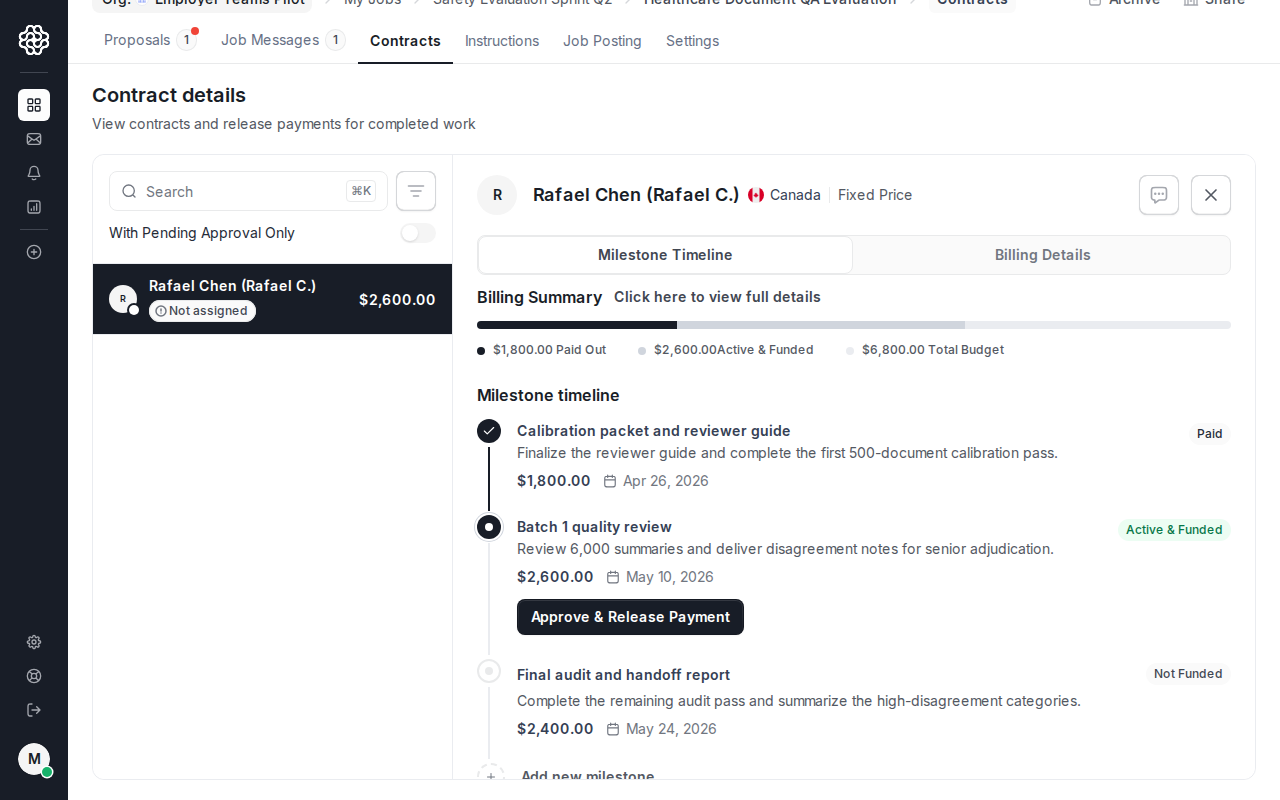
Milestones are discrete units of funded work tied to a contract. They live in the **Contract** tab for each hired AI trainer.
 ### Creating the first milestone
The first milestone is created during the hire flow. The amount and description you enter while hiring become the initial funded milestone for that AI trainer.
### Adding later milestones
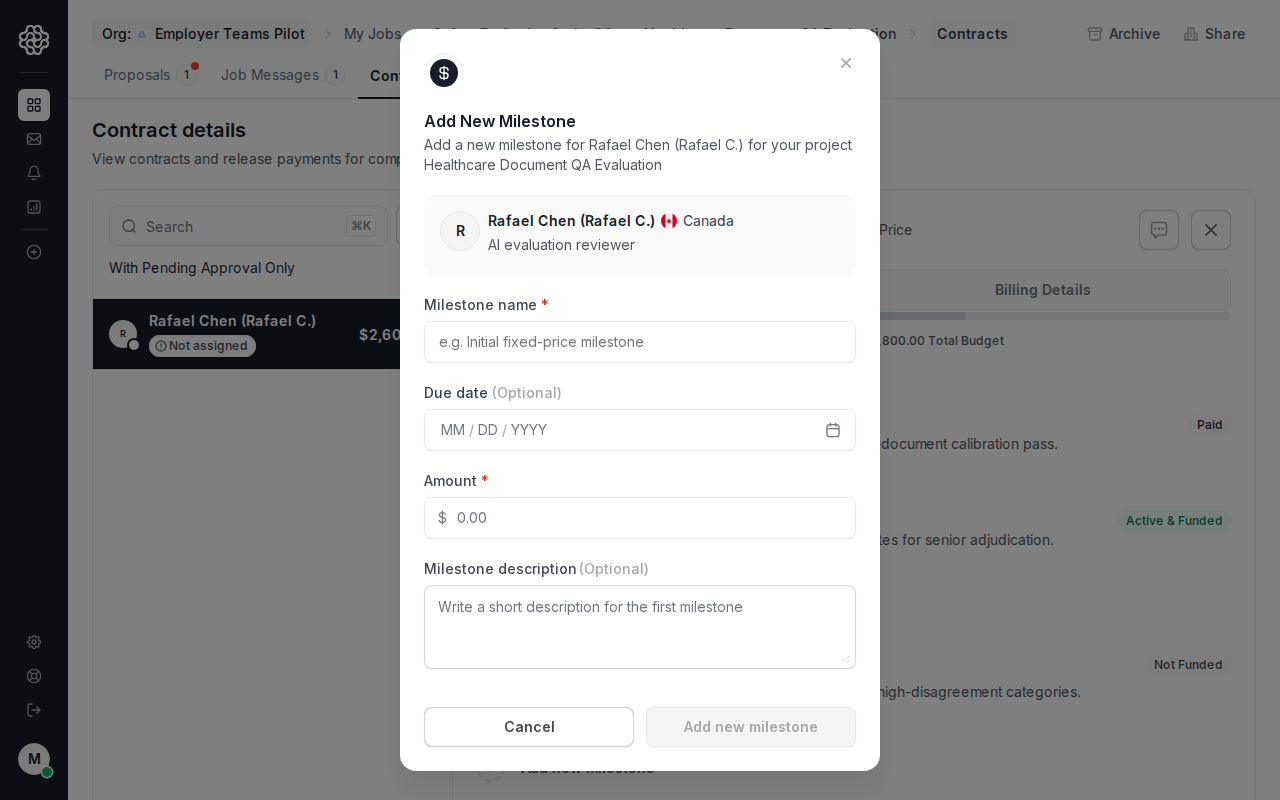
For subsequent work, go to the **Contract** tab of the job details view and add a new milestone from there.
Each milestone requires:
* A description of the deliverable
* An amount (in USD)
* An optional due date
### Creating the first milestone
The first milestone is created during the hire flow. The amount and description you enter while hiring become the initial funded milestone for that AI trainer.
### Adding later milestones
For subsequent work, go to the **Contract** tab of the job details view and add a new milestone from there.
Each milestone requires:
* A description of the deliverable
* An amount (in USD)
* An optional due date
 ### Funding a milestone
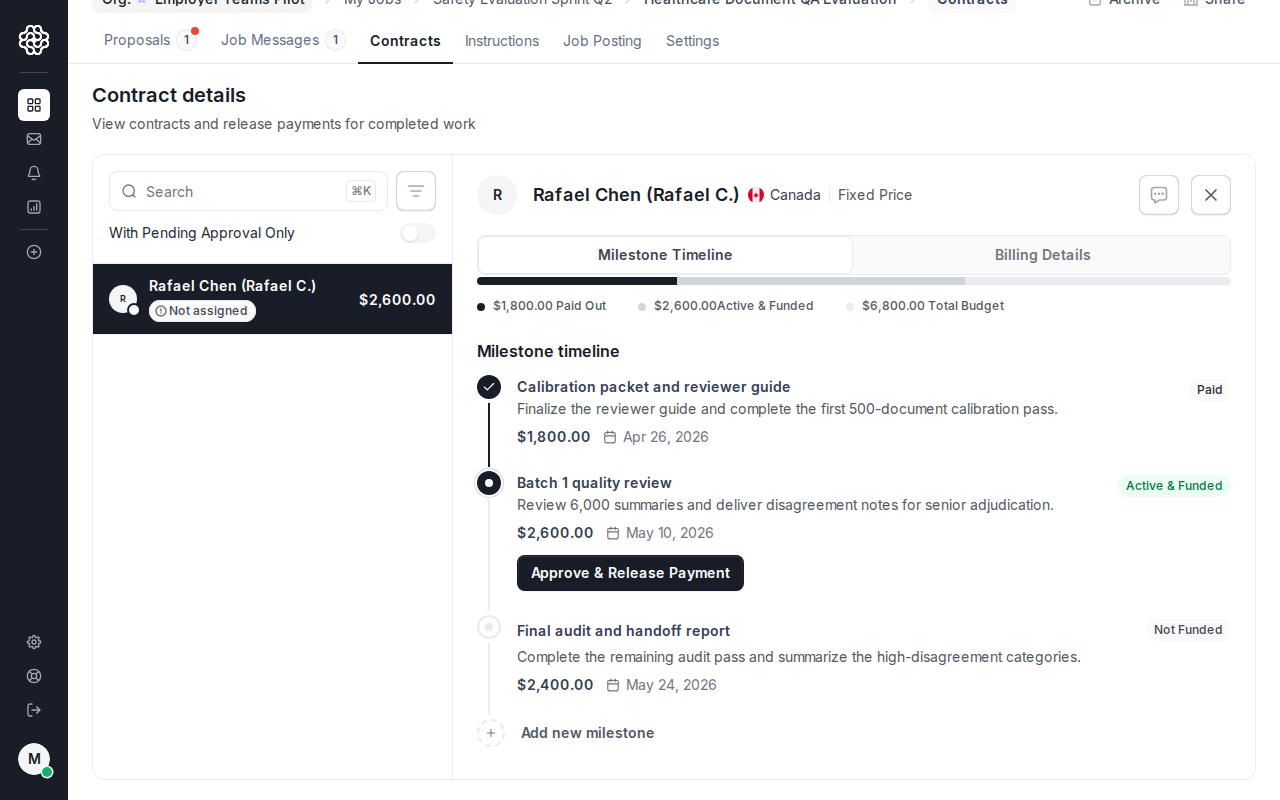
The first milestone is funded during the hire flow. Later milestones can be created before they are funded; they remain **Not Funded** until payment is collected.
When you fund a milestone, OpenTrain AI charges your payment method through Stripe and marks the milestone as funded on the contract. The AI trainer sees the milestone as **Active & Funded** and can begin work.
Milestones in **Not Funded** or **Active & Funded** status are shown in the **Contract** tab. Jobs with unresolved milestones cannot be archived.
### Approving a milestone
Once the AI trainer marks a milestone as complete, you receive a notification to review and approve. After you approve:
1. OpenTrain starts payout to the AI trainer's connected payout method
2. The milestone status updates to **Paid**
3. A payout notification is sent to the AI trainer
If the AI trainer still needs to finish payout setup, or if Stripe reports a retryable transfer condition, OpenTrain keeps the payout pending and prompts the AI trainer to complete setup from **Settings -> Payouts** before the payout can finish.
Approve milestones only after you have verified the delivered work. Released funds are not self-serve reversible in the platform; contact support if you need help with a payment dispute or mistaken approval.
### Funding a milestone
The first milestone is funded during the hire flow. Later milestones can be created before they are funded; they remain **Not Funded** until payment is collected.
When you fund a milestone, OpenTrain AI charges your payment method through Stripe and marks the milestone as funded on the contract. The AI trainer sees the milestone as **Active & Funded** and can begin work.
Milestones in **Not Funded** or **Active & Funded** status are shown in the **Contract** tab. Jobs with unresolved milestones cannot be archived.
### Approving a milestone
Once the AI trainer marks a milestone as complete, you receive a notification to review and approve. After you approve:
1. OpenTrain starts payout to the AI trainer's connected payout method
2. The milestone status updates to **Paid**
3. A payout notification is sent to the AI trainer
If the AI trainer still needs to finish payout setup, or if Stripe reports a retryable transfer condition, OpenTrain keeps the payout pending and prompts the AI trainer to complete setup from **Settings -> Payouts** before the payout can finish.
Approve milestones only after you have verified the delivered work. Released funds are not self-serve reversible in the platform; contact support if you need help with a payment dispute or mistaken approval.
 ## Invoices
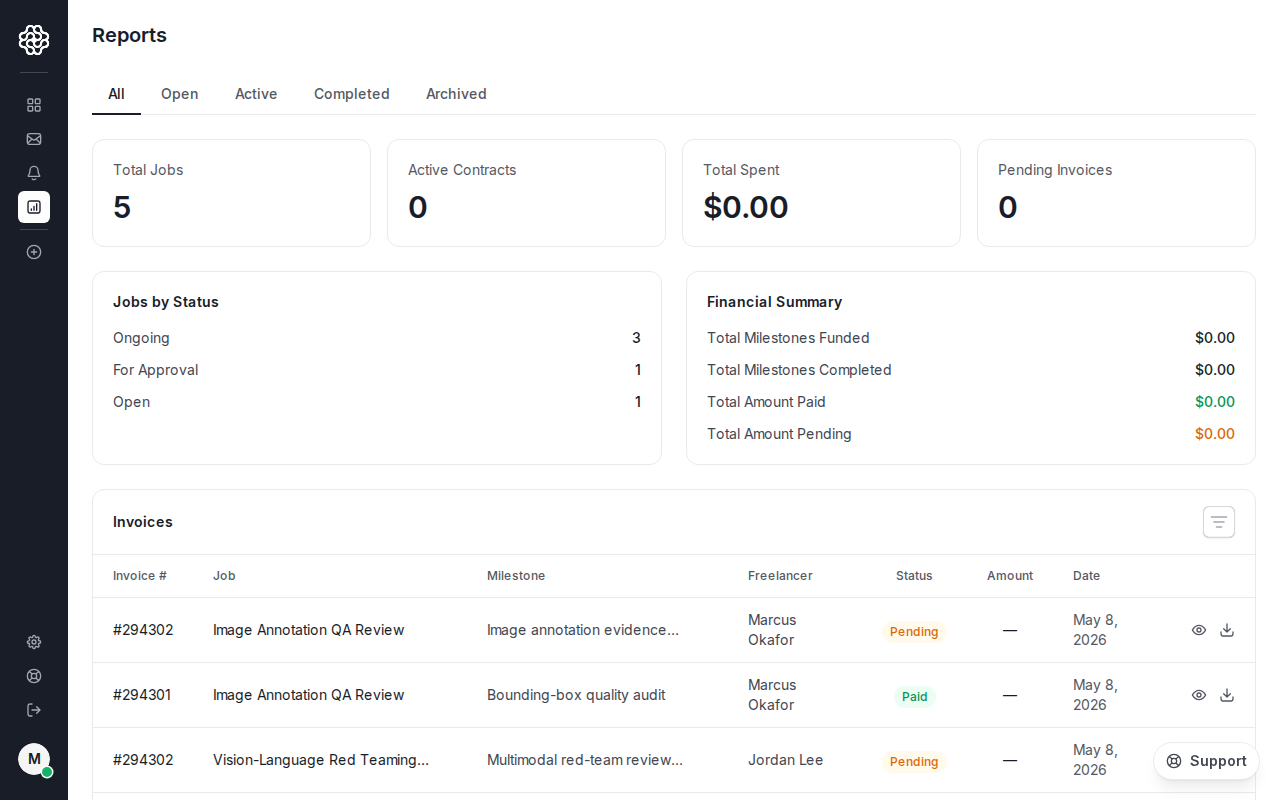
To view and download employer invoices, open **Reports** from the employer dashboard.
## Invoices
To view and download employer invoices, open **Reports** from the employer dashboard.
 ### Employer funding invoice
Every time you fund a milestone, OpenTrain AI generates an employer invoice. You can view or download this invoice from the **Reports** section of your dashboard. The invoice includes:
* Project name and milestone description
* Billing type and amount
* Payment status
### AI trainer payout invoice
When a milestone is approved and payout starts, the AI trainer receives a payout invoice. As an employer, you may need to reference this invoice when reconciling payments with clients.
## Stripe billing setup
OpenTrain AI processes all employer payments through Stripe. Before you can fund your first milestone, you need a valid payment method attached to your account.
Navigate to **Employer Settings → Billing** (or your agency plan settings if you are on an agency plan).
Enter your card or bank details. OpenTrain AI uses Stripe for secure payment processing — your payment information is stored by Stripe, not by OpenTrain AI.
Agency and recruiting-configured accounts may require a subscription plan. Select the appropriate plan and confirm billing. Subscription billing is separate from individual milestone charges.
## Payment history
To view past payments, go to the **Contract** tab for any job. Each approved milestone shows the amount, date, and payment status. For a printable record, use the invoice links in the **Reports** section of your dashboard, or share the AI trainer's payout invoice with your client.
### Employer funding invoice
Every time you fund a milestone, OpenTrain AI generates an employer invoice. You can view or download this invoice from the **Reports** section of your dashboard. The invoice includes:
* Project name and milestone description
* Billing type and amount
* Payment status
### AI trainer payout invoice
When a milestone is approved and payout starts, the AI trainer receives a payout invoice. As an employer, you may need to reference this invoice when reconciling payments with clients.
## Stripe billing setup
OpenTrain AI processes all employer payments through Stripe. Before you can fund your first milestone, you need a valid payment method attached to your account.
Navigate to **Employer Settings → Billing** (or your agency plan settings if you are on an agency plan).
Enter your card or bank details. OpenTrain AI uses Stripe for secure payment processing — your payment information is stored by Stripe, not by OpenTrain AI.
Agency and recruiting-configured accounts may require a subscription plan. Select the appropriate plan and confirm billing. Subscription billing is separate from individual milestone charges.
## Payment history
To view past payments, go to the **Contract** tab for any job. Each approved milestone shows the amount, date, and payment status. For a printable record, use the invoice links in the **Reports** section of your dashboard, or share the AI trainer's payout invoice with your client.