> ## Documentation Index
> Fetch the complete documentation index at: https://opentrain.ai/docs/llms.txt
> Use this file to discover all available pages before exploring further.

# Folders and team access

> Organize jobs in folders, invite teammates, and control which jobs or folders each teammate can open.

Folders help you group related jobs by client, campaign, hiring sprint, or workstream. Team access controls which teammates can open each job or folder.

## Set up the team first

Only organization owners can invite teammates. Open **Employer Settings -> Team** to add people to the organization.
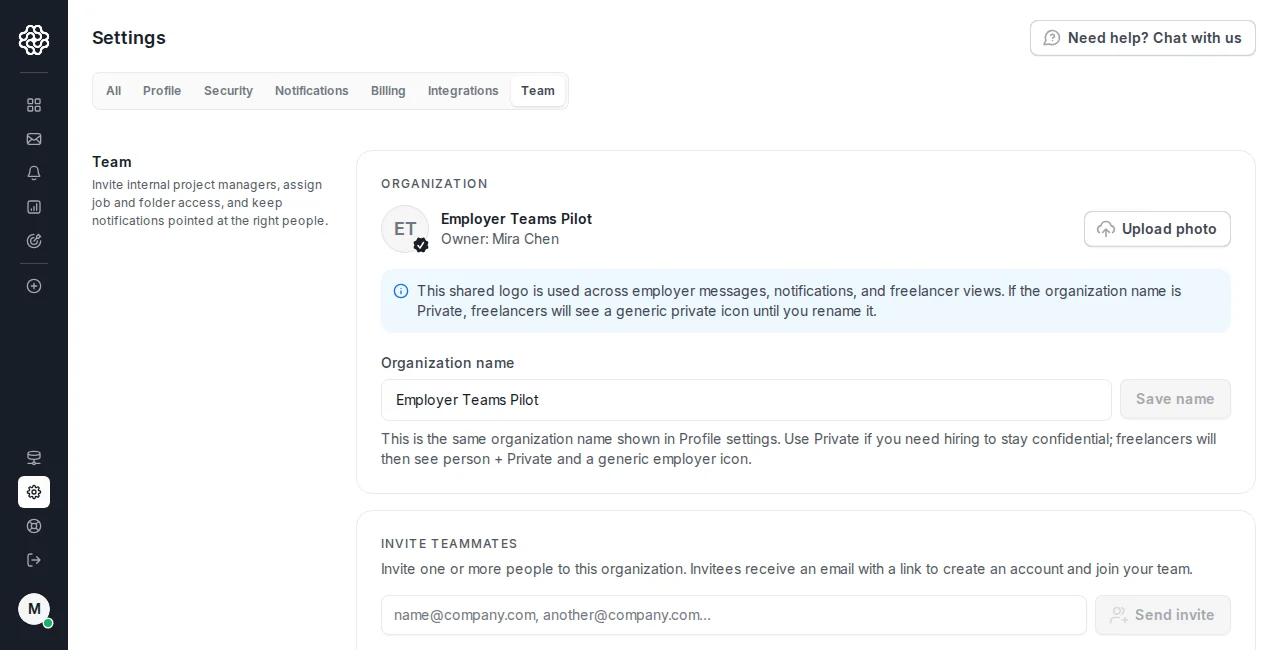
<Frame caption="The Team tab is where owners invite teammates and review organization membership.">
  <img src="https://mintcdn.com/opentrainai/IGwy7EZEWUCbMb_H/images/screenshots/employers/team-members/team-settings-overview-desktop.png?fit=max&auto=format&n=IGwy7EZEWUCbMb_H&q=85&s=8f3f6423749d23ddaf6a27e543ecf71d" alt="Employer Settings Team tab showing organization details, invite controls, and team management." width="1280" height="650" data-path="images/screenshots/employers/team-members/team-settings-overview-desktop.png" />
</Frame>

After the teammate joins, you can share jobs or folders with them.

## Share a job

Open the job and click **Share** in the job header.

<Frame caption="Use Share from the job header when a teammate needs access to one job.">
  <img src="https://mintcdn.com/opentrainai/bWe8Ey51mvJkerXg/images/screenshots/employers/project-sharing/01-job-header-share-button.png?fit=max&auto=format&n=bWe8Ey51mvJkerXg&q=85&s=eb3d7716e34390ffa47a0b3ebc59d039" alt="Focused crop of the job header showing the Share button highlighted next to Archive." width="360" height="96" data-path="images/screenshots/employers/project-sharing/01-job-header-share-button.png" />
</Frame>

Choose an existing teammate and save access.
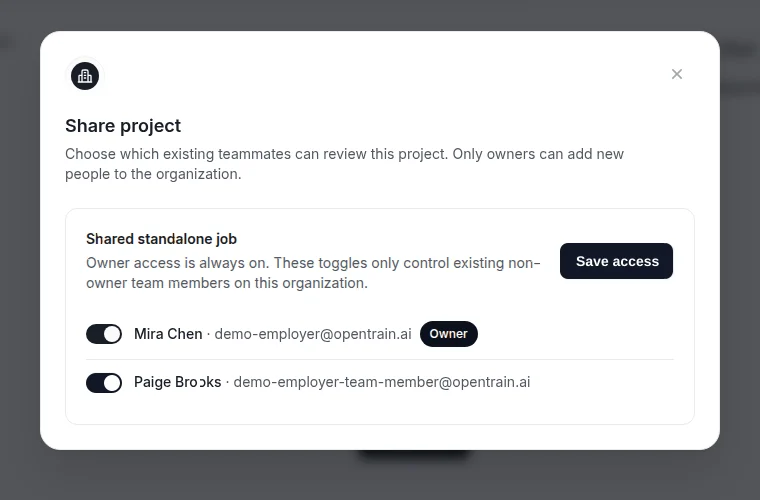
<Frame caption="The Share project modal lists existing teammates who can be given access to the job.">
  <img src="https://mintcdn.com/opentrainai/IGwy7EZEWUCbMb_H/images/screenshots/employers/project-sharing/02-share-project-modal.png?fit=max&auto=format&n=IGwy7EZEWUCbMb_H&q=85&s=20b87d064758c0308e83a996e97b0250" alt="Focused crop of the Share project modal showing an existing teammate selected and the Save access button enabled." width="760" height="500" data-path="images/screenshots/employers/project-sharing/02-share-project-modal.png" />
</Frame>

## Share a folder

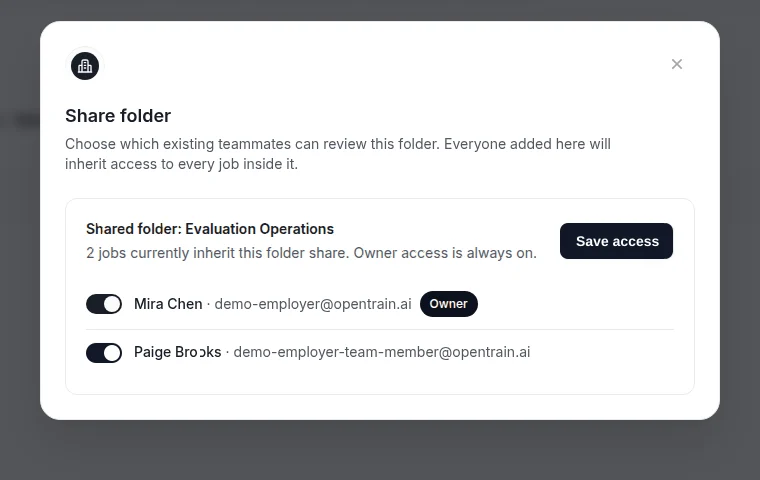
Open the folder detail page and use **Share** from the folder header. Everyone added to a folder share inherits access to the jobs inside that folder.

<Frame caption="Use the folder Share button when access should apply to the whole folder.">
  <img src="https://mintcdn.com/opentrainai/bWe8Ey51mvJkerXg/images/screenshots/employers/project-sharing/03-folder-header-share-button.png?fit=max&auto=format&n=bWe8Ey51mvJkerXg&q=85&s=85e57673ca2e0eff272f7736f1c7ae96" alt="Focused crop of the folder header showing the Share button highlighted between Archive and Add Job." width="420" height="96" data-path="images/screenshots/employers/project-sharing/03-folder-header-share-button.png" />
</Frame>

<Frame caption="The Share folder modal shows how many jobs inherit the folder share.">
  <img src="https://mintcdn.com/opentrainai/IGwy7EZEWUCbMb_H/images/screenshots/employers/project-sharing/04-share-folder-modal.png?fit=max&auto=format&n=IGwy7EZEWUCbMb_H&q=85&s=caec58a988cdc508c330f8ee7688d841" alt="Focused crop of the Share folder modal showing inherited job count, an existing teammate selected, and Save access enabled." width="760" height="480" data-path="images/screenshots/employers/project-sharing/04-share-folder-modal.png" />
</Frame>

## Review project access

Use **Job Settings -> Project access** when you need a more detailed access review.
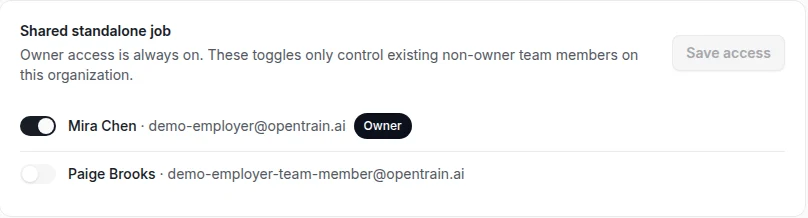
<Frame caption="Project access in Job Settings shows the full access list for a standalone job.">
  <img src="https://mintcdn.com/opentrainai/IGwy7EZEWUCbMb_H/images/screenshots/employers/project-sharing/05-job-settings-project-access.png?fit=max&auto=format&n=IGwy7EZEWUCbMb_H&q=85&s=f19169fa02e1958d07309afbc996a6b0" alt="Focused crop of the Project access card showing the owner row, teammate toggle, and Save access button." width="808" height="218" data-path="images/screenshots/employers/project-sharing/05-job-settings-project-access.png" />
</Frame>

Removing project access does not remove the person from your organization. To remove a teammate entirely, use **Employer Settings -> Team**.
