> ## Documentation Index
> Fetch the complete documentation index at: https://opentrain.ai/docs/llms.txt
> Use this file to discover all available pages before exploring further.
# Billing and payment methods
> Set up employer payment methods, fund milestones, approve completed work, and download invoices.
Employers use OpenTrain payments to fund milestones, approve completed work, and download invoice records.
## Add a payment method
Open employer billing settings before your first hire. OpenTrain uses Stripe for secure payment processing. Your payment details are handled by Stripe, not stored directly by OpenTrain.
## Fund work when you hire
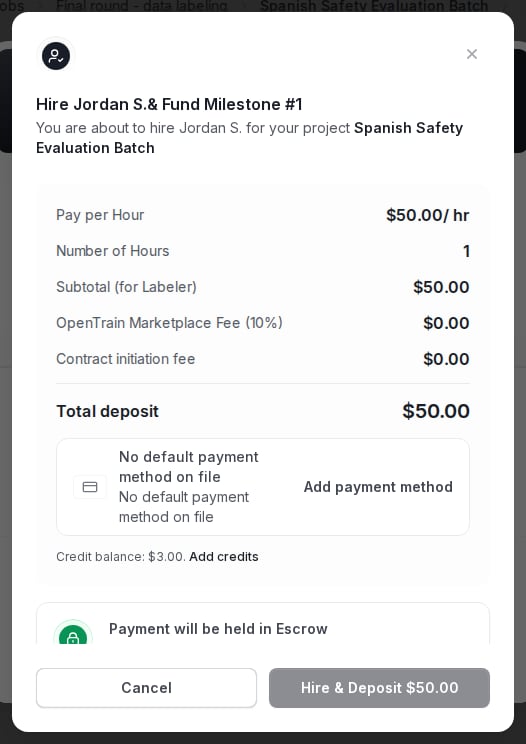
The first payment action usually happens in the hire flow. Review the milestone amount, deposit total, and payment method before confirming.
 ## Manage milestone payments
After hire, the **Contract** tab shows funded, not-funded, and paid milestones.
## Manage milestone payments
After hire, the **Contract** tab shows funded, not-funded, and paid milestones.
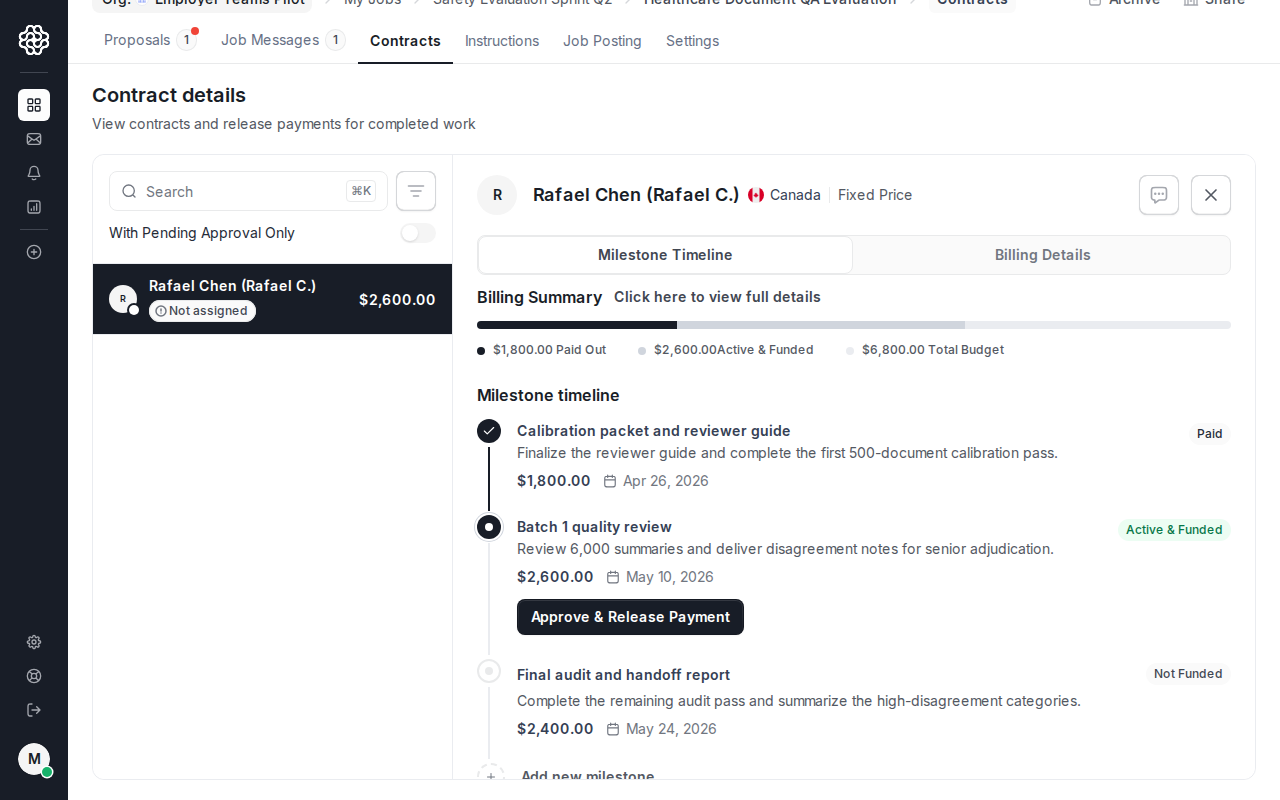 Approve completed work only after you have reviewed the deliverable.
## Download invoices
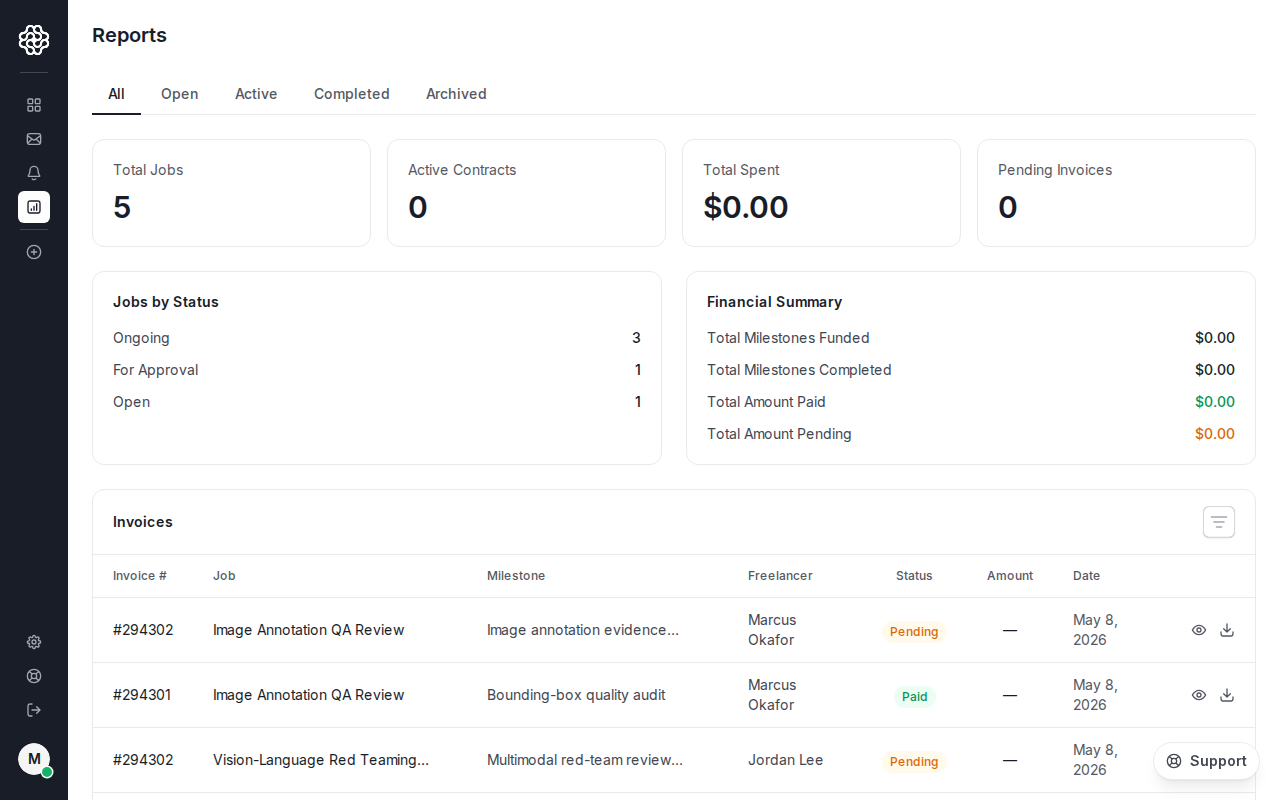
Use **Reports** to view and download employer invoices.
Approve completed work only after you have reviewed the deliverable.
## Download invoices
Use **Reports** to view and download employer invoices.
 ## Payment issues
Contact [support@opentrain.ai](mailto:support@opentrain.ai) if a payment method fails, a charge looks wrong, or you need help with a payment dispute. Do not send card numbers, bank account details, full invoices with private billing data, passwords, or verification codes in messages or email.
## Payment issues
Contact [support@opentrain.ai](mailto:support@opentrain.ai) if a payment method fails, a charge looks wrong, or you need help with a payment dispute. Do not send card numbers, bank account details, full invoices with private billing data, passwords, or verification codes in messages or email.